
Who Is Working Overview
The Who Is Working module gives a live view of your field technicians. It shows who is currently working, what they are doing, and where they are on a map, so dispatchers and managers can track progress without calling each technician.
Prerequisites
Before technicians can be tracked on the Who Is Working page, set up the following.
Step 1: Enable GPS Tracking and Automatic Clock In & Clock Out
Go to Settings > System Settings > Job and enable the following:
-
GPS Tracking: Select Enable GPS Tracking. This tracks the technician’s location during the job.
-
Location Update Interval: How often the technician’s location is updated, in seconds.
-
Tracking Alert Time: The time, in minutes, after which an alert is raised if no location update is received.
-
-
Enable Automatic Clock In & Clock Out: Turn on the toggle. Technicians are then clocked in when they arrive at the job location and clocked out when they leave.
Clock In Settings
-
Automatic Clock In: Clocks technicians in when they arrive at the job location.
-
Allow Early Clock In: How early a technician can be clocked in before the scheduled start time.
-
Minimum Time at Location: How long a technician must stay at the job location before being clocked in.
Clock Out Settings
-
Automatic Clock Out: Clocks technicians out when they leave the job location.
-
Grace Period After Leaving: How long a technician can stay outside the job location before being clocked out.

Step 2: Allow Tracking on the Job
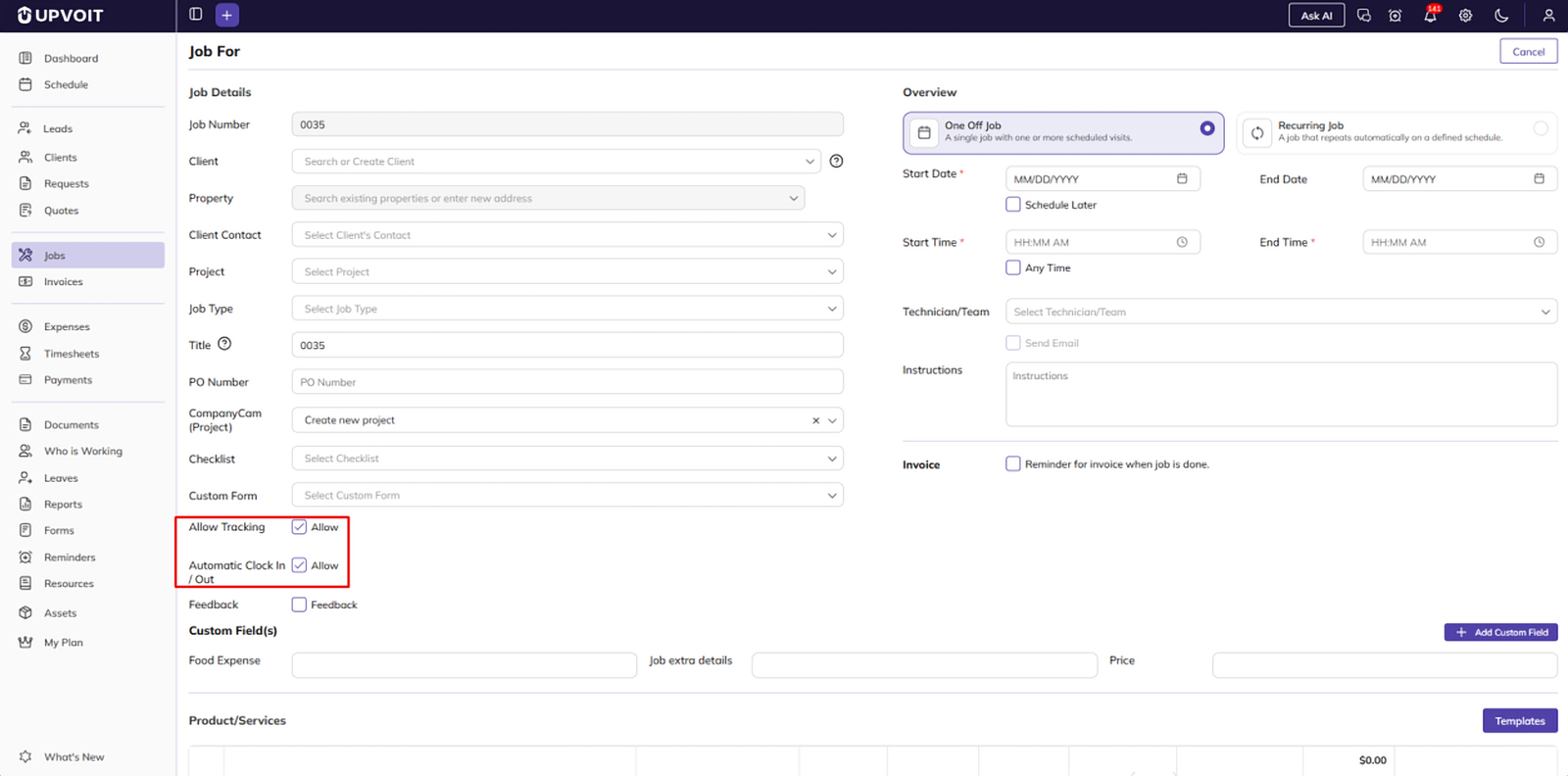
After Step 1, two new options appear on the job form. Open the job and select both:
-
Allow Tracking: Allows the technician’s location to be tracked for this job.
-
Automatic Clock In / Out: Allows the technician to be clocked in and out automatically for this job.
Step 3: Enable Day Tracking
Go to Settings > System Settings > Payroll and set Day Tracking to Yes. This tracks staff activity throughout the day, including hours, location, and movement between jobs.
-
Location Update Interval (seconds): How often the technician’s location is updated during the day.
Note: If both GPS Tracking and Day Tracking are enabled, Day Tracking takes priority, and its Location Update Interval is used.

Step 4: Give Access to Who Is Working
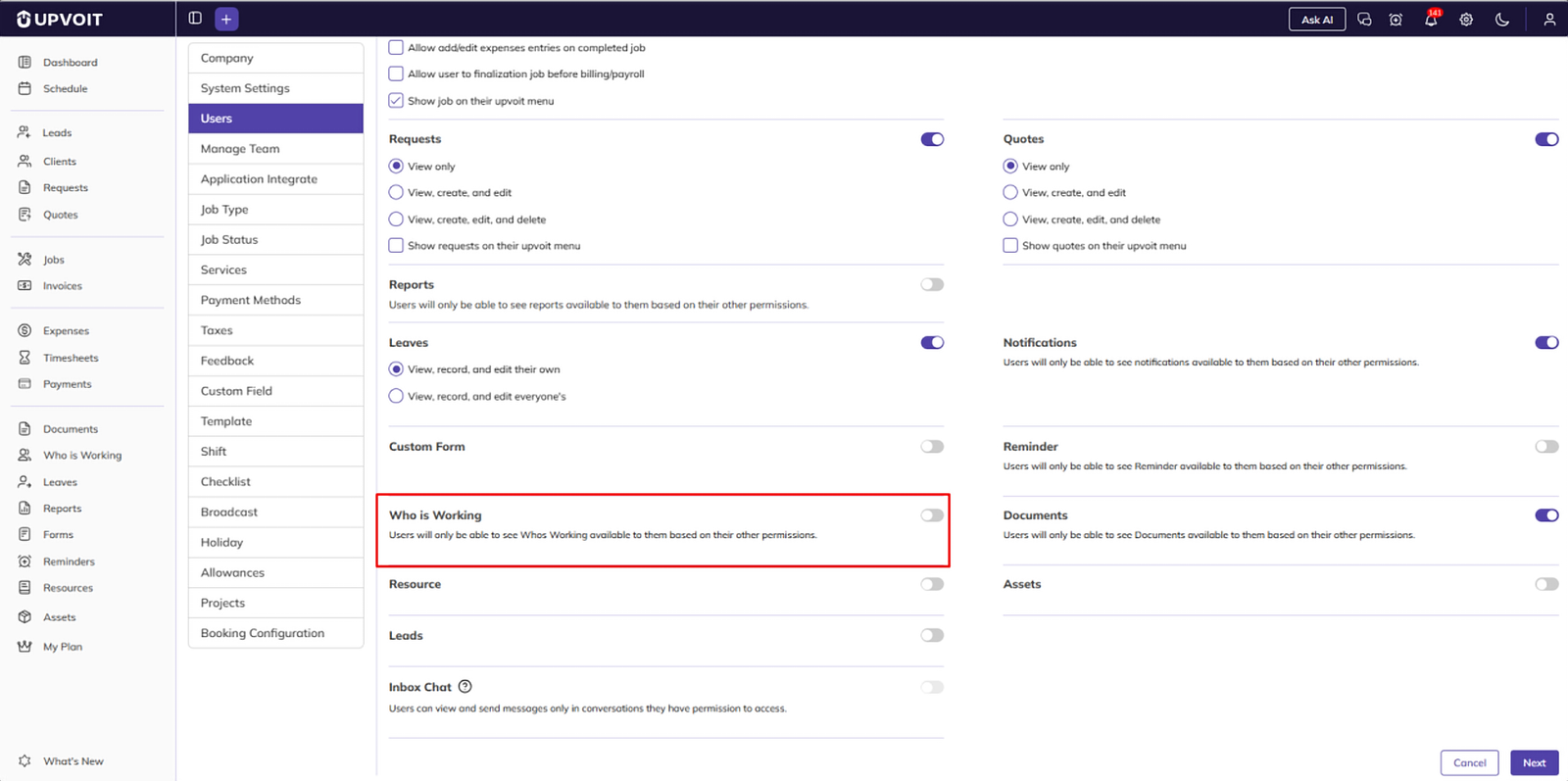
Users can view the Who Is Working page only if they have permission.
Go to Settings > Users, open the user, and in System Access, turn on Who is Working.
How These Settings Affect Day In
Whether technicians must do Day In before starting work depends on which settings are enabled:
-
Day Tracking and Automatic Clock In & Clock Out both enabled: Day In is mandatory.
-
Day Tracking enabled, Automatic Clock In & Clock Out disabled: Day In is mandatory.
-
Automatic Clock In & Clock Out enabled, Day Tracking disabled: Day In is mandatory.
-
Both disabled: Day In is not shown. Technicians tap On The Way and clock in and out of jobs directly. They still appear on the Who Is Working list.
Accessing Who Is Working
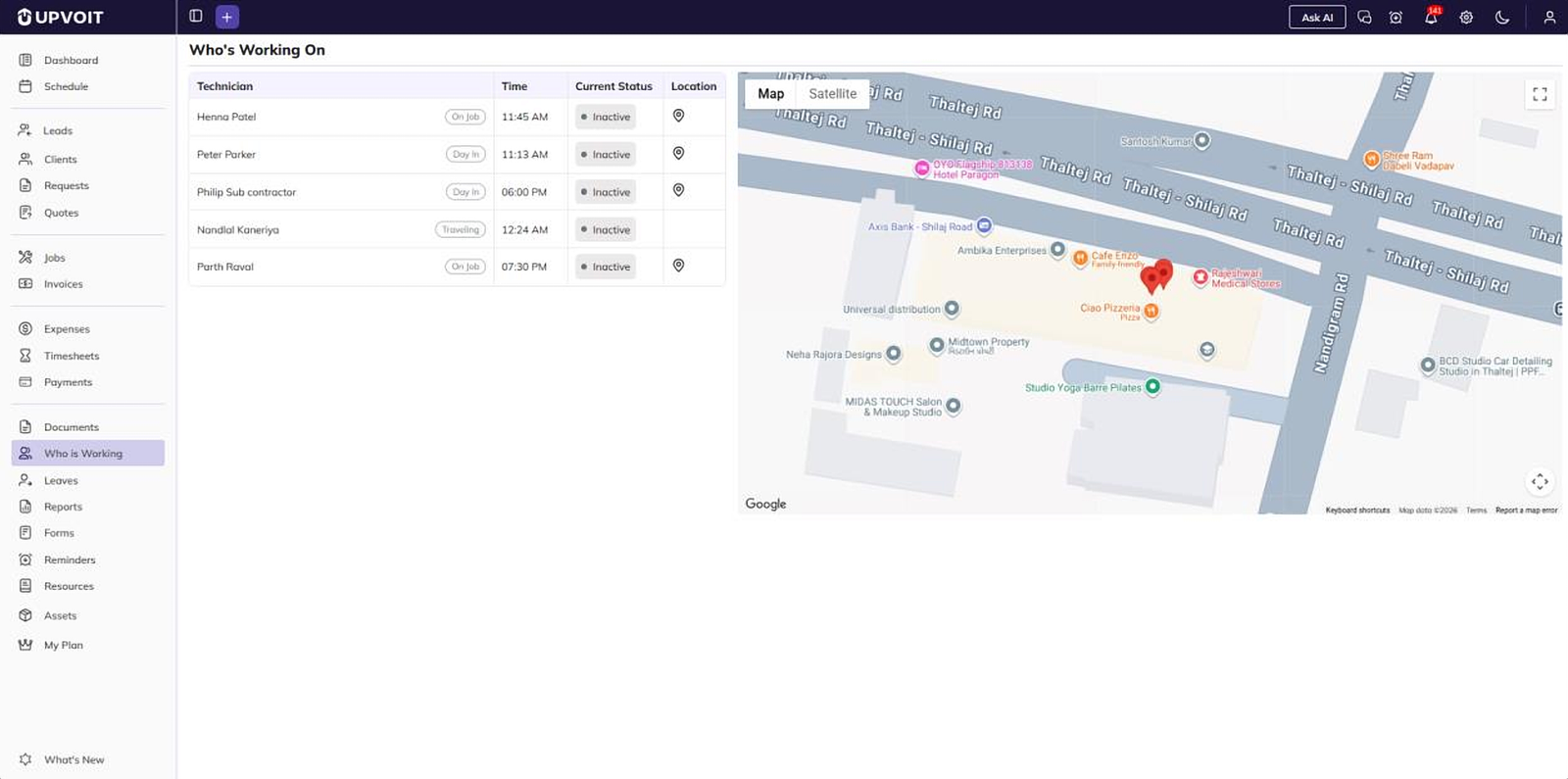
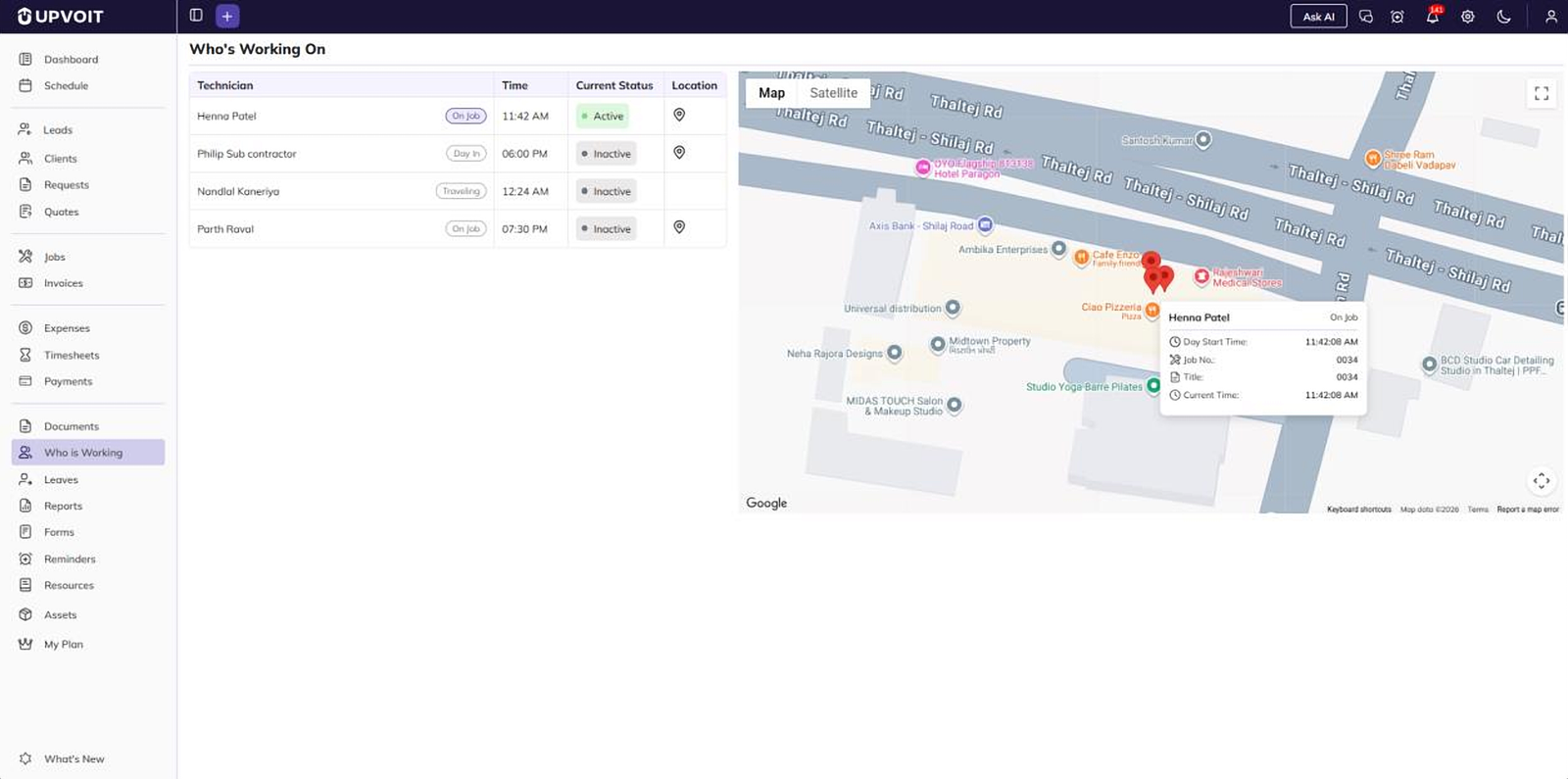
Click Who is Working in the left sidebar. The Who’s Working On page opens, with the technician list on the left and the map on the right.
Technician List
The list shows every technician who is currently working, until they clock out or end their day.
Columns
-
Technician: The technician’s name. The tag next to the name shows their current activity (see Technician Activity Flow below).
-
Time: The time of the technician’s last activity change, such as Day In, On The Way, or clock in. It updates every time the activity changes.
-
Current Status: Whether the technician is Active or Inactive (see Active and Inactive Status below).
-
Location: Click the pin icon to show the technician’s location and details on the map. The pin is not shown while the technician is Traveling.
Note: Details of active technicians update automatically. To see the latest status of other technicians, refresh the page.
Technician Activity Flow
As technicians move through their day, their tag changes in this order:
-
Day In: The technician starts their day. (Shown only when Day Tracking or Automatic Clock In & Clock Out is enabled.)
-
On The Way: The technician taps On The Way in the mobile app to head to the job.
-
Traveling: A few seconds after On The Way, the tag changes to Traveling while the technician is on the way to the job.
-
On Job: The technician reaches the job location and clocks in from the mobile app.
-
Clock Out / Day Out: The technician clocks out of the job or ends their day. They are then removed from the list.
Active and Inactive Status
-
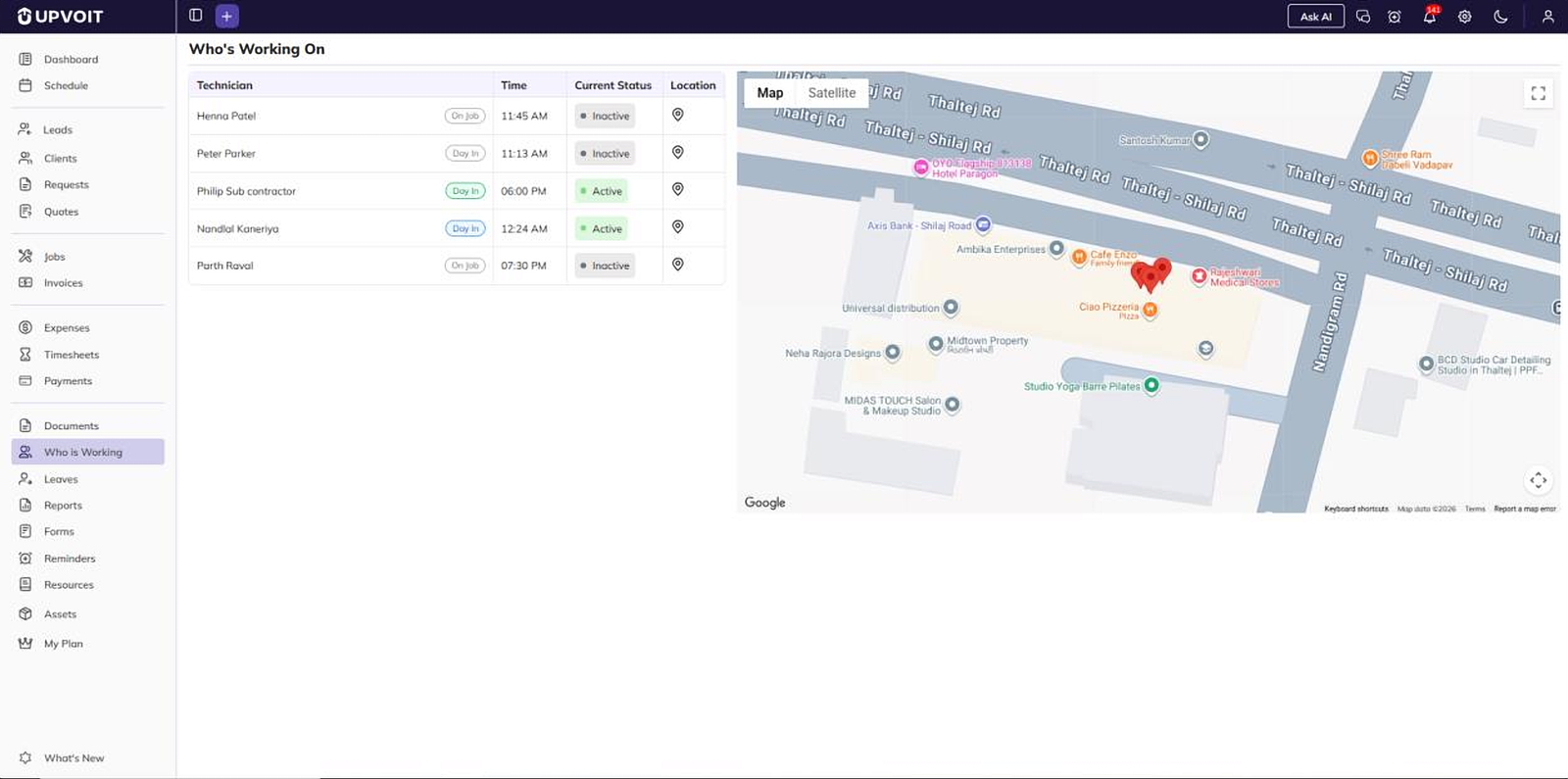
Active: The technician is logged in and has done Day In, tapped On The Way, or clocked in to a job.
-
Inactive: Shown in these cases:
-
The technician is Traveling. The status changes from Active to Inactive a few seconds after On The Way.
-
The technician logged out of the app without clocking out or doing Day Out.
-
A technician stays on the list until they clock out or do Day Out, even if they are Inactive.
Map View
The map shows each technician’s location as a red marker.
-
Map / Satellite: Switch between the street map and the satellite view.
-
Full Screen: Click the icon in the top-right corner to expand the map.
-
Zoom and Move: Scroll to zoom, and drag to move around the map.
Technician Details Card
Click the location pin in the list, or a marker on the map, to open the technician’s details card:
-
Technician Name and Status: Shown at the top of the card, with their current activity (for example, On Job).
-
Day Start Time: When the technician started their day.
-
Job No.: The job the technician is working on.
-
Title: The title of that job. If the job title was generated automatically or kept the same as the job number, it matches the Job No.
-
Current Time: The current time.
Did this answer your question?


