
Services Overview
Services is your list of the products and services your company sells, with their prices, costs and tax settings. Services are added as line items on requests, quotes, work orders and invoices, so you don’t need to enter the details each time.
To open it, click the gear icon and then Services in the Settings menu.
View Services
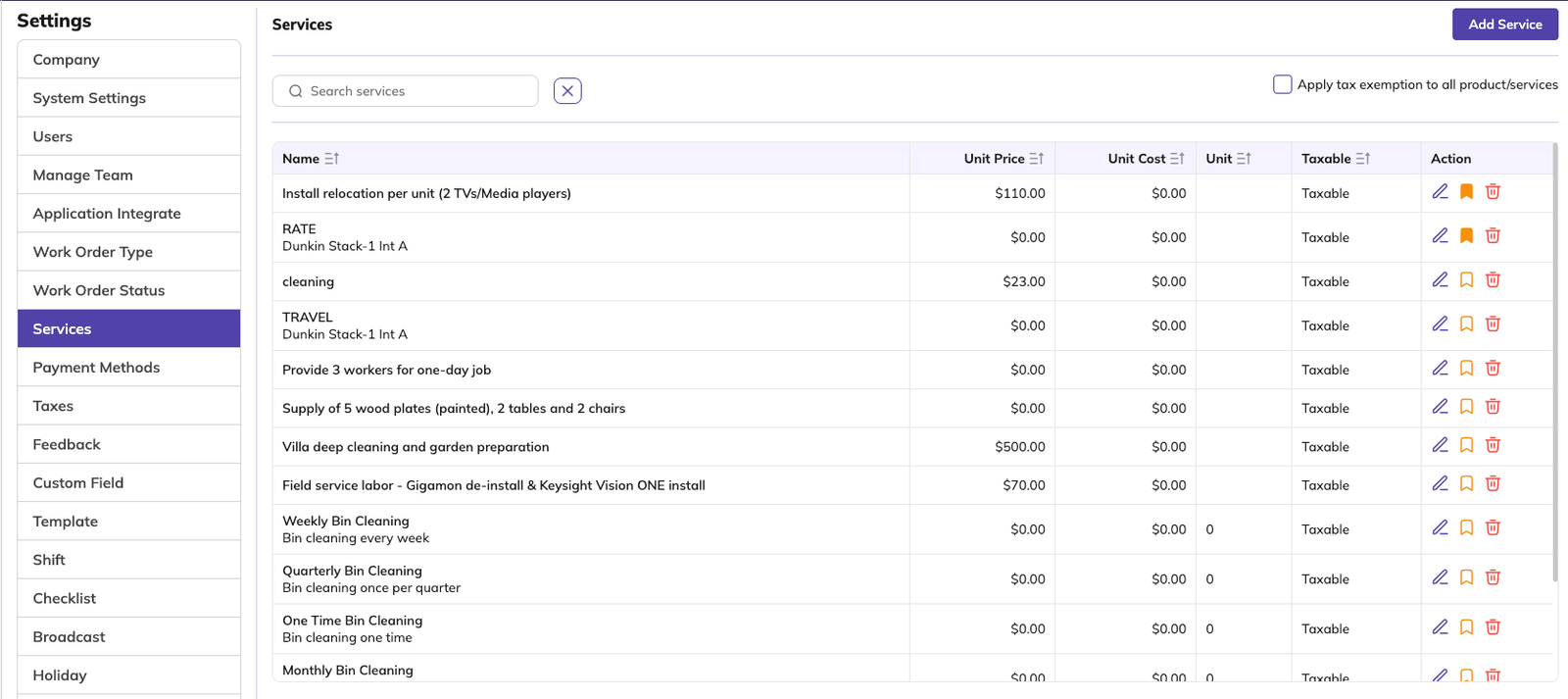
The Services page lists all your products and services, with each one’s price, cost, markup, unit and tax setting. Use Add Service at the top right to create a new service.
-
Search services – find a service by name. Click × to clear the search.
-
Sort – click the sort icons next to the column headings to reorder the list.
-
Action icons – edit (pencil), bookmark, and delete (red bin). See 7.3 to 7.5.
Apply tax exemption to all product/services
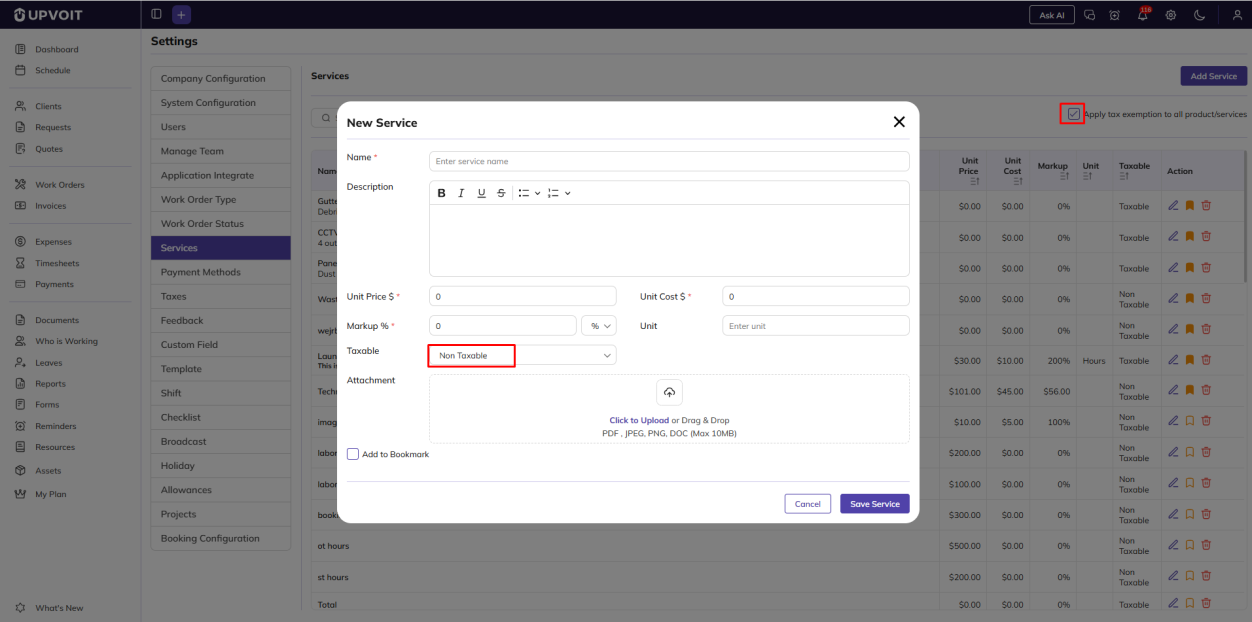
Tick this box at the top right of the Services page to make new services non-taxable by default. When it is ticked, the Taxable field in the New Service window is set to Non Taxable automatically. You can still change it to Taxable for an individual service
Add a Service

Clicking Add Service opens the New Service window:
-
Name (required, marked *) – the service name.
-
Description – a description of the service, with bold, italic, underline, strikethrough and list formatting.
-
Unit Price $ (required) – the price charged to the client.
-
Unit Cost $ (required) – your cost for the service.
-
Markup (required) – the markup on the service. Choose % for a percentage or $ for a fixed amount.
-
Unit – the unit the service is sold in, for example Hours.
-
Taxable – choose Taxable or Non Taxable.
-
Attachment – upload a file for the service, such as a product sheet (PDF, JPEG, PNG or DOC, up to 10MB).
-
Add to Bookmark – tick this to bookmark the service (see 7.4).
Edit a Service

Clicking the edit (pencil) icon opens the Edit Service window. It has the same fields as New Service, filled in with the service’s saved details.
Bookmark a Service

Bookmark the services you use most often. Bookmarked services appear at the top of the dropdown when you add a line item to a request, quote, work order or invoice, so you can find them quickly.
A bookmarked service has a filled orange bookmark icon. A service that is not bookmarked has an outlined bookmark icon.
To bookmark a service
-
Click the bookmark icon next to the service on the Services page, or
-
Tick Add to Bookmark when adding or editing the service.
To remove a bookmark, click the icon again, or untick Add to Bookmark
Delete a Service
When you click the delete (red bin) icon, the message shown depends on whether the service is already in use.
If the service is not in use
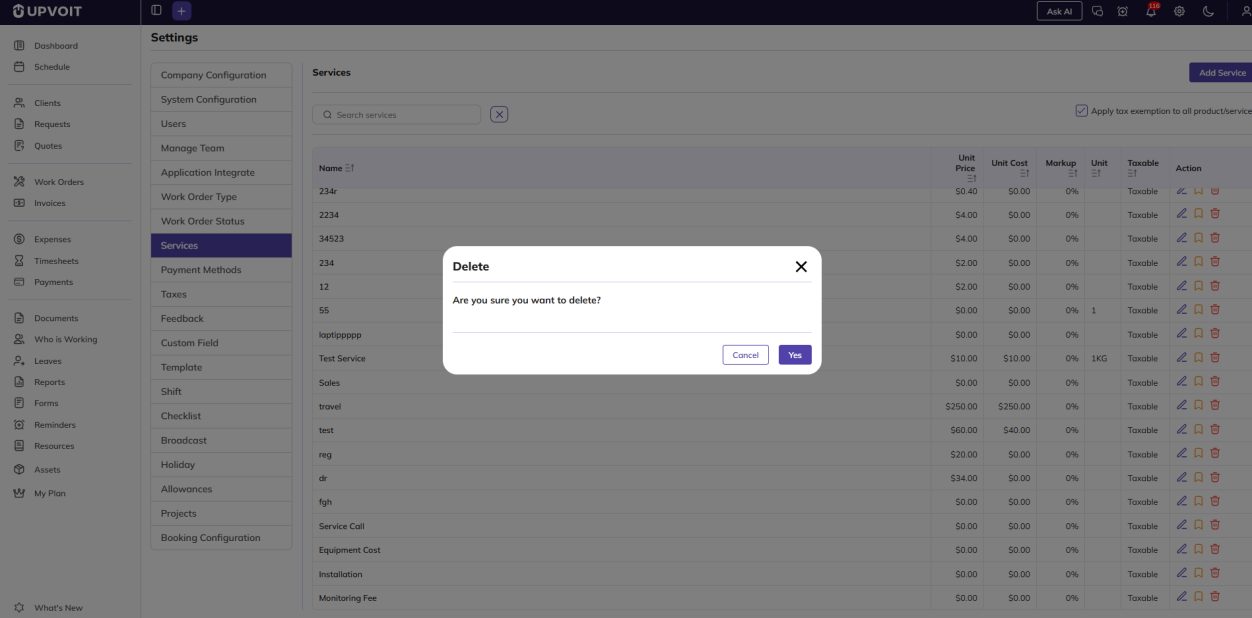
A Delete confirmation message asks: Are you sure you want to delete? Click Yes to delete the service, or Cancel to keep it.
If the service is in use
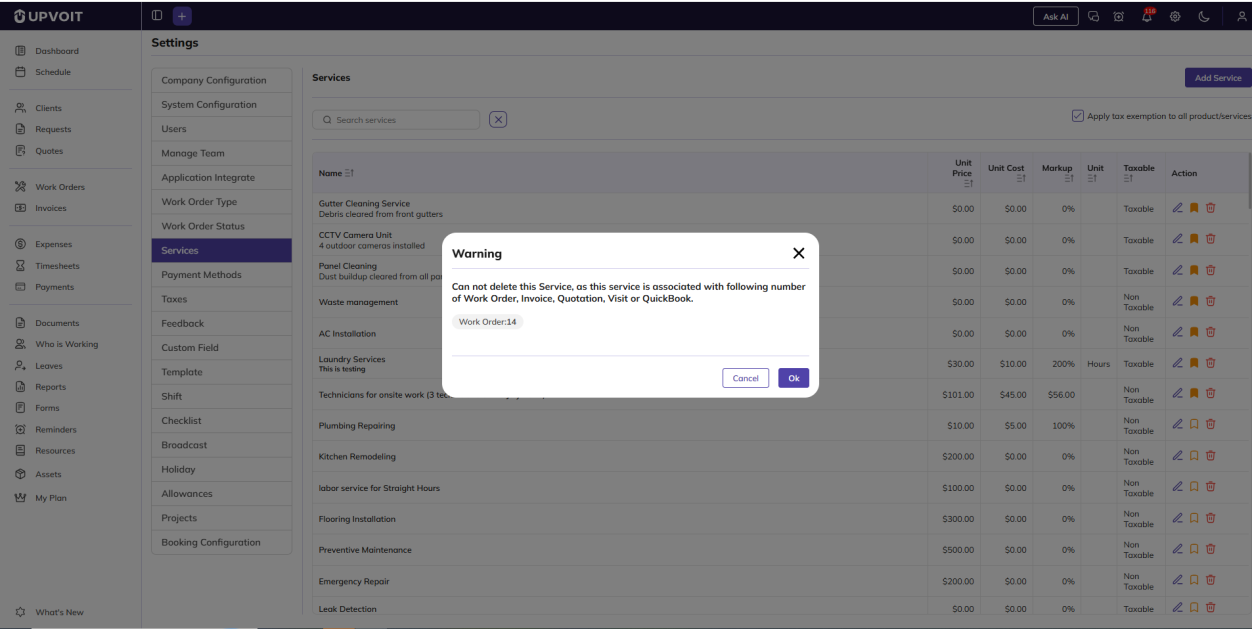
A service that is already used on a request, quote, work order, invoice or visit, or synced with QuickBooks, cannot be deleted. A Warning message is shown instead, with the number of linked records, for example Work Order: 14. Click Ok or Cancel to close the message.
Where Services Are Used
Services are used as line items in the Product/Service section when creating:
-
Requests
-
Quotes
-
Work Orders
-
Invoices
When you choose a service, its name, description, unit price, unit cost, markup and taxable setting are filled in automatically. You can change them on each line if needed.
Services are also used in Labor Service Mapping on the Invoice tab, which sets the default services for labor and overtime hours (see 2.5 Invoice).
Did this answer your question?


