
Checklist Overview
Checklist is where you create step-by-step task lists for technicians, such as a Technician Safety Checklist or a Cleaning Service Checklist. Technicians follow the checklist while doing the work, so every job is done the same way.
Note: The Checklist menu appears in Settings only when Enable checklist for work order/schedule is ticked in System Configuration → Work Order (see 2.4 Work Order).
View Checklists
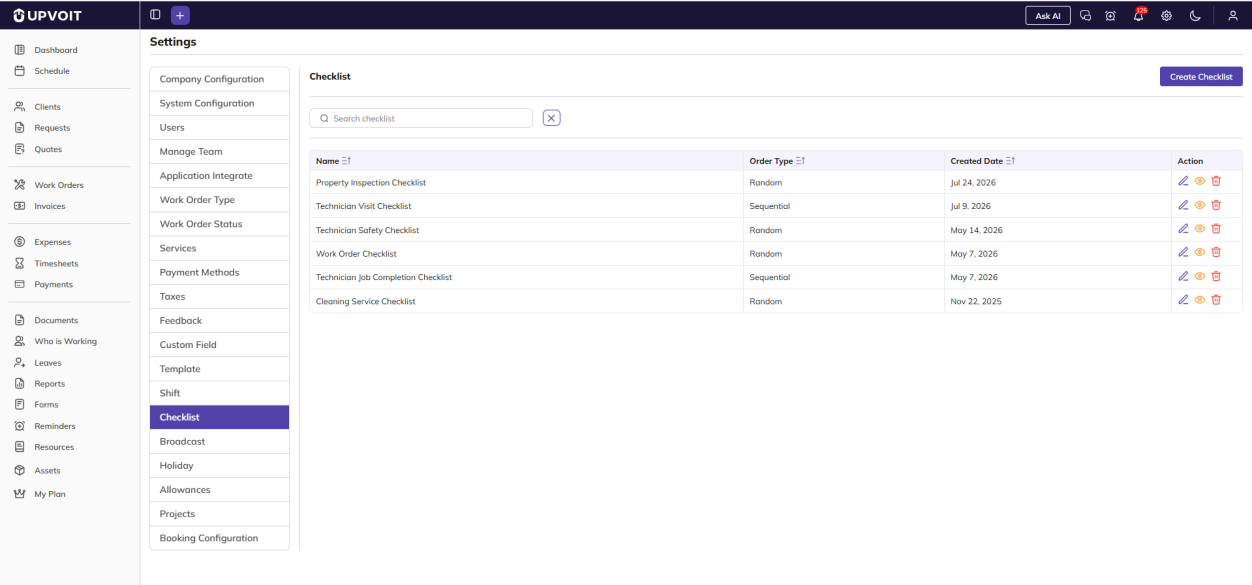
The Checklist page lists all your checklists, with each one’s order type and created date. Use Create Checklist at the top right to make a new one.
-
Search checklist: find a checklist by name.
-
Sort: click the sort icons next to Name, Order Type or Created Date to reorder the list.
-
Action icons: edit (pencil), view (eye) and delete (red bin).
Add Checklist
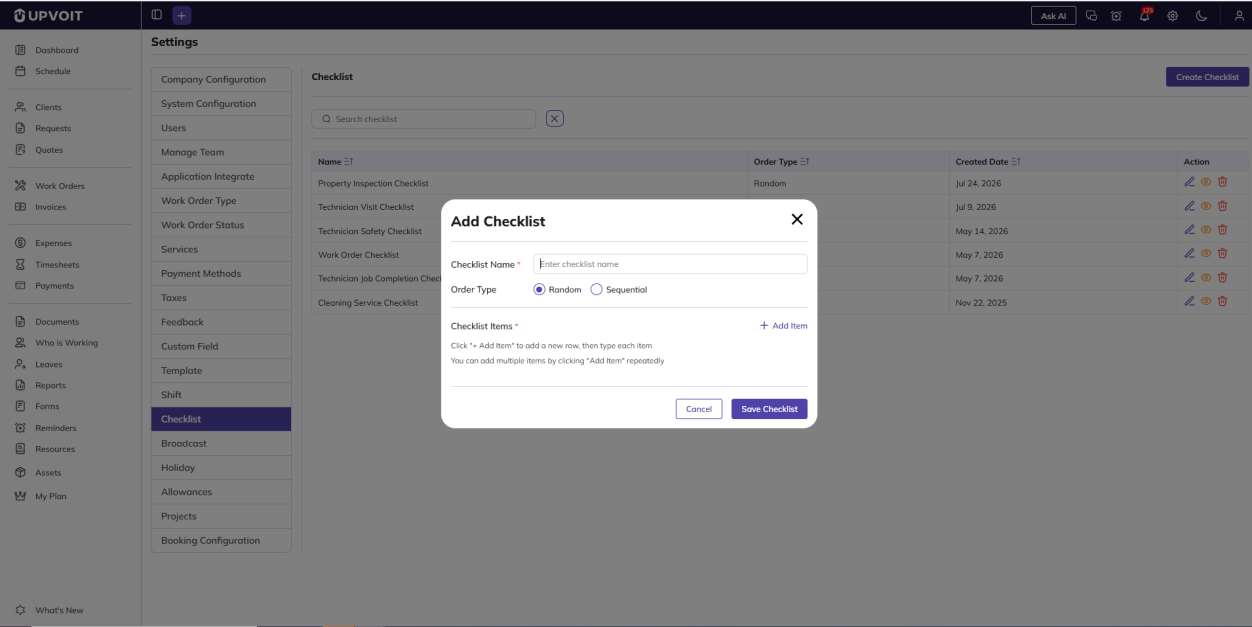
Clicking Create Checklist opens the Add Checklist window:
-
Checklist Name (required, marked *): the name of the checklist.
-
Order Type: how technicians work through the items.
-
Random: items can be completed in any order.
-
Sequential: items must be completed in the order listed. A ☰ handle appears next to each item, so you can drag items to set the order.
-
-
Checklist Items (required): the tasks in the checklist. Click + Add Item to add a new row. Enter the task, then click the green tick to confirm it or the red cross to remove it.

Edit Checklist

Clicking the edit (pencil) icon opens the Edit Checklist window, filled in with the checklist’s saved name, order type and items. Each saved item has its own edit (pencil) and delete (red bin) icon.
Delete Checklist
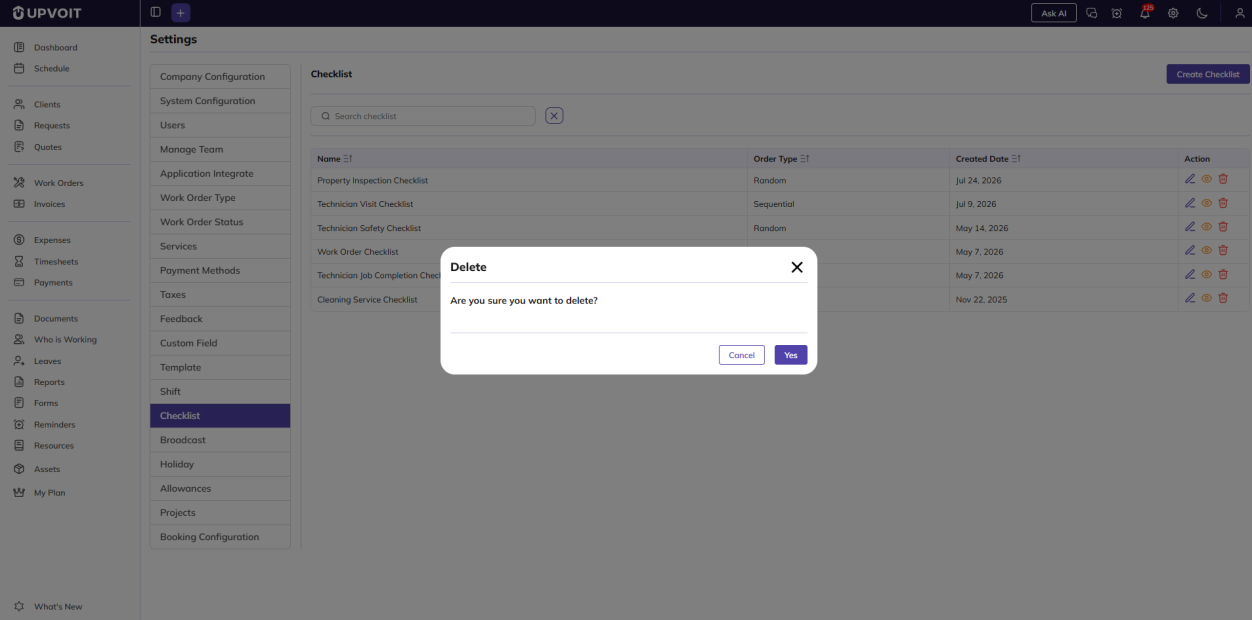
Clicking the delete (red bin) icon opens a Delete confirmation message: Are you sure you want to delete?
A checklist that is already linked to a work order cannot be deleted.
Where Checklists Are Used
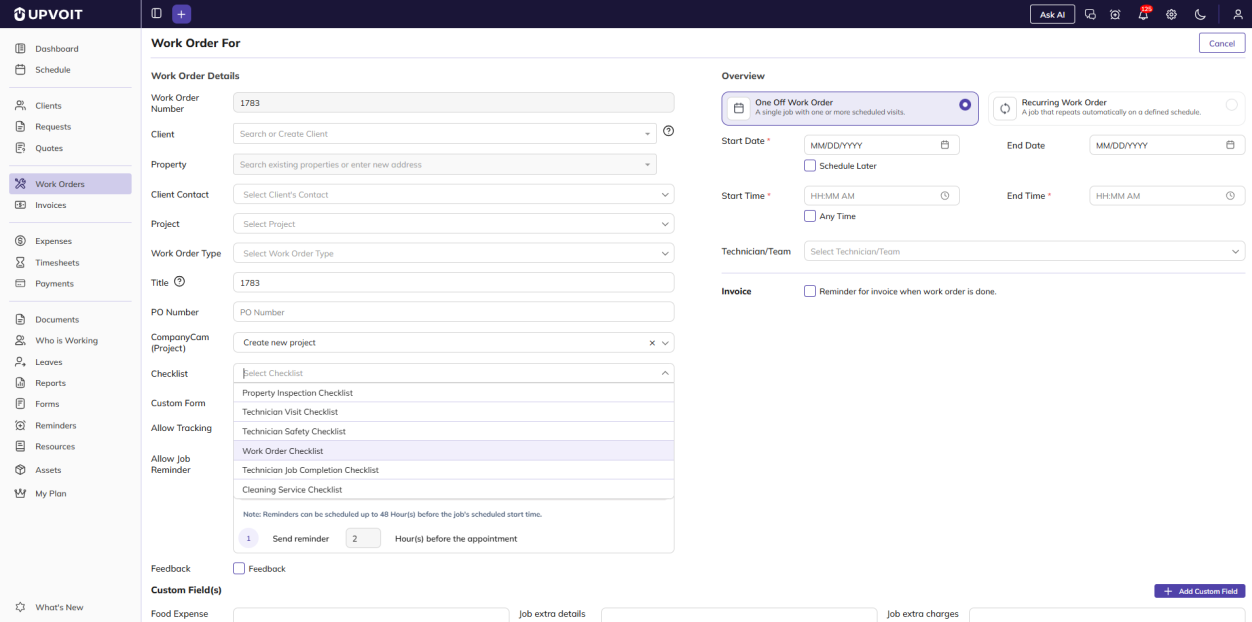
Checklists are used in the Work Orders module. When you create or edit a work order, choose a checklist from the Checklist dropdown (Select Checklist). The dropdown lists the checklists created on this page.
Whether the checklist applies to the whole work order or to each visit, and whether it must be completed, is set in System Configuration → Work Order (see 2.4 Work Order).
Did this answer your question?


