
Document Management Overview
The Documents module is a central library for storing and sharing company files such as policies, employee letters, and help material. Each document belongs to a category and a subcategory, so it is easy to organize and find. Documents are either Private (shared with selected technicians) or Public (visible to all users).
Access Levels
-
Admin: Can upload, edit, delete, and download documents.
-
Users: Can view and download documents but cannot upload, edit, or delete them. Users see all Public documents and only the Private documents shared with them.
The Documents menu appears for a user only when the Documents permission is turned on for them.
To show or hide the Documents menu for a user:
-
Go to Settings → Users → System Access.
-
Turn the Documents toggle on to show the menu, or off to hide it.
-
Click Next to continue and save the user’s settings.

Module Hierarchy
-
Documents
-
Private
-
Public
-
Upload Document (Admin only)
-
Edit Document (Admin only)
-
Delete Document (Admin only)
-
Download Document
-
Document Categories
Documents are grouped into the following fixed categories and subcategories:
-
Company Policies: HR Policy, Leave Policy, Security Policy
-
Employee Documents: Appointment Letter, Performance Report
-
Support & Help: Help Articles, Support Policies
Note: These categories and subcategories are predefined. They cannot be added, renamed, or deleted.
Private Documents
The Private tab lists documents shared with one or more specific technicians, such as appointment letters or performance reports.
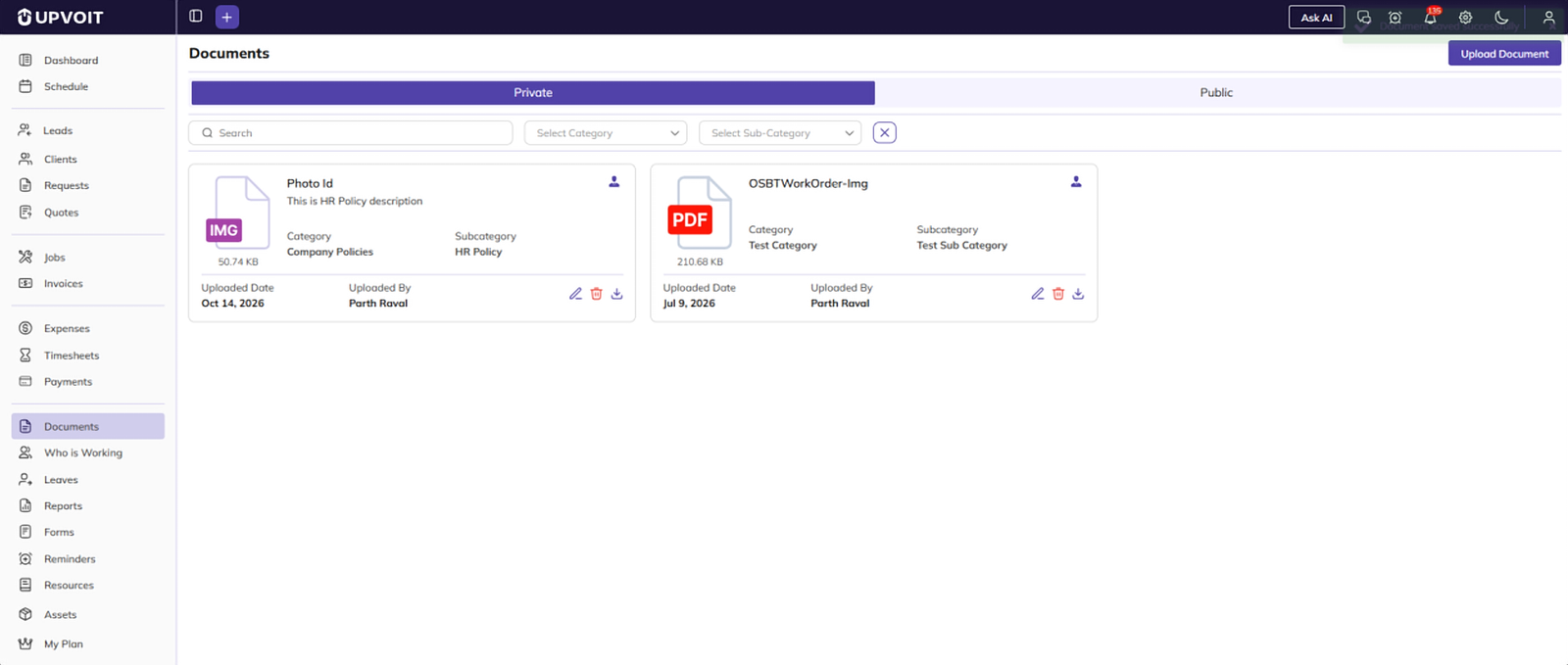
Each document card shows:
-
Document Name and Description: The title of the file and a short note about it.
-
File Type & Size: The file format icon and its size.
-
Category / Subcategory: Where the document is filed.
-
Uploaded Date: The date the document was added.
-
Uploaded By: The user who uploaded it.
-
Technician Icon: Click to see the names of the technicians the document is shared with.
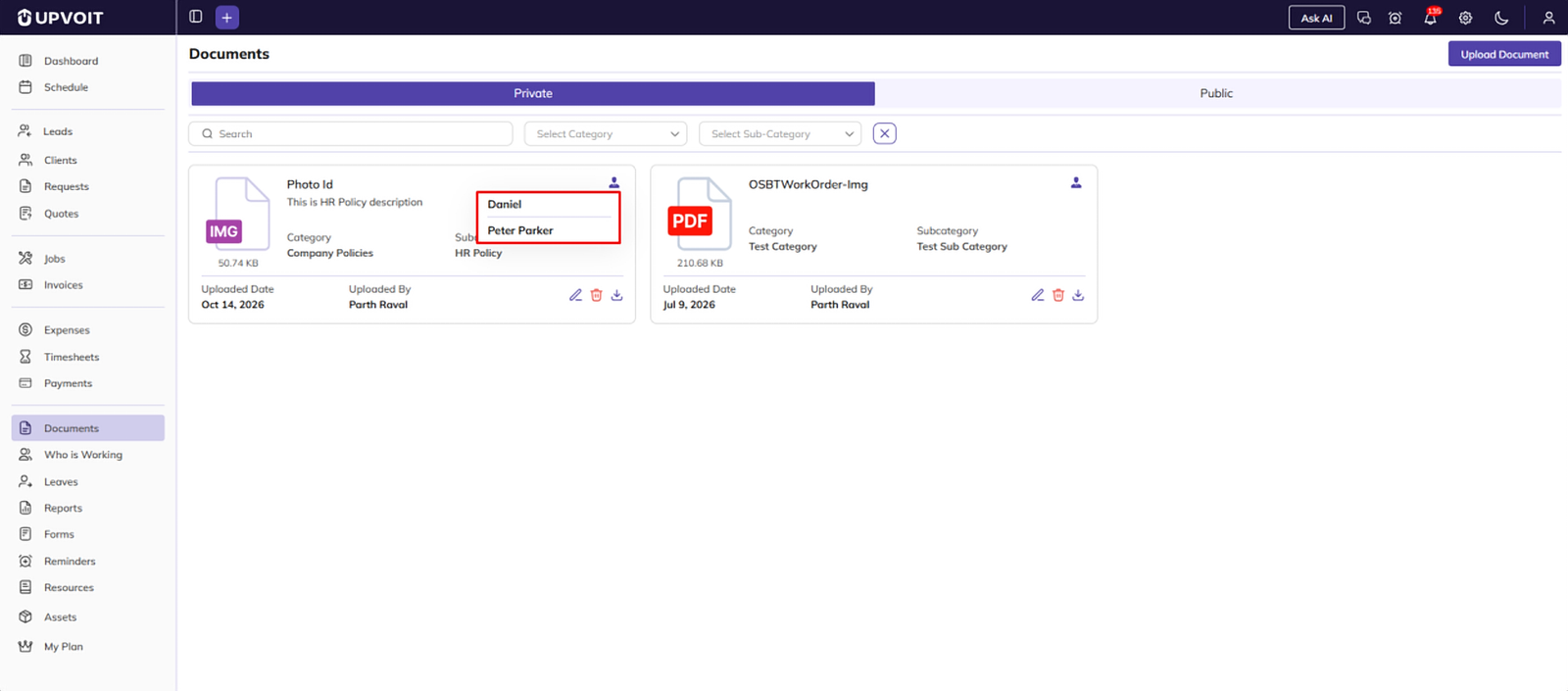
Actions available on each card:
-
Edit: Update the document details (Admin only).
-
Delete: Remove the document (Admin only).
-
Download: Save a copy of the file.
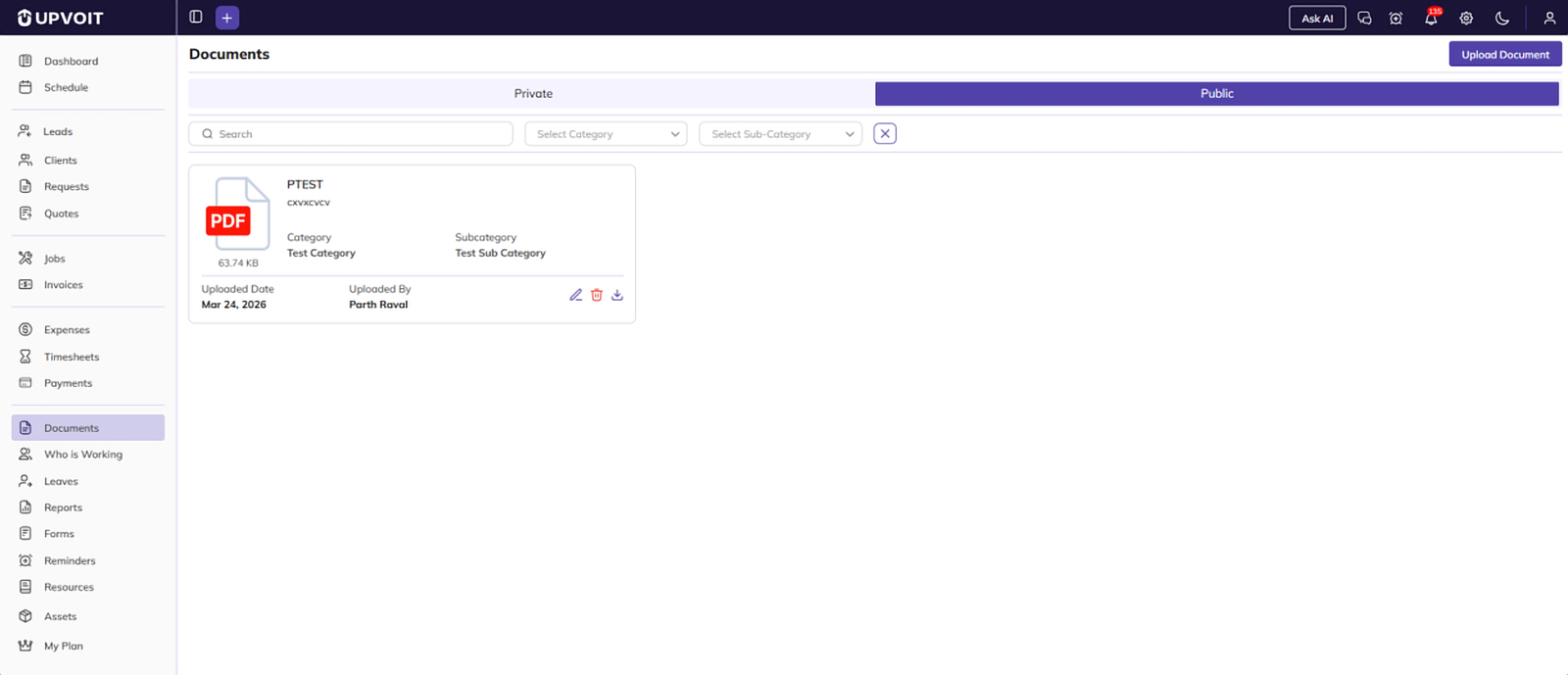
Public Documents
The Public tab lists documents visible to all users, such as company policies and help articles. Cards show the same details and actions as private documents, without the technician icon.
Searching and Filtering Documents
Both tabs offer the same filters:
-
Search: Find a document by name.
-
Select Category: Show documents from one category.
-
Select Sub-Category: Narrow results to a specific subcategory.
-
Clear (X): Reset all filters.
Upload a Document (Admin Only)
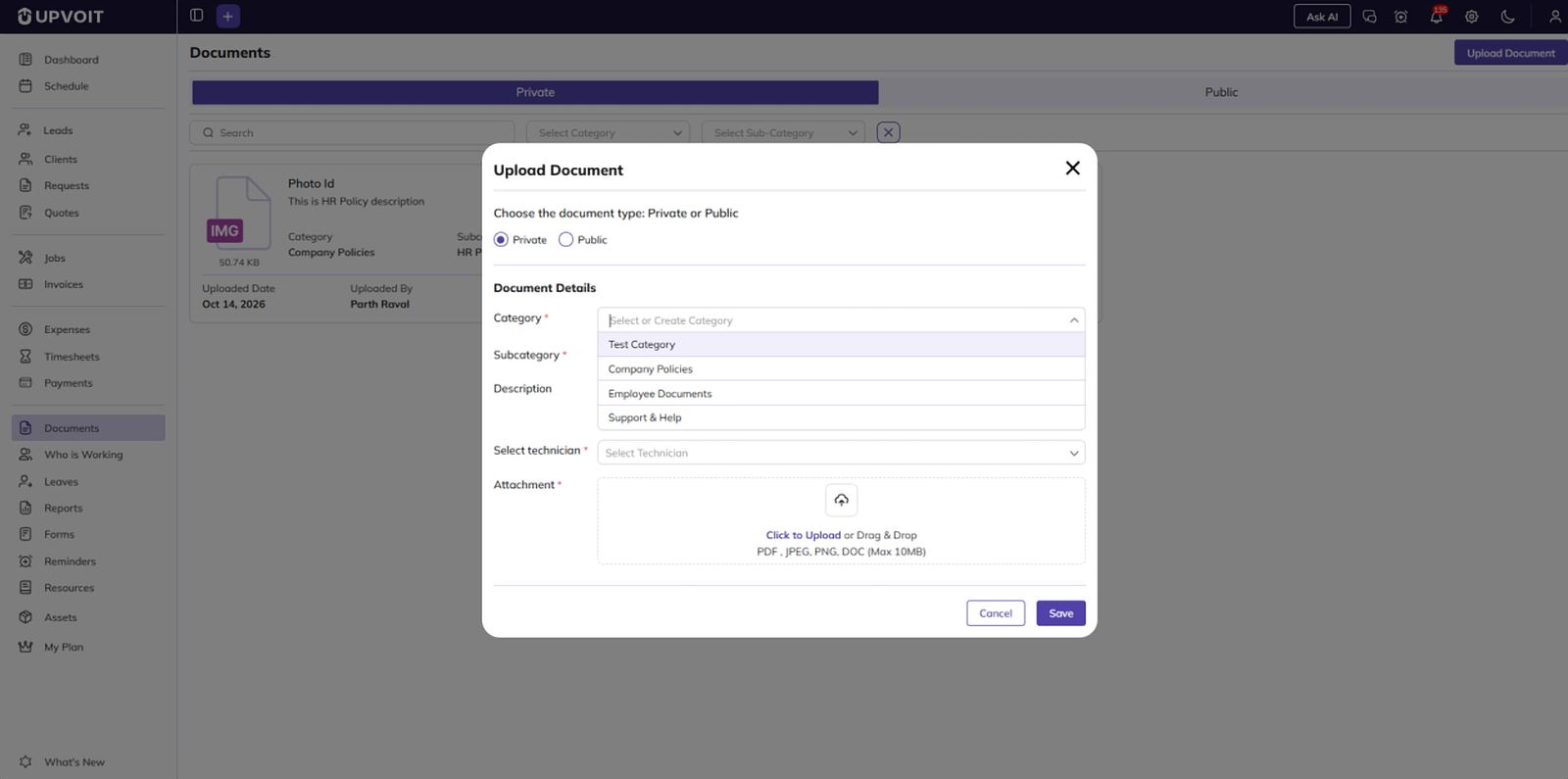
Click Upload Document at the top right of the page to add a new file.
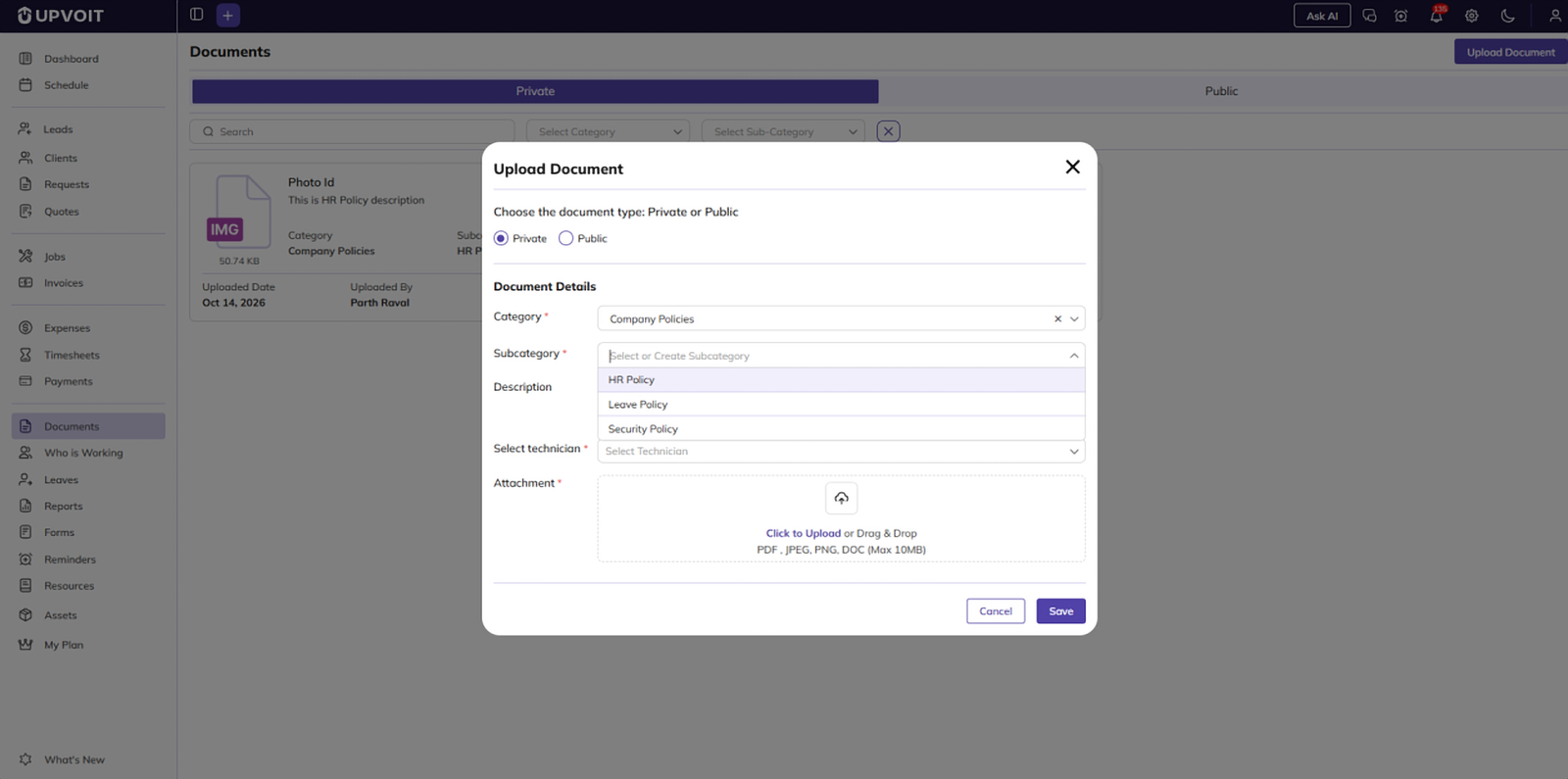
Upload a Private Document
-
Select Private as the document type.
-
Category: Select a category from the list.
-
Subcategory: Select a subcategory from the list.
-
Description: Add a short note about the document (optional).
-
Select Technician: Choose one or more technicians to share the document with.
-
Attachment: Click to upload or drag and drop the file.
-
Doc. Name: Filled in automatically from the file name. Edit it if needed.
-
Click Save.
Upload a Public Document
-
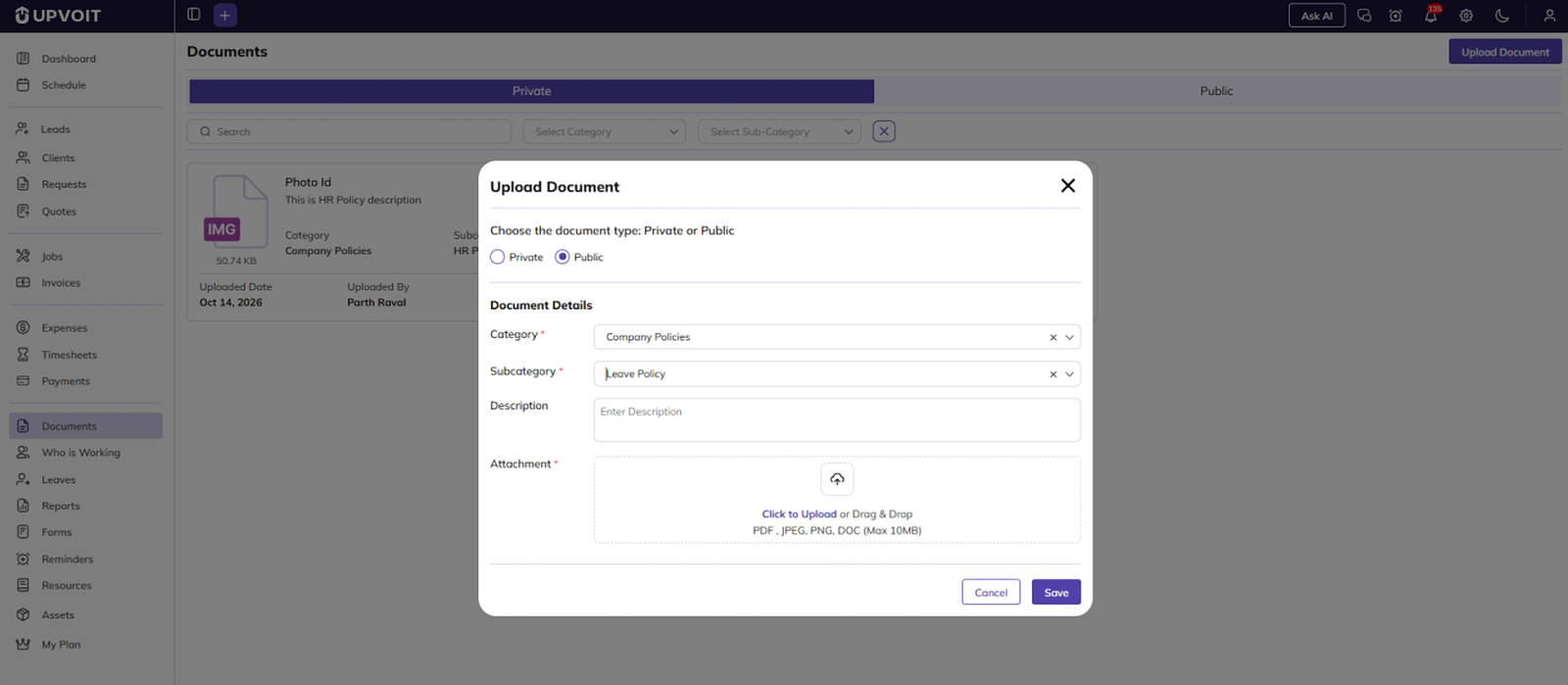
Select Public as the document type.
-
Select the Category and Subcategory.
-
Add a Description (optional).
-
Upload the Attachment.
-
Review or edit the Doc. Name.
-
Click Save.
Note: Supported formats are PDF, JPEG, PNG, and DOC, with a maximum file size of 10 MB. Category, Subcategory, Doc. Name, and Attachment are mandatory. Technician is also mandatory for private documents.
Edit a Document (Admin Only)
Click the Edit (pencil) icon on a document card to open its details. Every field can be changed. You can switch the document between Private and Public, change the category or subcategory, rename it, update the description, add or remove technicians, and replace the attached file. Click Save to apply the changes.

Delete a Document (Admin Only)
-
Click the Delete (bin) icon on the document card.
-
A confirmation message appears. Click Yes to delete the document, or Cancel to keep it.

Download a Document
Click the Download icon on a document card to save a copy of the file to your device. Both Admins and users can download documents.
Did this answer your question?


