
Company Overview
Company holds your company’s profile: the company logo, name, contact details, address, timezone and currency. These details are used across the whole system, so complete this page before you create any requests, quotes or work orders.

View Company
The Company page shows your company’s saved details, such as name, email, phone number, tax number and address. Company Name and Email are required (marked *). Save appears at both the top and bottom of the page.
These settings affect the rest of the system:
-
Profile – the company logo. It is shown on every PDF the system creates.
-
Company Name and address – shown on every PDF, so clients can see who the document is from.
-
Timezone – controls the dates and times used in all modules: Requests, Quotes, Work Orders, Schedule, Timesheets, Expenses, Payments and Invoices.
-
Currency – the currency used for amounts (for example, $(USD)).
Set the Timezone before your team starts scheduling work or recording time. If the timezone is wrong, dates and times are recorded incorrectly across all modules.
Update Company Details
To update company details
-
Click the gear icon at the top right of the screen.
-
Click Company in the Settings menu.
-
Enter or change the company details you need.
-
Choose the Country, Timezone and Currency.
-
Click Save.
Upload a Company Logo
To upload a company logo
-
Open Settings and click Company.
-
Next to Profile, click Upload Image.
-
Select the logo image.
-
Click Save.
The new logo appears on PDFs created after you save.
Company Details on PDFs
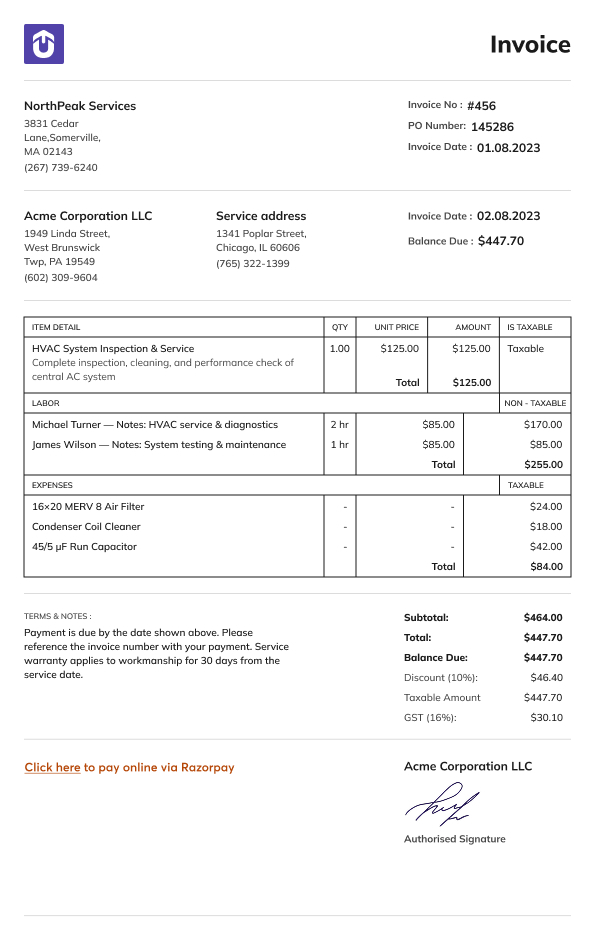
Your company logo, name and address appear in the From section of every PDF the system creates, such as quotes, work orders and invoices. Clients see these details on every document you send, so check the spelling and address carefully.
Did this answer your question?


