
Payment Methods Overview
Payment Methods is the list of ways your clients can pay you, such as Cash, Cheque or Bank Transfer. UPVOIT includes default payment methods, and you can add your own, such as UPI or GPay.
View Payment Methods

The Payment Methods page lists all payment methods, with the date each was created. Use Add Payment Method at the top right to create a new one.
-
Search Payment Method – find a method by name.
-
Sort – click the sort icons next to Name or Created Date to reorder the list.
-
Status – a toggle that is on for active methods and off for inactive methods. Switch it off to stop using a method without deleting it.
-
Action – the edit (pencil) and delete (red bin) icons.
Default payment methods
Cash, Cheque, Credit Card, Bank Transfer, Money Order, Other, Stripe, Razorpay and Square are default payment methods. They cannot be edited or deleted, so they have no action icons. Only methods you add yourself can be edited or deleted.
Add a Payment Method

When you click Add Payment Method, a new row appears at the bottom of the list, and the button is greyed out until you save or cancel.
To add a payment method
-
Open Settings and click Payment Methods.
-
Click Add Payment Method.
-
In the new row, enter the name in Enter method name.
-
Click Save.
To close the row without saving, click Cancel.
Edit a Payment Method

Clicking the edit (pencil) icon opens the method’s row for editing, and the name can be changed directly in the row.
To edit a payment method
-
Open Settings and click Payment Methods.
-
Click the edit (pencil) icon next to the method.
-
Change the name.
-
Click Update.
To close the row without saving, click Cancel.
Delete a Payment Method

Clicking the delete (red bin) icon opens a Delete confirmation message: Are you sure you want to delete?
A payment method that is already in use cannot be deleted. To stop using it, switch off its Status toggle instead.
Where Payment Methods Are Used
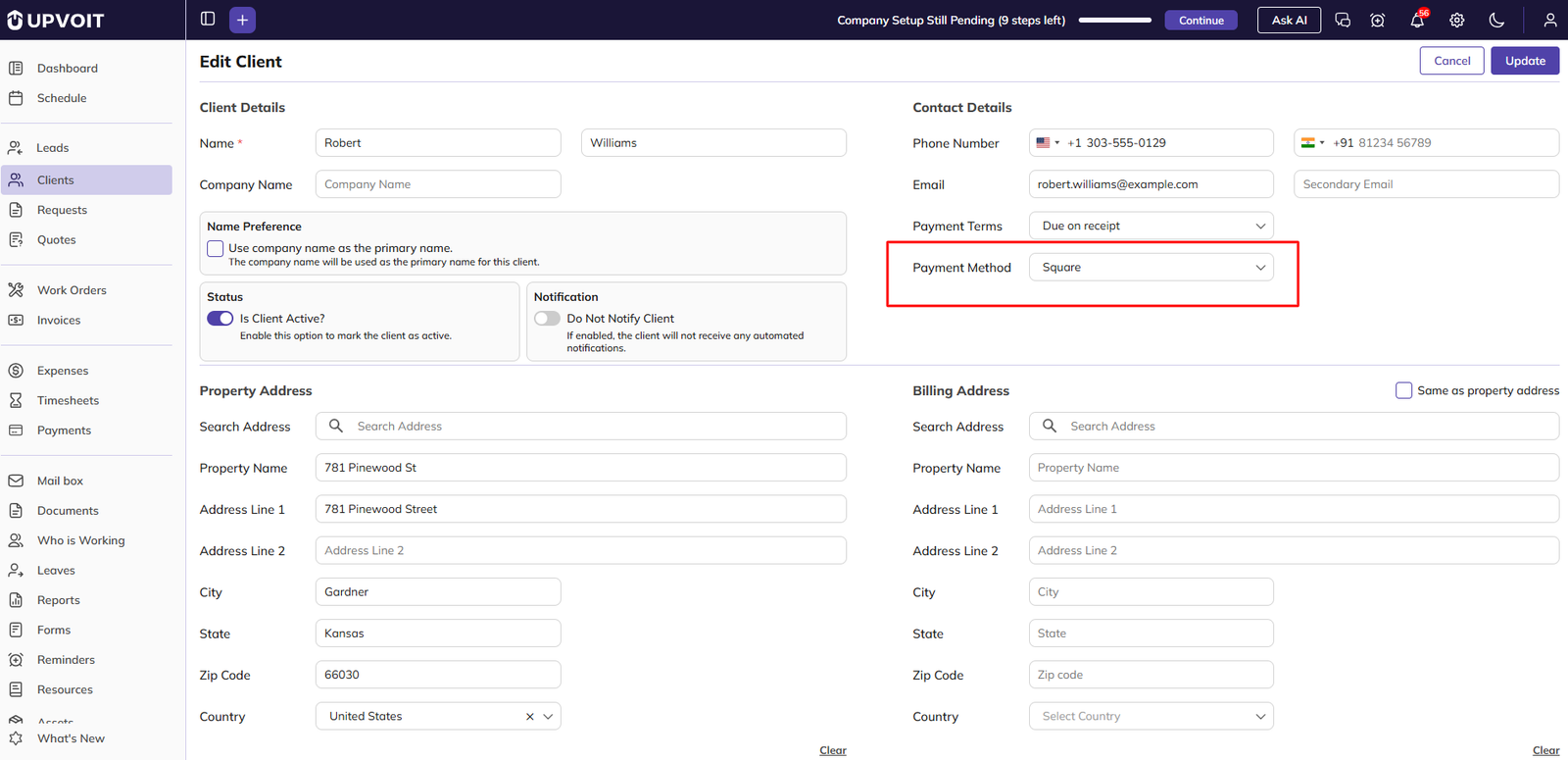
Payment methods are used in the Clients module. When you create or edit a client, choose the client’s usual way of paying from the Payment Method dropdown in Contact Details. The dropdown lists the payment methods from this page.
Did this answer your question?


