
Payments Overview
The Payments module is where you view and track all payments received from your clients. It lists every payment, whether it was collected online through a payment gateway or recorded manually, along with the related invoice, payment method and amount. You can also record a payment against several invoices at once using Create Bulk Payment.
To open the module, click Payments in the left main menu.
Payment List
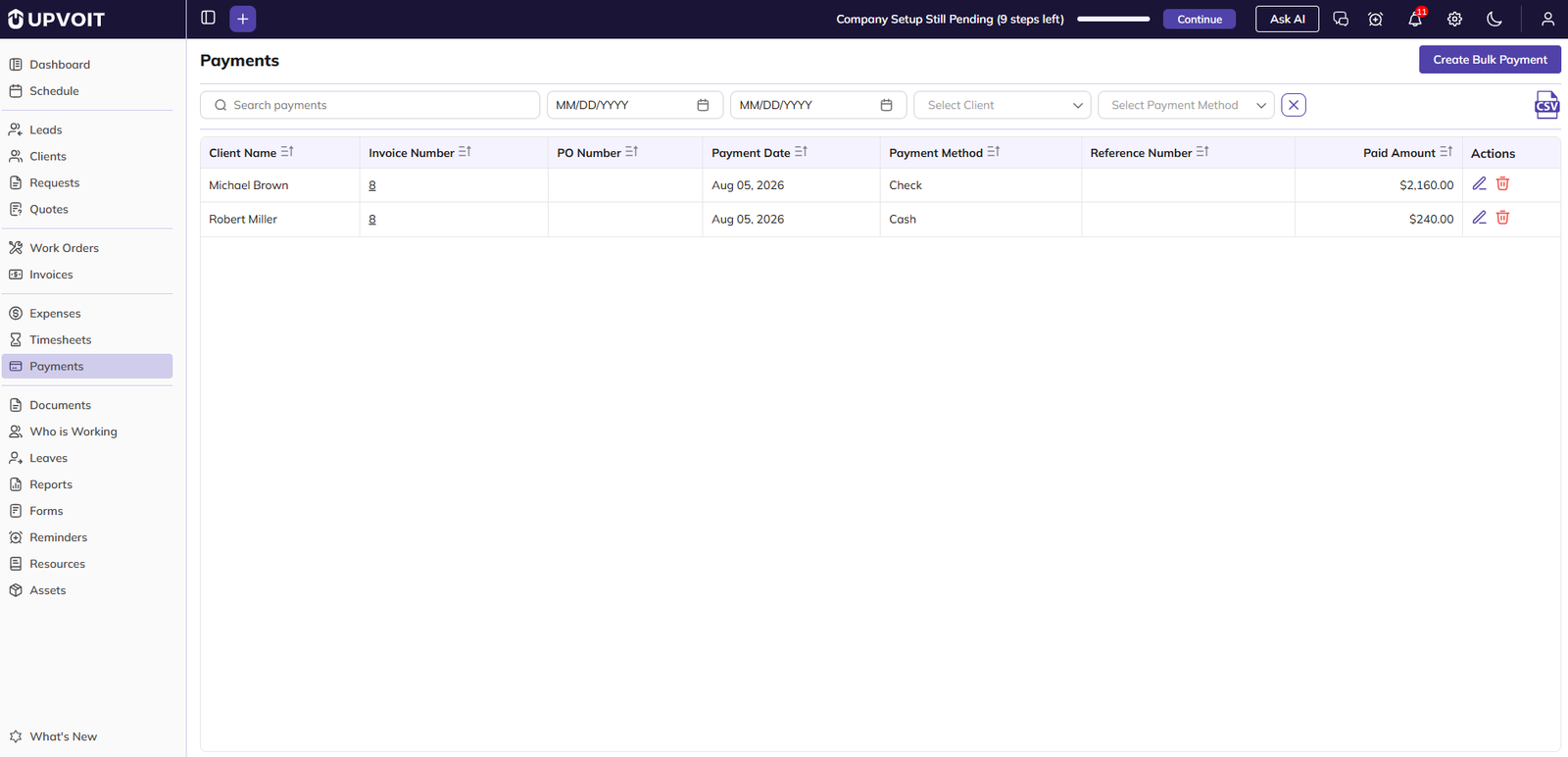
The Payments page lists all payments received, with the most recent first. For each payment it shows the client, related invoice, payment date, method and amount paid.
Columns in the list
-
Client Name: the client who made the payment.
-
Invoice Number: the invoice the payment was made against. Clicking it opens that invoice. Payments recorded through Bulk Payment show no invoice number.
-
PO Number: the purchase order number on the related invoice, if any.
-
Payment Date: the date the payment was received.
-
Payment Method: how the client paid (for example, Stripe, Square, GPay, Cash, Cheque or Other).
-
Reference Number: the transaction or cheque reference entered for the payment, if any.
-
Paid Amount: the amount received.
-
Actions: Edit and Delete icons, shown only for payments that can be changed (see 1.3).
Columns with the sort icon (Client Name, Invoice Number, PO Number, Payment Date, Payment Method, Reference Number and Paid Amount) can be sorted.
Search or Filter Payments
Use the search box and filters above the payment list to find payments quickly.
-
Search payments: type to search the payment list by client name.
-
Start date / End date: choose a date range to show payments received within that period.
-
Select Client: a dropdown to show payments from one client only.
-
Select Payment Method: a dropdown to show payments made through one method.
-
Clear (X): removes all filters and shows the full list again.
Export Payments
Click the CSV icon at the top right of the list to download the payments as a CSV file. The file contains only the payments shown by your current search and filters.

Edit or Delete a Payment
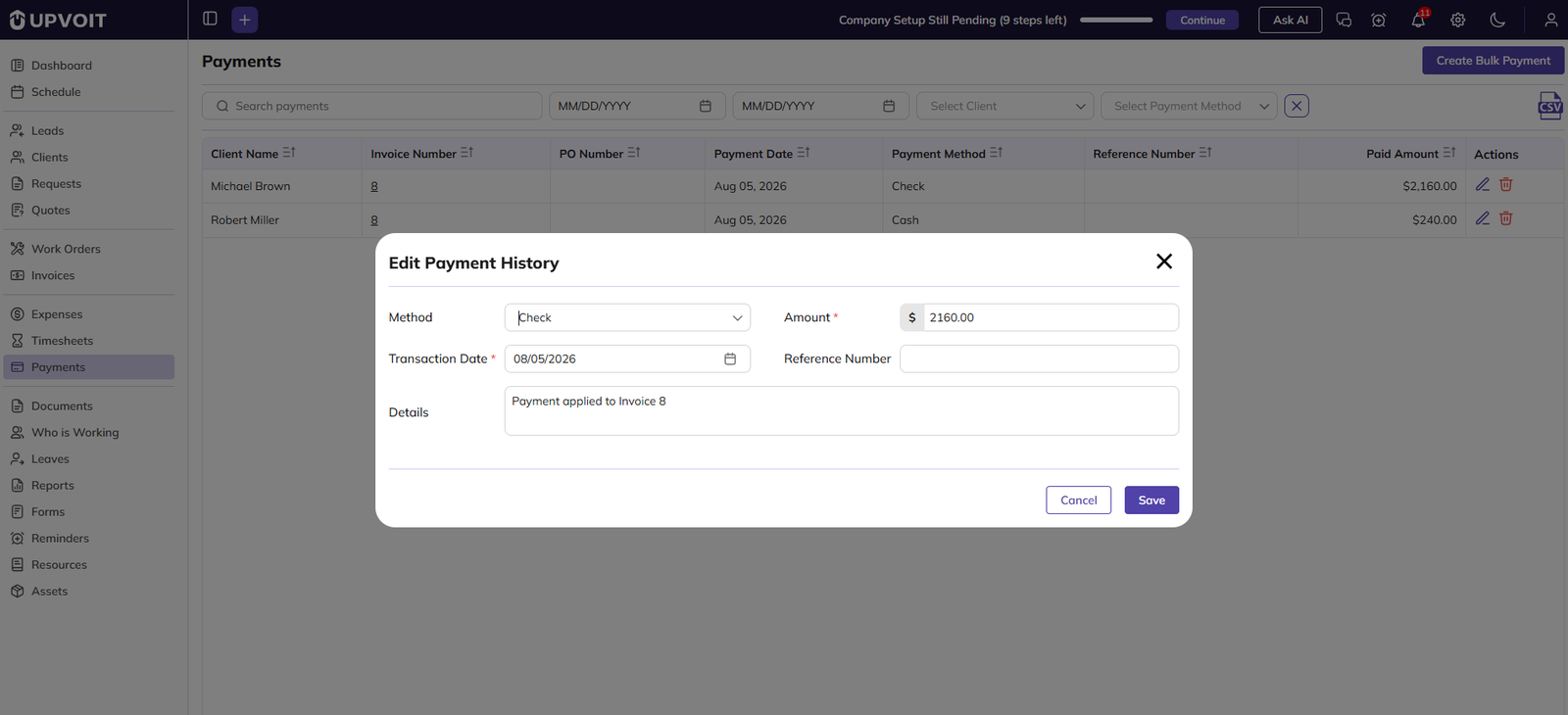
-
Edit (pencil icon): opens the Edit Payment History window, where you can change the payment’s Method, Amount, Transaction Date, Reference Number and Details. Amount and Transaction Date are required. Click Save to keep your changes or Cancel to close without saving.
-
Delete (bin icon): removes the payment.
Editing a payment’s amount or deleting a payment updates the related invoice’s balance automatically.
Payments received online through Stripe or Square cannot be edited or deleted. These rows show no action icons.
Create Bulk Payment

Use Bulk Payment to record a single payment from a client and apply it to one or more of that client’s unpaid invoices.
To open it, click Create Bulk Payment at the top right of the Payments page.
Payment details
-
Client: the client making the payment. Choosing a client lists their unpaid invoices below.
-
Payment Method: how the client paid. Choose from the dropdown, for example Square, Razorpay, Card On File, Stripe, GPay or UPI.

-
Payment Date: the date the payment was received. Today’s date is filled in by default.
-
Reference Number: the transaction or cheque reference, if any.
-
Details: any notes about the payment.
-
Total Amount: shown at the top right. It adds up the payment amounts entered for the selected invoices.
Invoice list
The invoice list shows the selected client’s unpaid invoices, with Invoice No, Client, PO Number, Subject, Date, Unpaid Amount and Payment Amount. Clicking an invoice number opens that invoice. When you tick an invoice, its Payment Amount is filled with the full unpaid amount, and you can change it if the client is paying a different amount.
Search or filter invoices
-
Start date / End date: show invoices dated within a period.
-
Search: type to search the invoice list by invoice number or client name.
-
Clear (X): removes the filters.
Steps to record a bulk payment
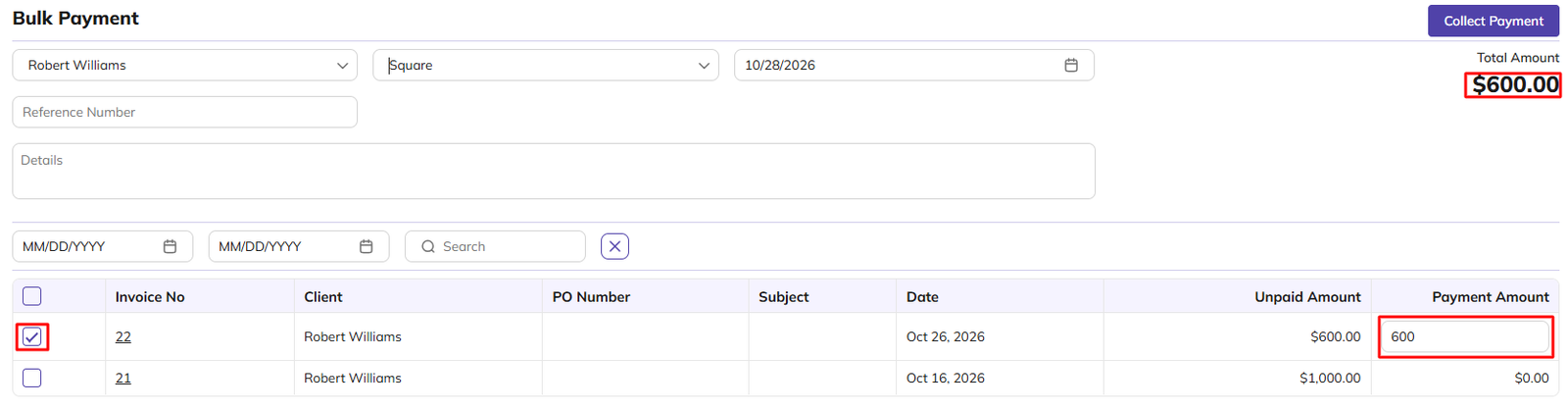
-
Select the Client, Payment Method and Payment Date.
-
Enter the Reference Number and Details if needed.
-
Tick the checkbox next to each invoice being paid. Tick the checkbox in the header to select all. The Payment Amount is filled with the full unpaid amount.
-
Change the Payment Amount if the client is paying part of the invoice. The amount cannot be more than the invoice’s unpaid amount.
-
Check the Total Amount, then click Collect Payment.
The payment is recorded straight away, with no confirmation message, so check the client, method, date and amounts before you click. You stay on the Bulk Payment page afterwards, and the payment appears in the Payment List without an invoice number. No receipt is sent to the client.
Did this answer your question?


