
Taxes Overview
Taxes is where you set up the tax rates your company charges, such as GST or Sales Tax. A tax can be a single rate, or a combined tax made up of two or more rates. Taxes are applied in the payment summary of requests, quotes, work orders and invoices.
View Taxes
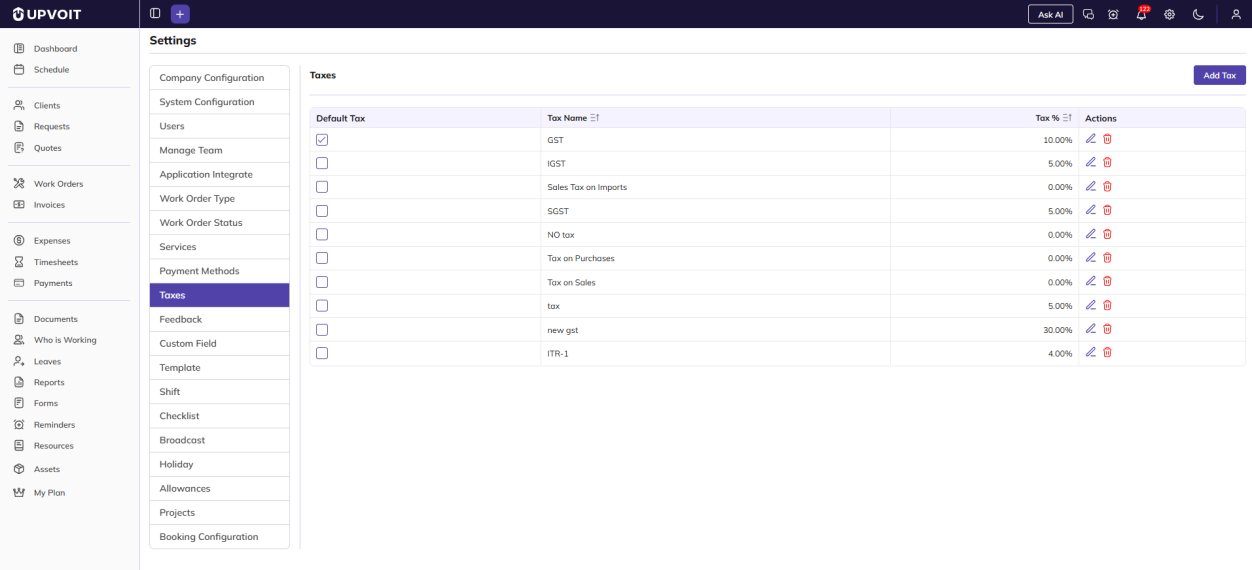
The Taxes page lists all your taxes with each one’s name and rate. Use Add Tax at the top right to create a new one.
-
Default Tax – tick the box next to the tax you use most often to make it your default tax. Only one tax can be the default.
-
Sort – click the sort icons next to Tax Name or Tax % to reorder the list.
-
Actions – the edit (pencil) and delete (red bin) icons.
Add a Tax
Clicking Add Tax opens the Add Tax window. First choose the type of tax: Single or Combined.
Single tax

A single tax has one rate. Both fields are required (marked *):
-
Tax – the tax name, for example GST.
-
Rate – the tax rate as a percentage, for example 10.
Combined tax
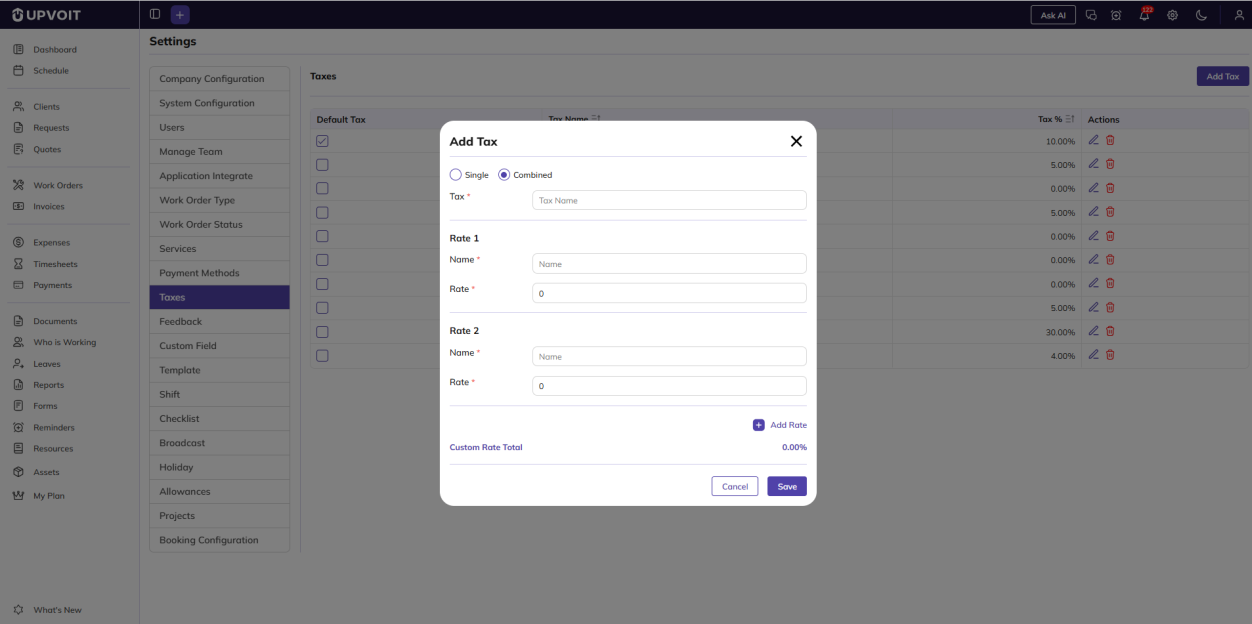
A combined tax is made up of two or more rates that are added together. For example, a combined tax could include a state rate and a central rate.
-
Tax (required) – the name of the combined tax.
-
Rate 1, Rate 2 – each part of the tax, with its own Name and Rate (required).
-
Add Rate – click this to add another rate.
-
Custom Rate Total – the total of all the rates, calculated automatically.
Edit a Tax
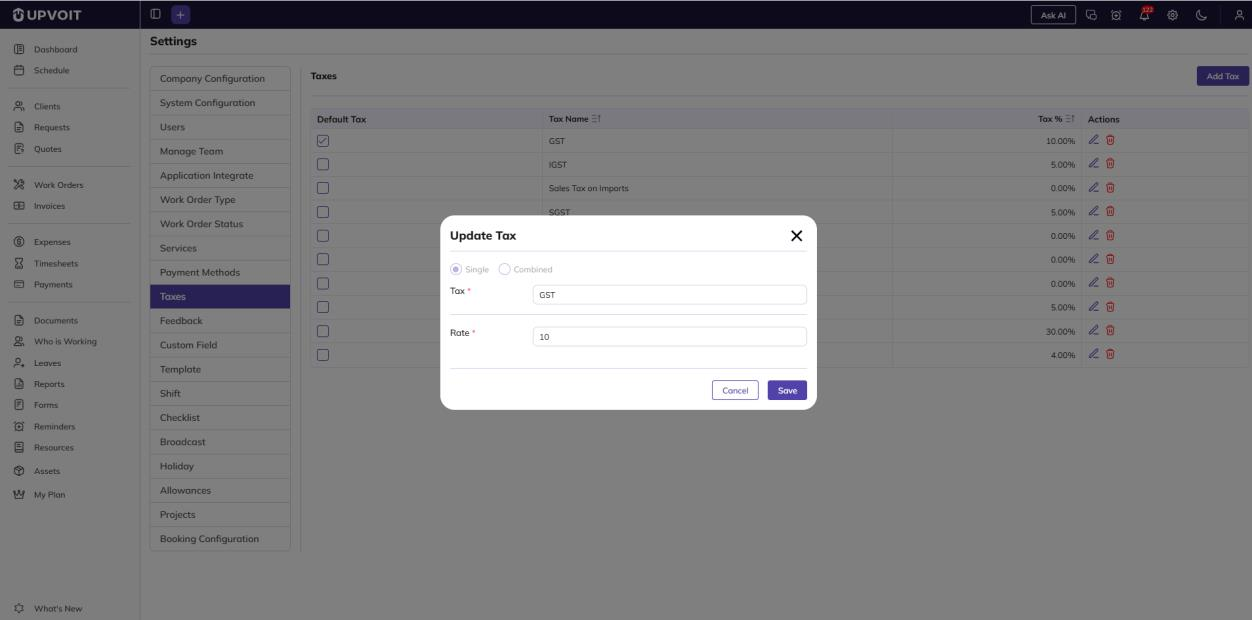
Clicking the edit (pencil) icon opens the Update Tax window, filled in with the tax’s saved details. You can change the name and rate, but not the tax type (Single or Combined).
Delete a Tax
When you click the delete (red bin) icon, the message shown depends on whether the tax is already in use.
If the tax is not in use
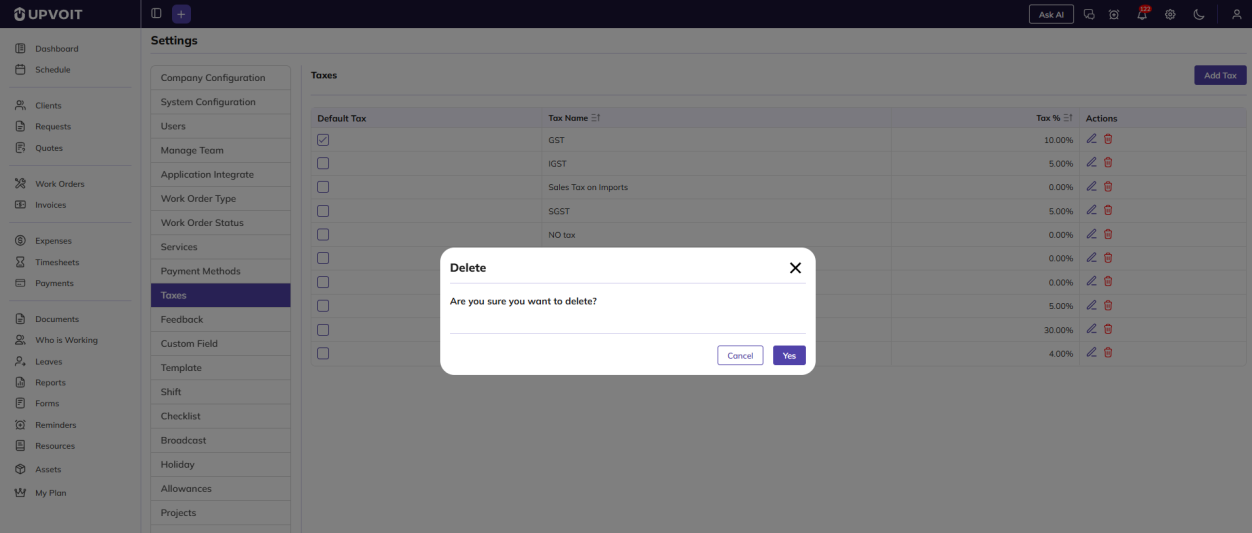
A Delete confirmation message asks: Are you sure you want to delete? Click Yes to delete the tax, or Cancel to keep it.
If the tax is in use
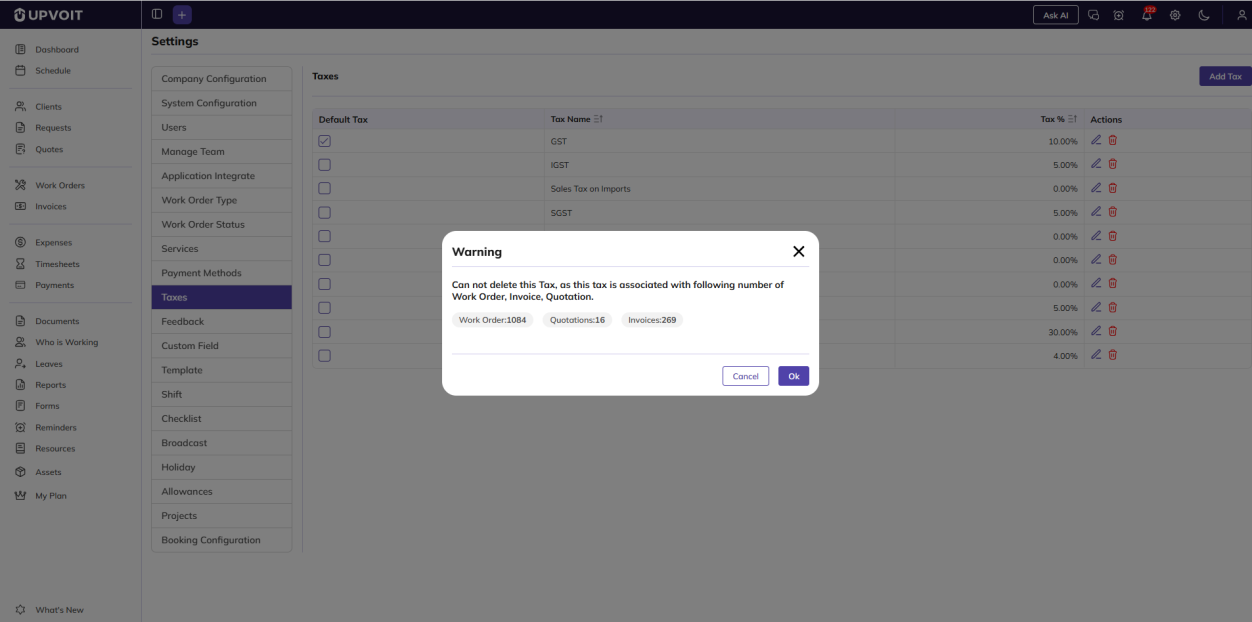
A tax that is already used on a work order, quote or invoice cannot be deleted. A Warning message is shown instead, with the number of linked records, for example Work Order: 1084, Quotations: 16 and Invoices: 269. Click Ok or Cancel to close the message.
Where Taxes Are Used
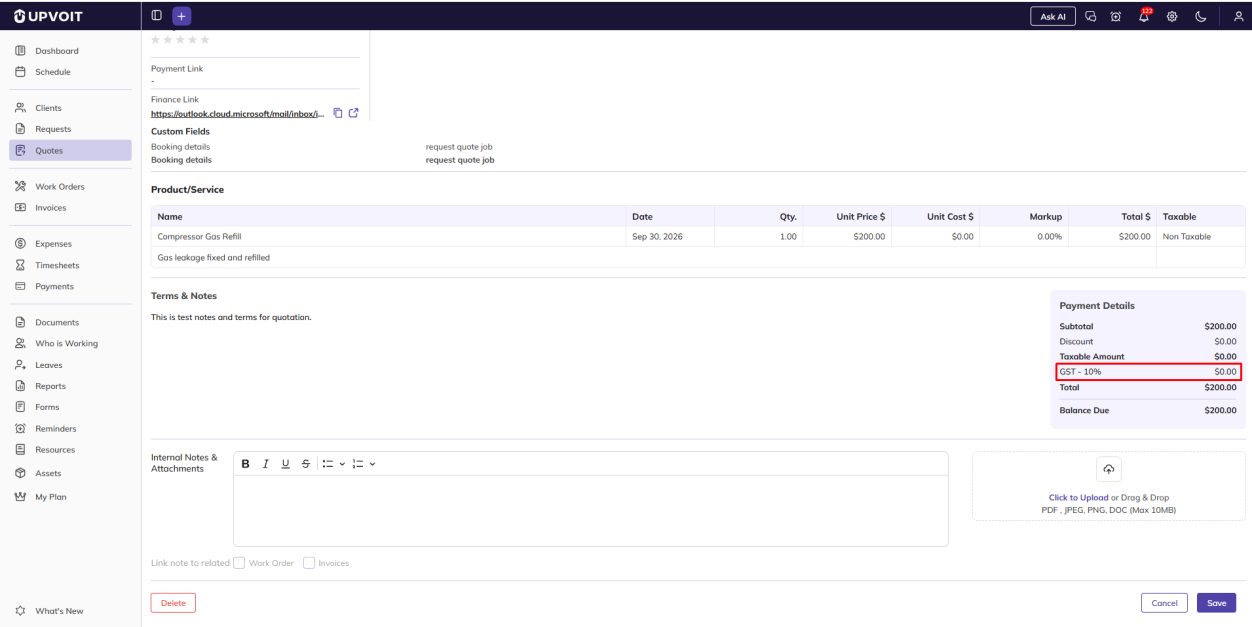
Taxes are used in the Payment Details summary of quotes, work orders and invoices. Choose the tax from the Tax dropdown, and the tax amount is calculated on the Taxable Amount.
Only line items marked as Taxable are included in the taxable amount. Whether tax is calculated before or after a discount is set in Tax & Discount Order.
Did this answer your question?


