
Feedback Overview
Feedback is where you build feedback forms to collect your clients’ opinions, such as a Service Satisfaction Survey or a Technician Performance Review. You design each form by dragging in questions, then set its look and layout.
View Feedback Forms

The Feedback page lists all your feedback forms, with the date each was created. Use Create Feedback at the top right to build a new form.
-
Search feedback – find a form by name. Click × to clear the search.
-
Sort – click the sort icons next to Name or Created Date to reorder the list.
-
Action – three icons for each form:
-
Edit (pencil) – open the form to change it. See 10.5.
-
View (eye) – preview the form as clients will see it. See 10.4.
-
Delete (red bin) – remove the form. See 10.6.
-
Create a Feedback Form

Clicking Create Feedback opens the New Feedback page. It has four areas:
-
Top bar – Form Name (required, marked *), Question Layout, the settings (gear) icon, Preview, Save, and the back arrow and × to close.
-
Elements (left) – the fields you can add: Form Header, Rating, Scale Rating, Text Box, Textarea, Select Box, Radio, Checkboxes, Yes/No Toggle, Separator and Page Break.
-
Build your form here ! (centre) – the form itself. It starts with a Form Header block showing your logo, a title and a description. Drag fields from Elements into Drag Fields Here. On each block, the copy icon duplicates it and the red bin icon deletes it.
-
Properties (right) – the settings for the selected block. For the Form Header, these are Label (the title), Field Description (the text under the title) and Show Logo.
Question Layout
-
Single Question Single Page – clients see one question at a time and click Next to move on.
-
Multi Question Single Page – clients see all the questions on one page.
Form Settings
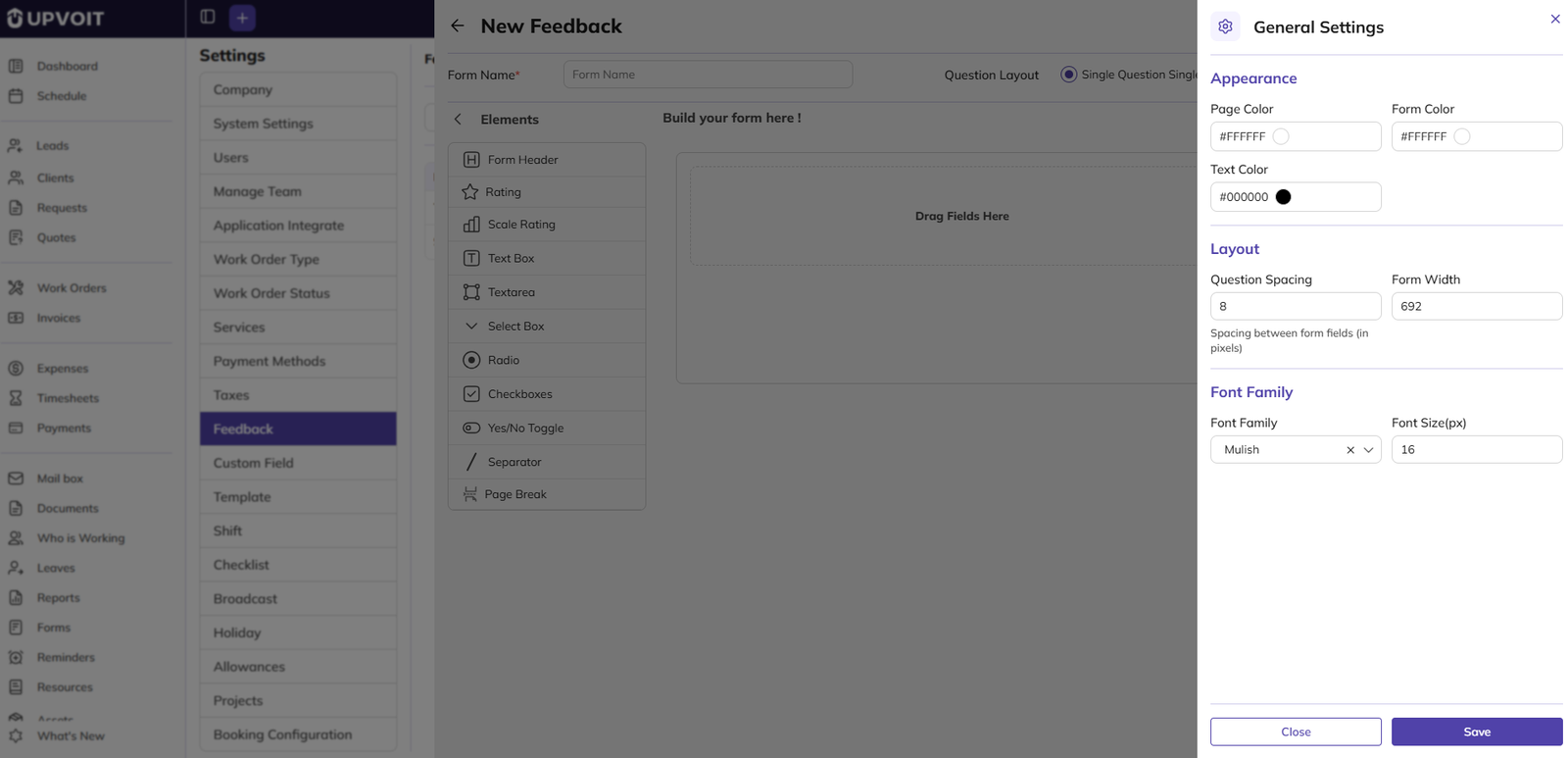
Click the settings (gear) icon on the New Feedback page to open General Settings, where you set the look of the form:
-
Appearance – Page Color, Form Color and Text Color.
-
Layout – Question Spacing (the space between fields, in pixels) and Form Width.
-
Font Family – Font Family (for example, Mulish) and Font Size (px).
Preview a Feedback Form
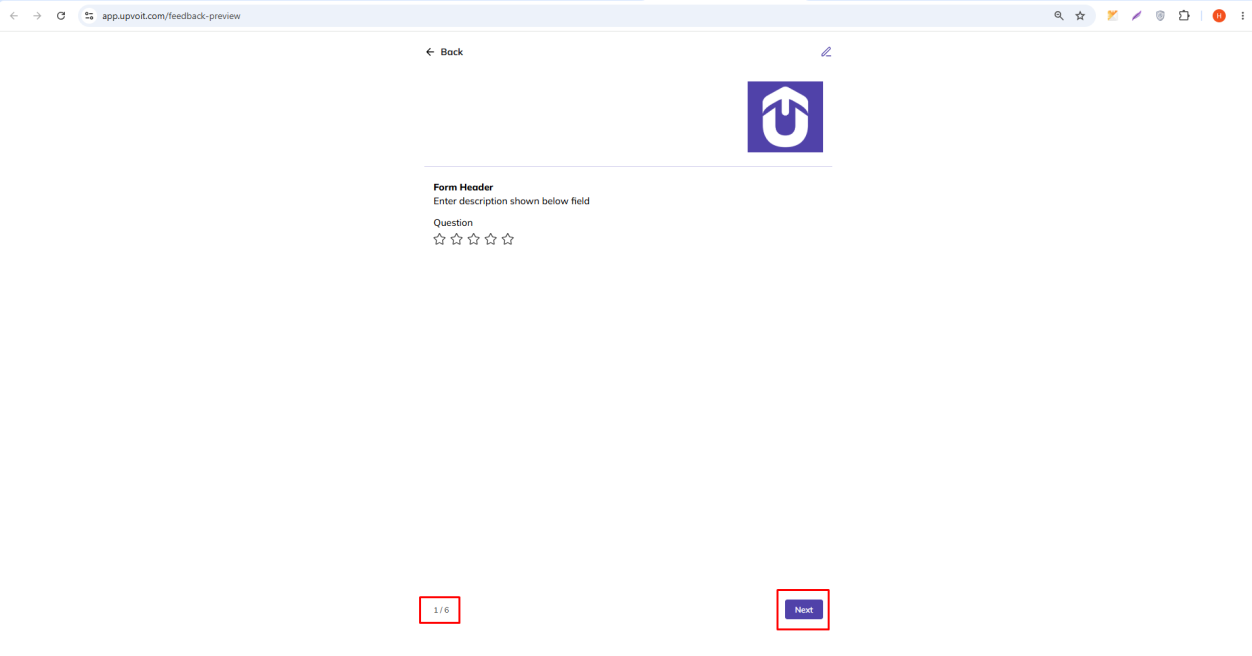
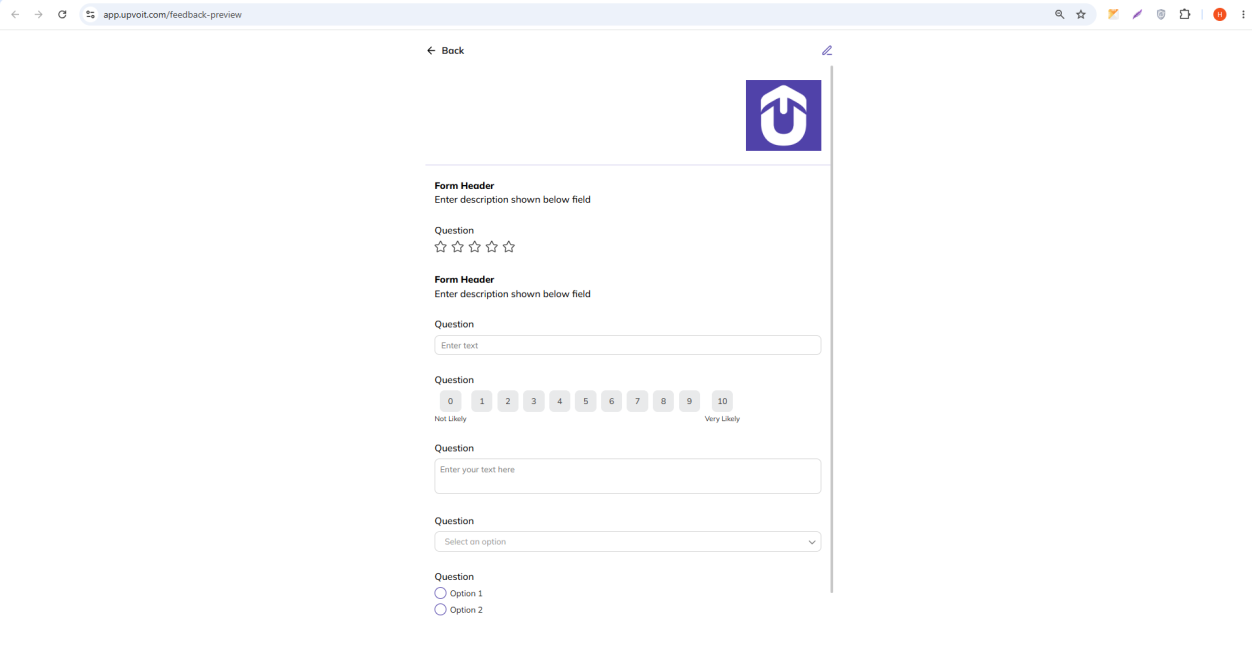
The preview shows the form exactly as clients will see it, with your logo and questions.
-
With Multi Question Single Page, all questions appear on one page.
-
With Single Question Single Page, one question appears at a time. The page counter (for example, 1 / 2) shows progress, and clients click Next to continue.
Edit a Feedback Form
Clicking the edit (pencil) icon opens the form in the builder, with its saved name, layout, fields and settings.
Delete a Feedback Form
If the form is in use

A feedback form that is already linked to a work order cannot be deleted. A Warning message is shown instead, with the number of linked work orders, for example Work Order: 1. Click Ok or Cancel to close the message.
Where Feedback Forms Are Used
Feedback forms are used in two places: work orders and the client page.
In work orders
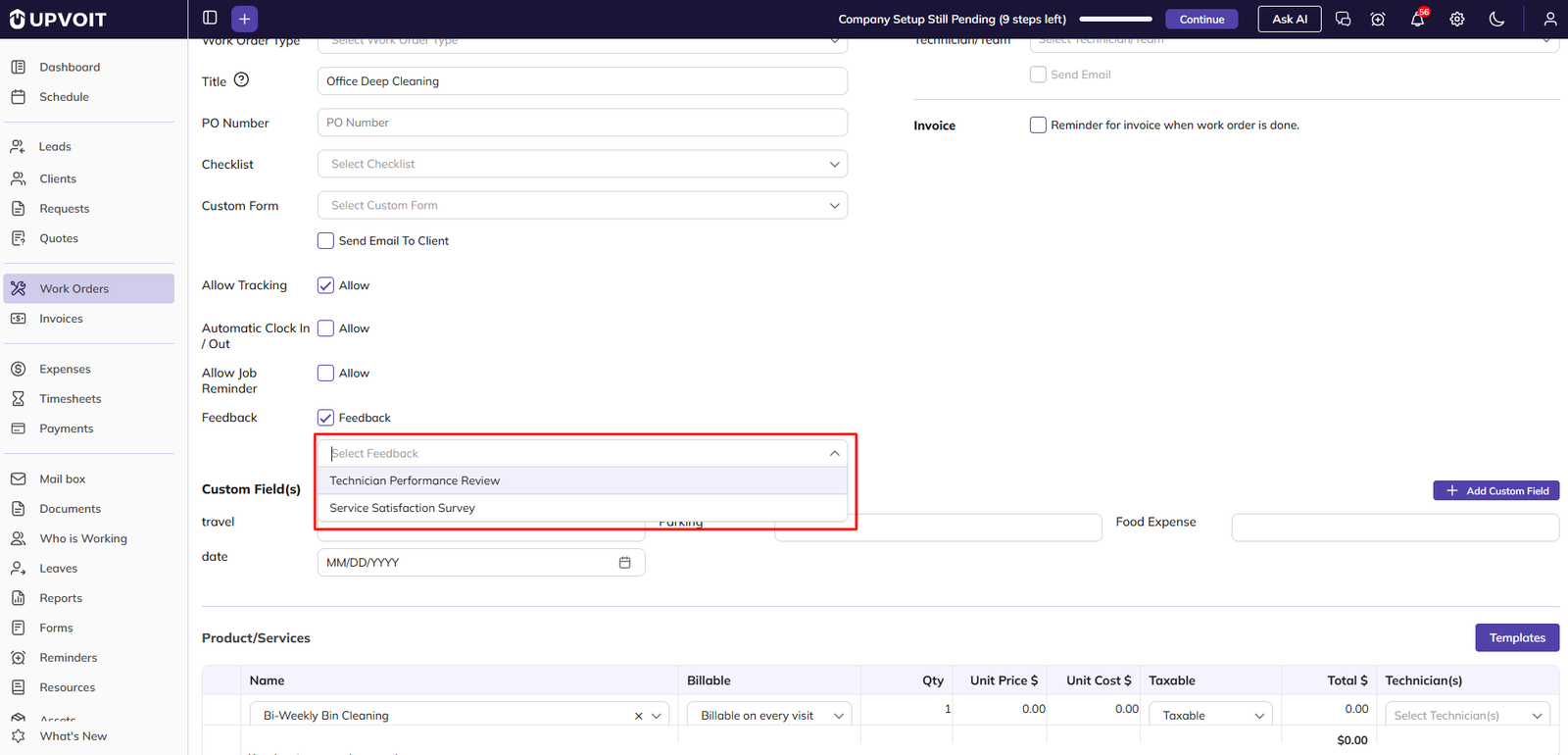
When creating or editing a work order, tick Feedback to link a feedback form to that work order. A Select Feedback dropdown then appears, listing the forms created in Settings. Choose the form you want the client to fill in for that work order.
Note: The Select Feedback dropdown shows forms only after a Client has been selected on the work order. Choose the client first, then select the feedback form.
A form that is linked to a work order cannot be deleted from Settings (see 10.6).
On the client page
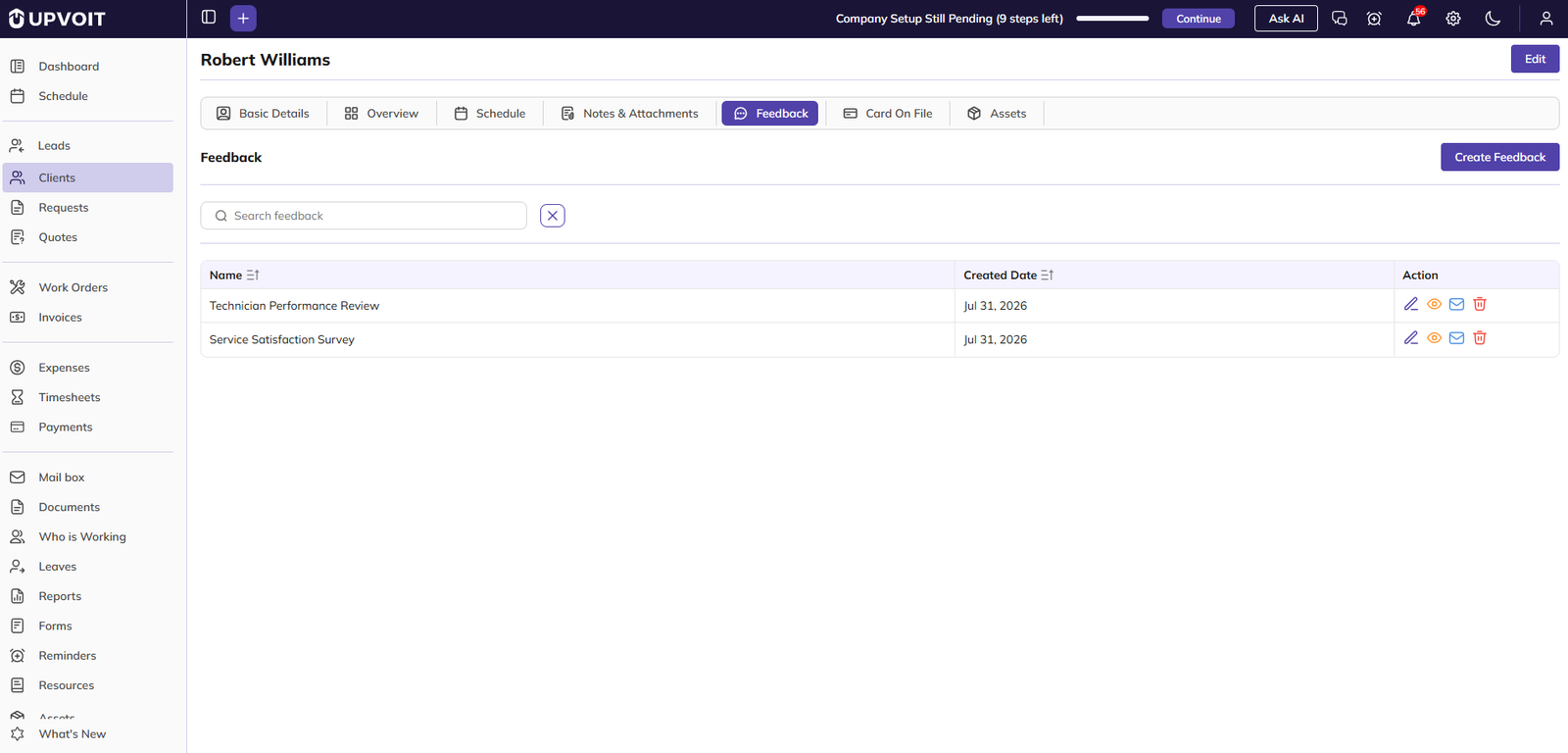
Feedback forms are also shown on the client page. Open a client and click the Feedback tab in the left menu. The forms created in Settings are listed there, and you can also send a form to the client using the email (envelope) icon.
Did this answer your question?


