
Template Overview
Template lets you save a set of line items that you often use together, such as all the services for an AC installation. Instead of adding each line one by one, you can add the whole template to a request, quote, work order or invoice in one step.
View Templates
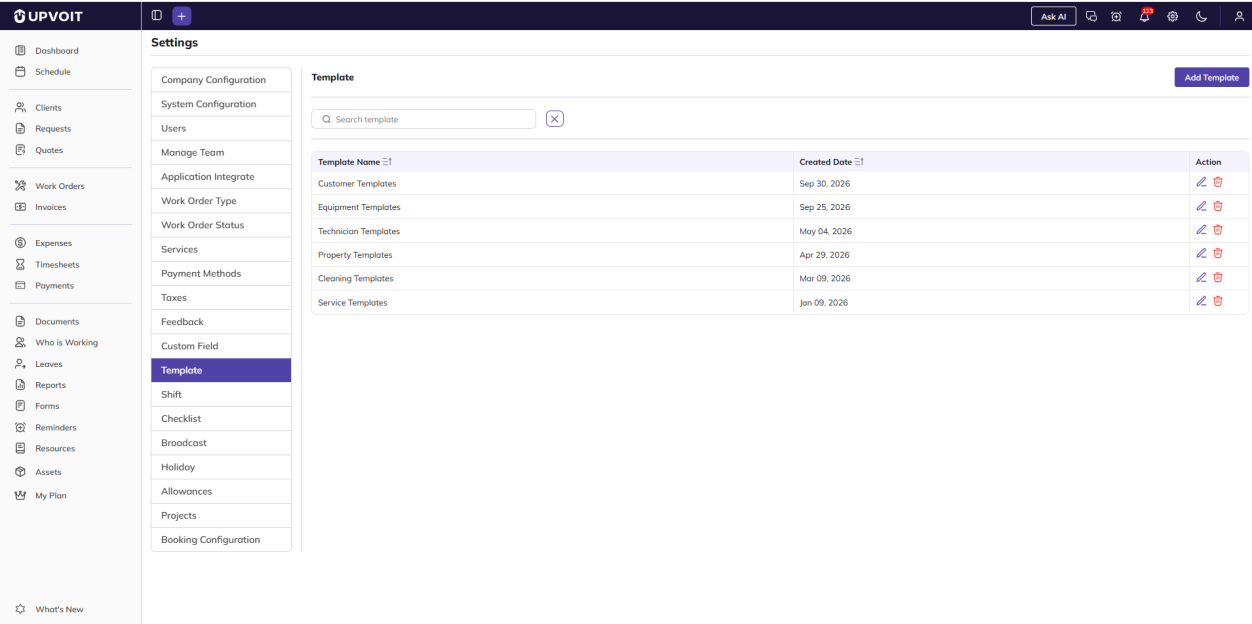
The Template page lists all your templates, with the date each was created. Use Add Template at the top right to create a new one.
-
Search template – find a template by name.
-
Sort – click the sort icons next to Template Name or Created Date to reorder the list.
-
Action – the edit (pencil) and delete (red bin) icons.
Add Template

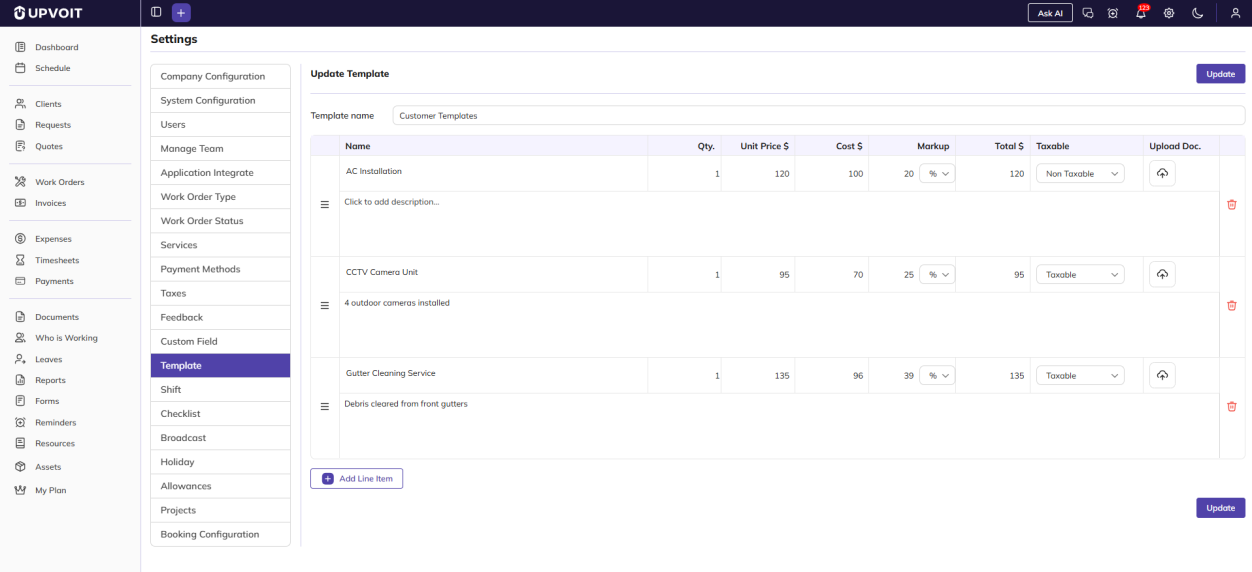
On the Add Template page, enter a Template name and add the line items you want to save together. Each line works the same way as a line item on a work order: choose a service (or type a new one), add a description, and set the quantity, price, cost, markup and tax. Total $ is calculated automatically, and you can attach a file to a line using Upload Doc.
-
Add Line Item – add another line.
-
☰ handle – drag to change the order of the lines.
-
Red bin icon – remove a line.
Edit Template
Clicking the edit (pencil) icon opens the template with its saved name and line items. It works in the same way as Add Template with existing details.
Delete Template
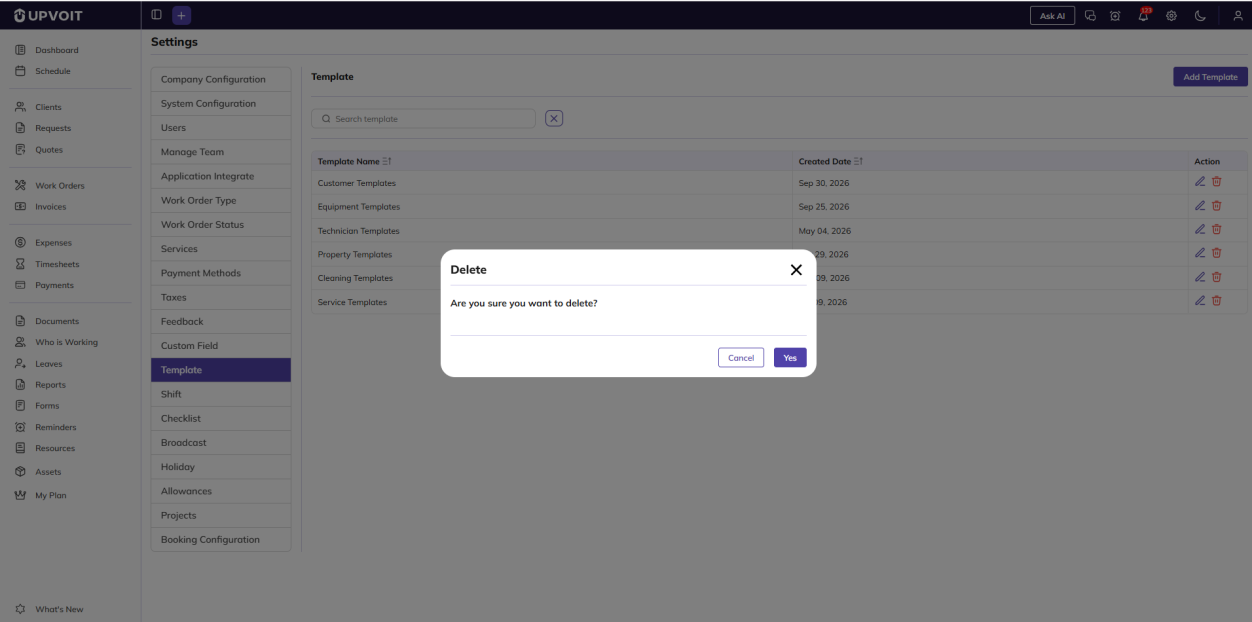
Clicking the delete (red bin) icon opens a Delete confirmation message: Are you sure you want to delete?
Where Templates Are Used

Templates are used in the Product/Services section of requests, quotes, work orders and invoices.
Did this answer your question?


