
Overview
The Users module helps you manage everyone in your company, including administrators, technicians, subcontractors, and client contacts.
Use this module to control access, manage user records, and keep your team setup organized from one place.
Accessing the Users Module
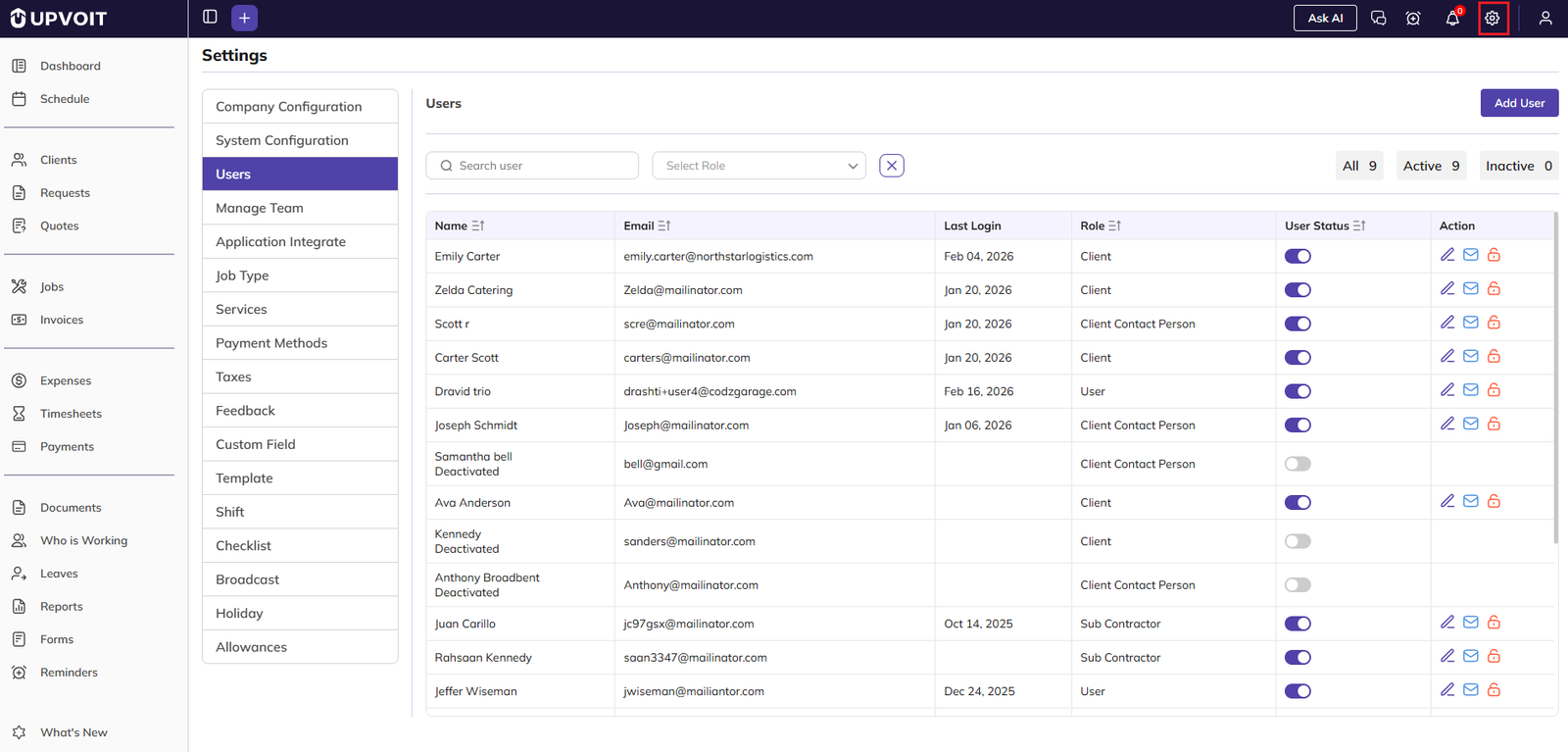
Click the Settings icon in the top-right corner of Upvoit.
Select Users from the menu.
The Users page opens and shows a complete list of people added to your company.
Users List
The Users list gives you a quick view of all users and their current status.
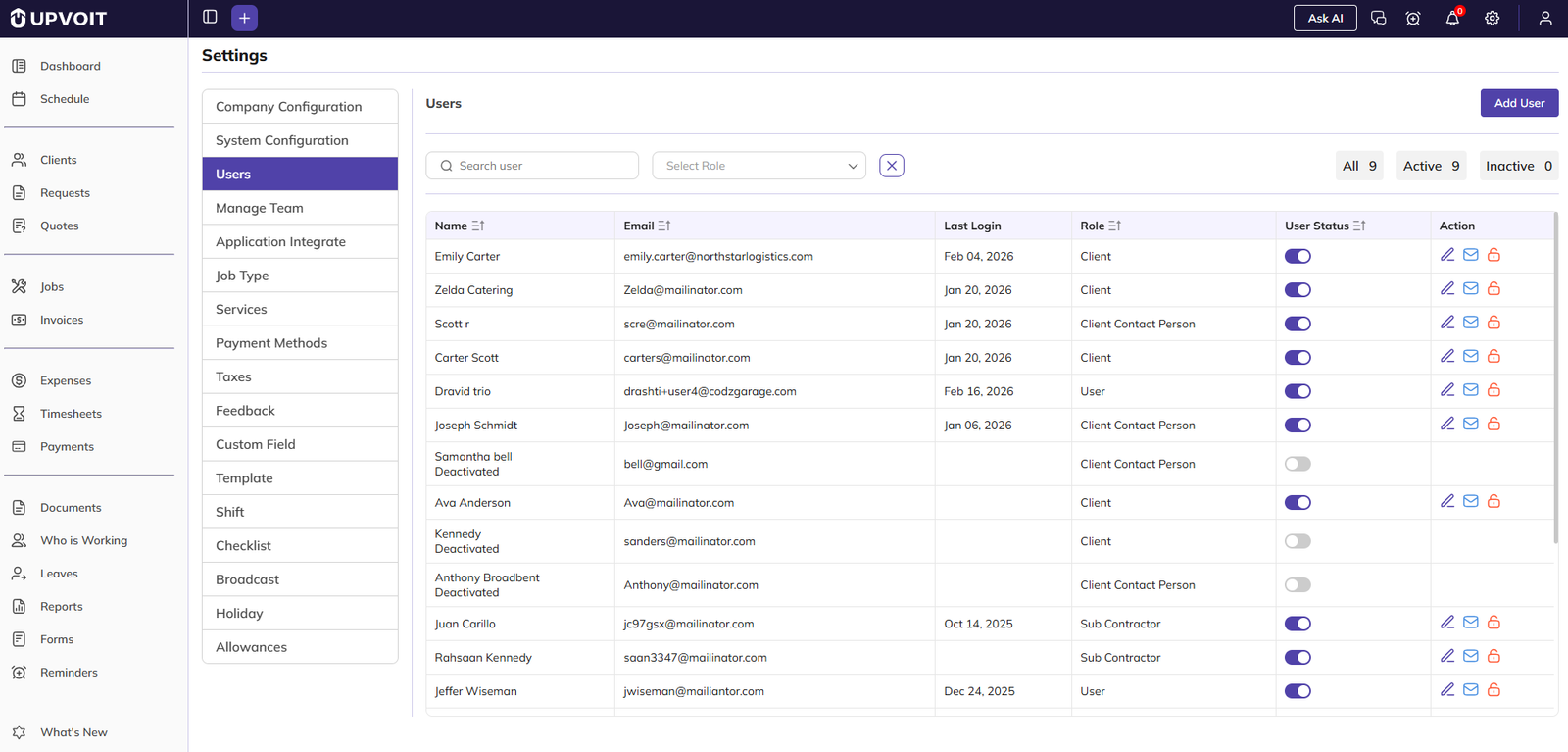
Each row typically includes:
User name
Email address
Last login date
Role
Current status (Active or Inactive)
Action icons (such as edit, invite, or reset)
Search, Filter, and User Counts
At the top of the Users page, you can quickly find and review users using:
Search bar to find users by name or email
Role filter to narrow users by role type
Count cards for All, Active, and Inactive users
These tools help you quickly confirm who currently has system access.
Quick Actions from the User List
From the list, you can perform common actions without opening every profile:
Activate or deactivate a user
Edit user information
Send invitation email
Send password reset email
Adding a New User
To create a user:
Click Add User in the top-right corner.
Complete the sections in the form.
Save the user when setup is complete.
The add-user screen is organized into clear sections.
Basic Details
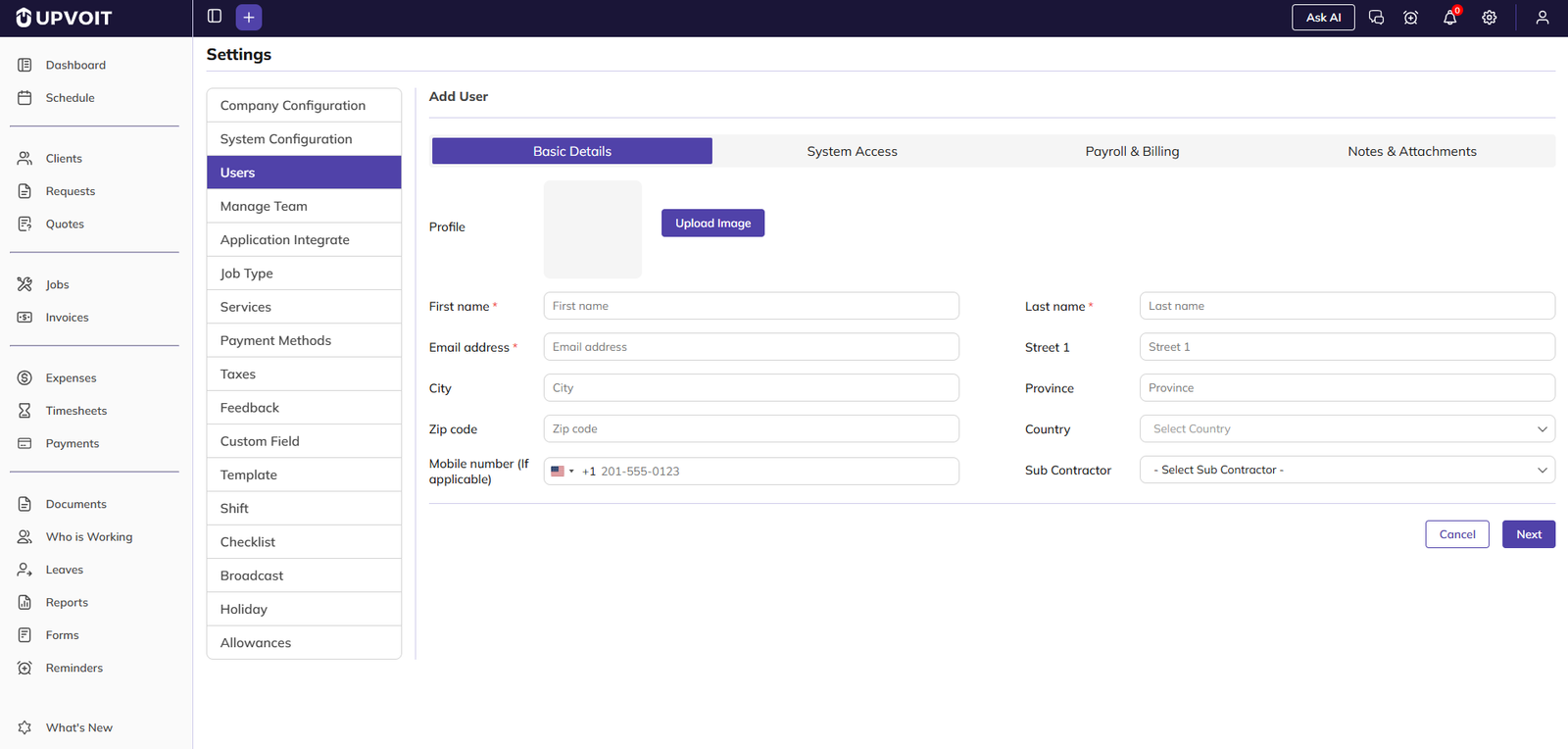
Enter the user’s core information, such as:
Full name
Email address
Contact details
Shift assignment (if applicable)
Linked subcontractor (if applicable)
This information supports scheduling and day-to-day user management.
System Access
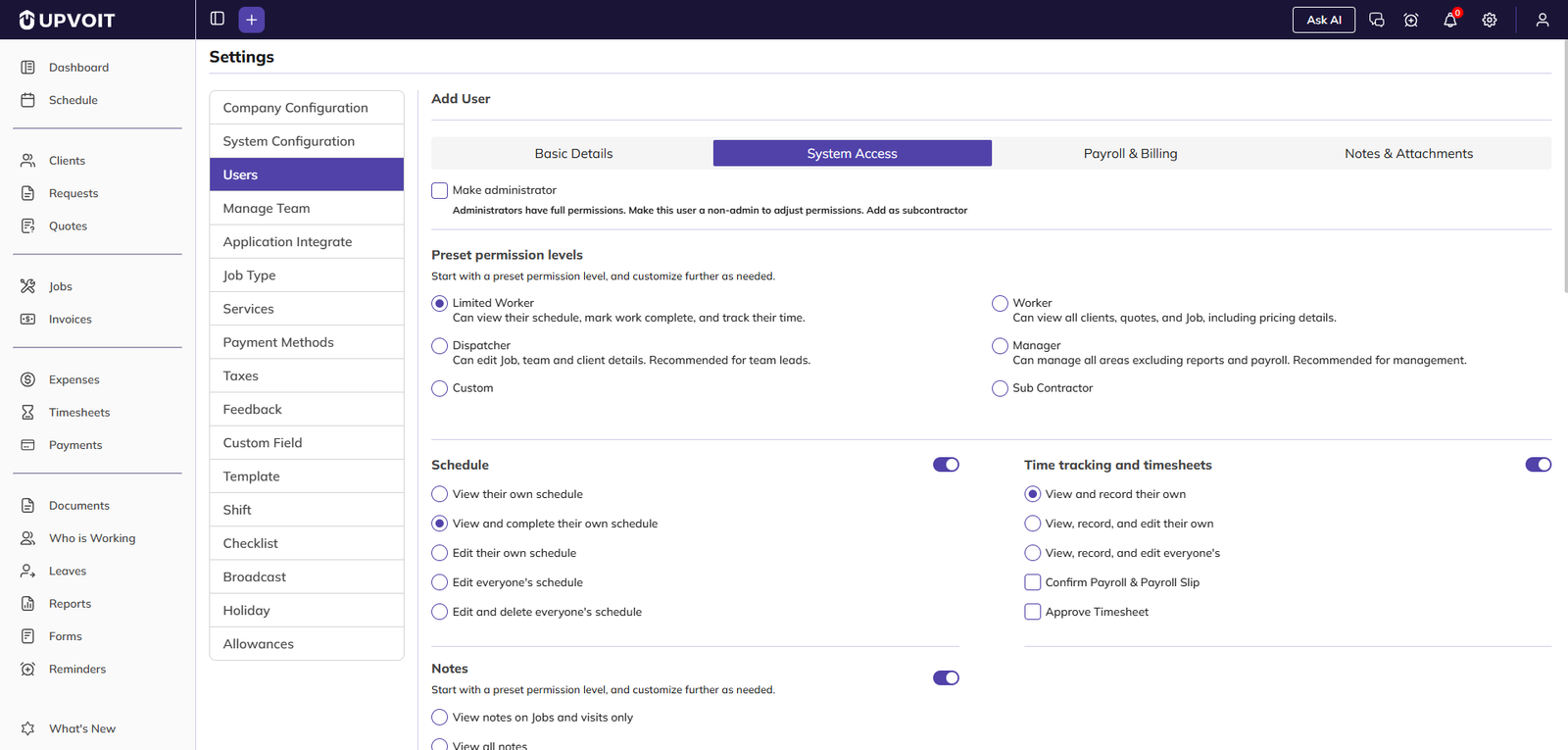
In this section, define what the user can see and do in Upvoit:
Assign administrator access where required
Use preset permission levels for common roles
Customize module-level permissions for specific needs
Use this section carefully to maintain security and operational efficiency.
Payroll and Billing
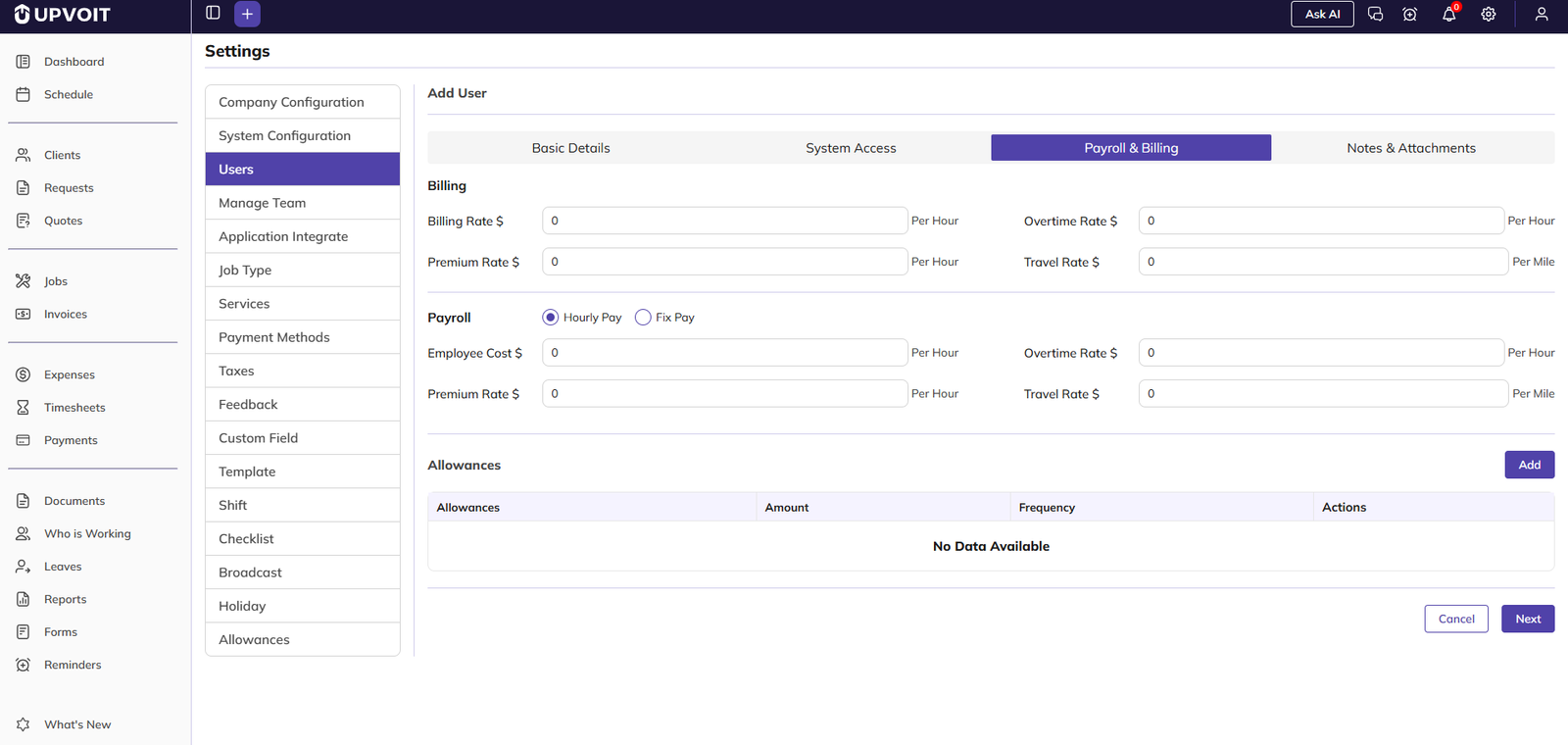
Configure how the user is billed and paid:
Hourly rate
Overtime rate
Premium rate
Fixed pay (if your workflow uses fixed compensation)
Correct setup here helps prevent payroll and billing errors later.
Notes and Attachments
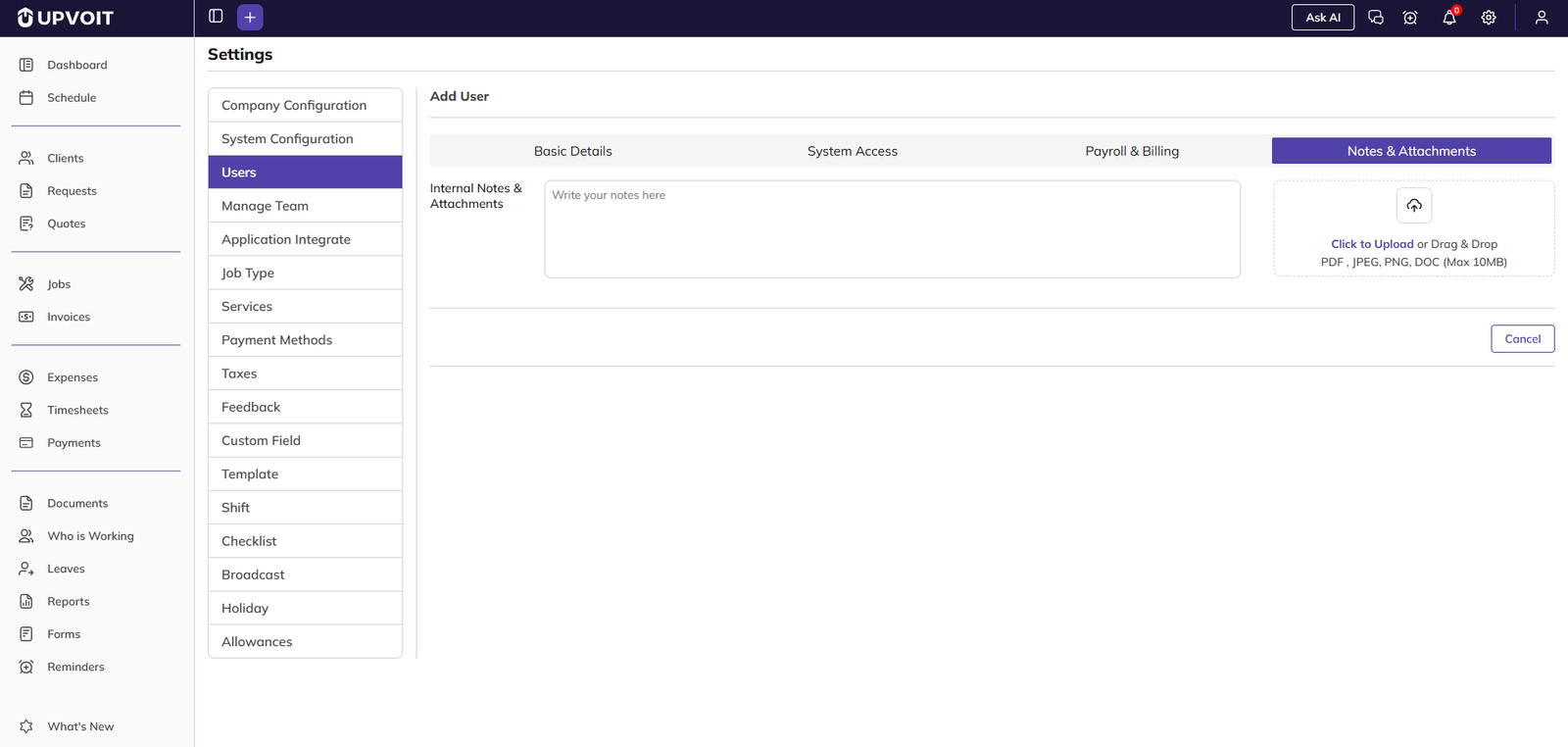
Use this section for internal records:
Add notes about the user
Upload supporting documents (for example, agreements or ID proofs)
This helps maintain complete employee or contractor records in one place.
Saving and Inviting the User
After completing required details:
Click Save.
Upvoit sends an invitation email to the new user.
The user can then access the system with assigned permissions and settings.
Editing an Existing User
To edit user details:
Open the Users list.
Click the Edit icon for that user.
Update required sections.
Save changes.
Typical edits include role changes, permission updates, status changes, or payroll updates.
Activating and Deactivating Users
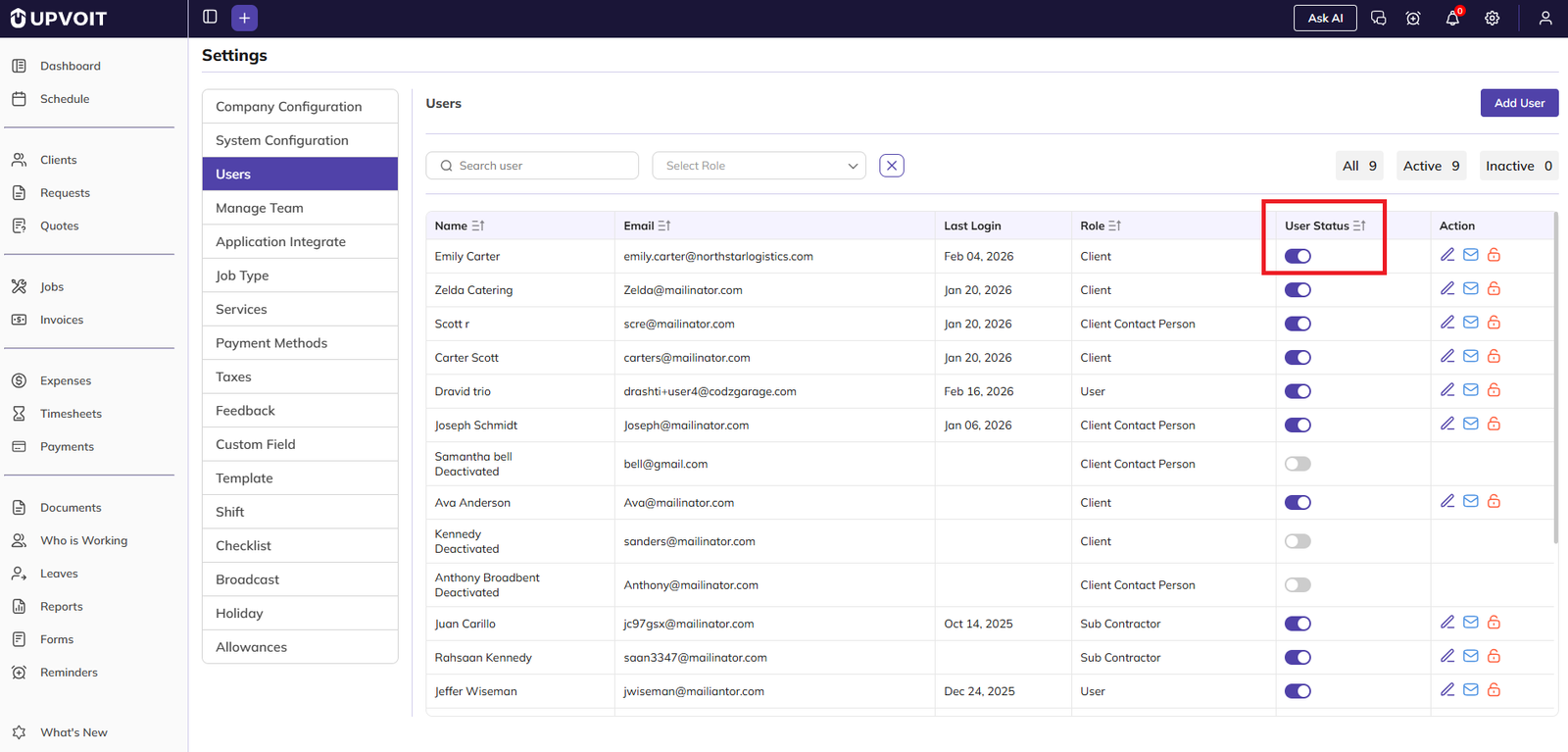
Use status controls to manage access immediately:
Active users can log in and work in Upvoit
Inactive users cannot access the system until reactivated
This is useful for temporary leaves, offboarding, or access control reviews.
Invitation and Password Reset
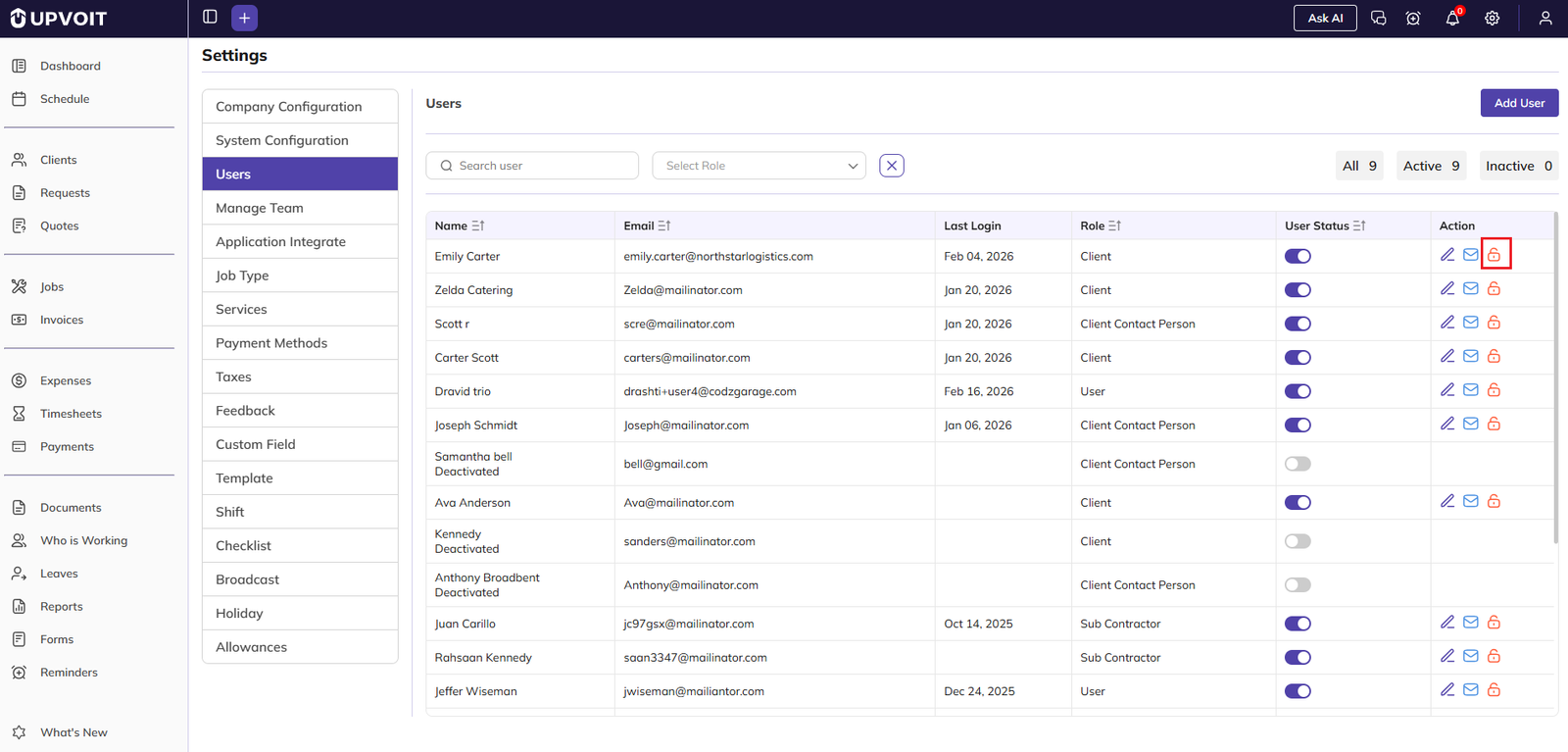
If a user cannot sign in:
Send a new invitation email if onboarding was never completed
Send a password reset email if credentials were forgotten
Always verify the email address before resending.
User Profile Menu (Top-Right Profile Image)
Every logged-in user has a profile menu in the top-right corner.

Available options include:
Profile summary (name and company name)
Switch Company (for users linked to multiple companies)
View Profile to update personal profile details
Calendar connection settings
Theme selection (Light or Dark)
Log Out
Switch Company
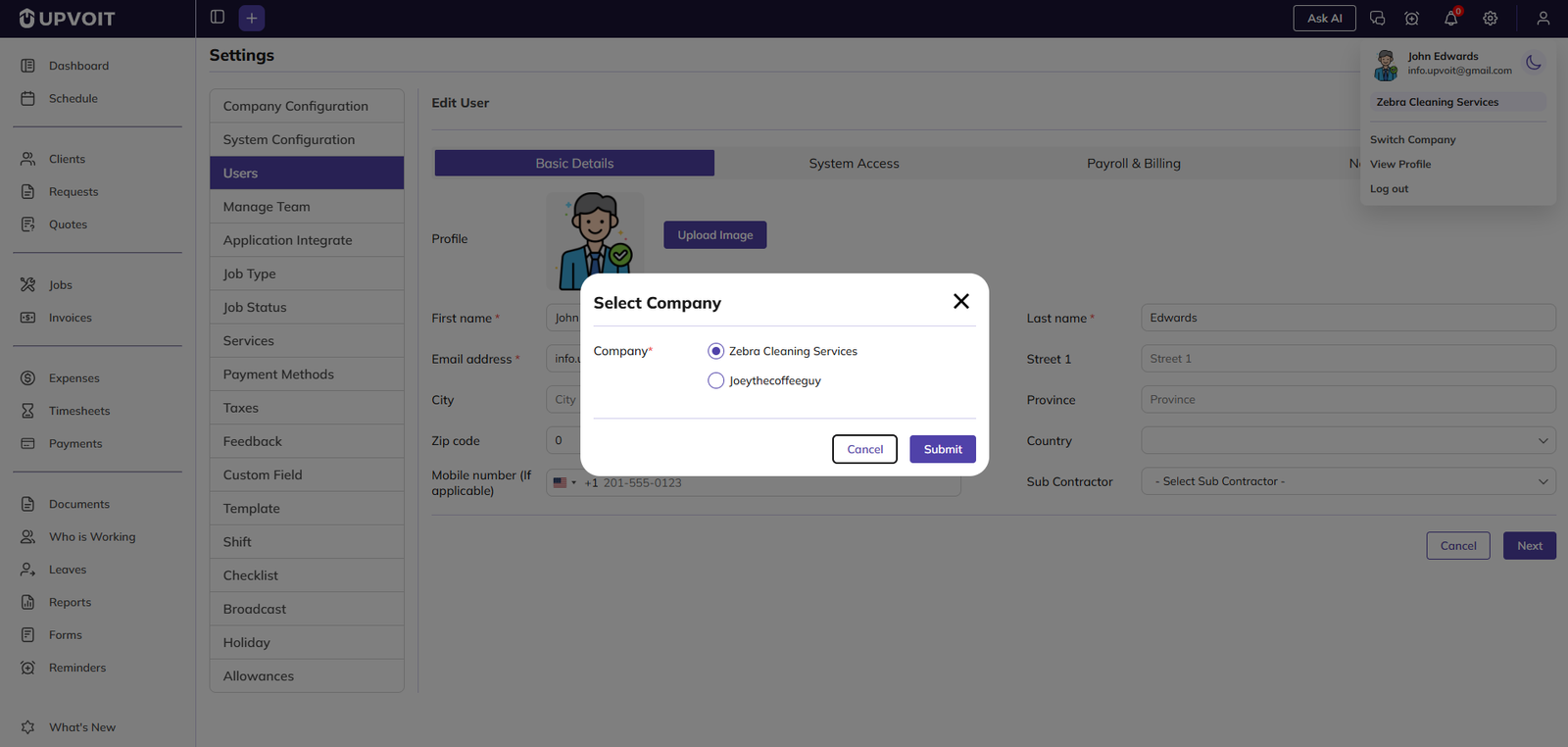
If your account is linked to multiple companies:
Click your profile image.
Select Switch Company.
Choose the company you want to work in.
This updates your working context without a separate login.
View Profile
From View Profile, users can update profile details like name, email, and related account information.
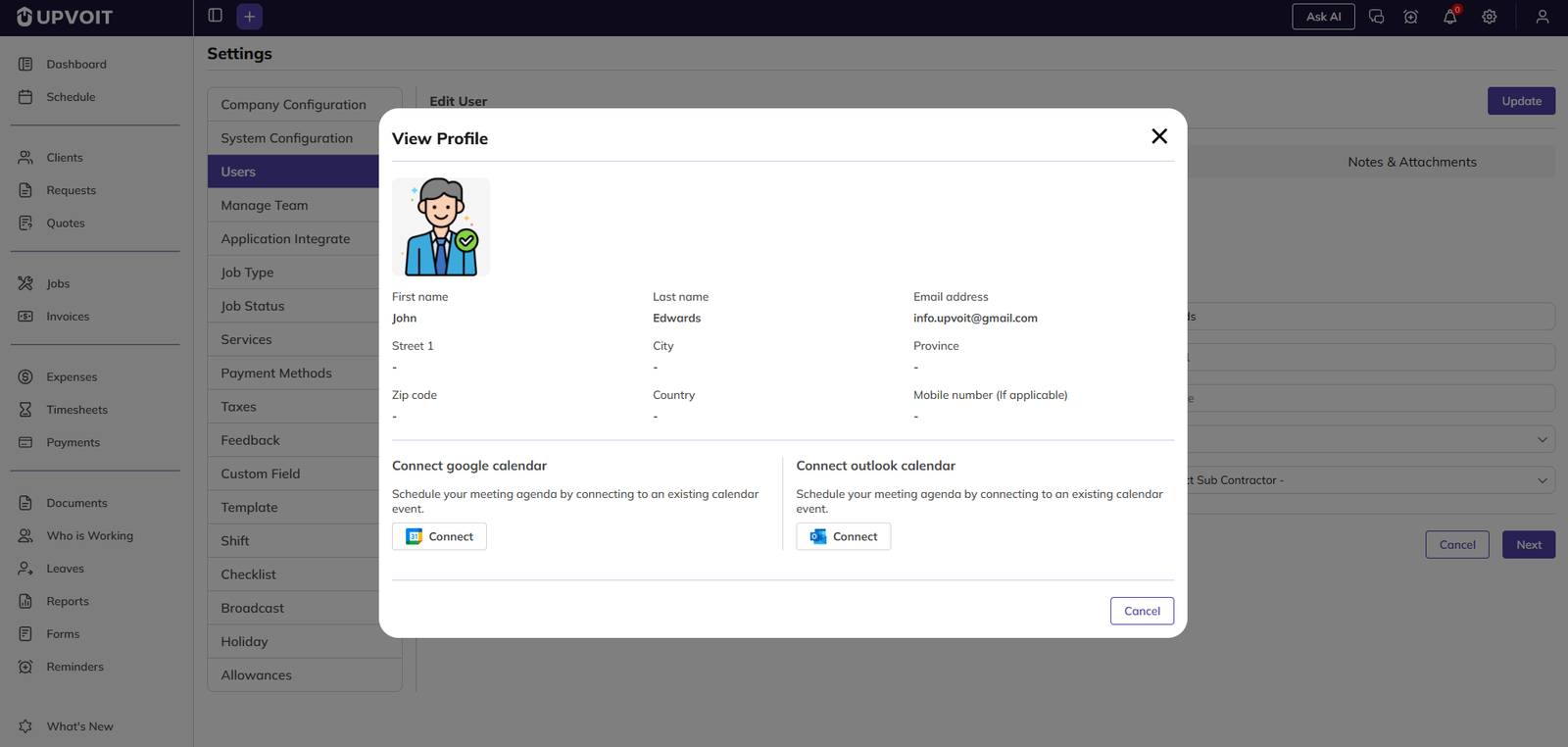
This keeps personal records current and improves communication accuracy.
Calendar Integration
Users can connect:
Google Calendar
Outlook Calendar
Connected calendars help sync jobs, schedules, and important events automatically for better planning and visibility.
Theme and Logout
Use Theme to switch between light mode and dark mode based on preference.
Use Log Out to securely end your session.
Best Practices
Assign access based on role, not convenience.
Review active and inactive users regularly.
Keep payroll and billing details accurate and updated.
Store required notes and documents for compliance and audits.
Encourage users to connect calendars for improved scheduling visibility.
Troubleshooting
User cannot log in
Confirm the user is marked Active.
Resend invitation or password reset email.
Verify that the email address in profile is correct.
User cannot access a module
Review role and module permissions in System Access.
Update permissions and ask the user to refresh or log in again.
Switch Company option not visible
This option appears only if the login is connected to more than one company.
Calendar not syncing
Reconnect Google or Outlook calendar from View Profile.
Confirm required calendar authorization permissions were granted.
Conclusion
The Users module gives you centralized control of people, permissions, payroll setup, and profile management. With proper user setup and regular access reviews, your Upvoit workspace stays secure, organized, and ready for smooth daily operations.
Did this answer your question?


