
Track employee time accurately, approve work hours, process payroll, and manage payroll slips — all in one place.
Overview
About the Timesheet Module
The Timesheet module is the central workspace for managing employee work hours and payroll. It supports time tracking, approvals, payroll processing, and historical payroll records for both employees and administrators.
Who Should Use This Module
-
Employees – to log and manage their work hours
-
Managers – to review and approve timesheets
-
Administrators – to process payroll and manage payroll records
Accessing Timesheets
Open the Timesheet Module
Access the Timesheet module from the main menu. Available tabs depend on your role and permissions.
Module Tabs
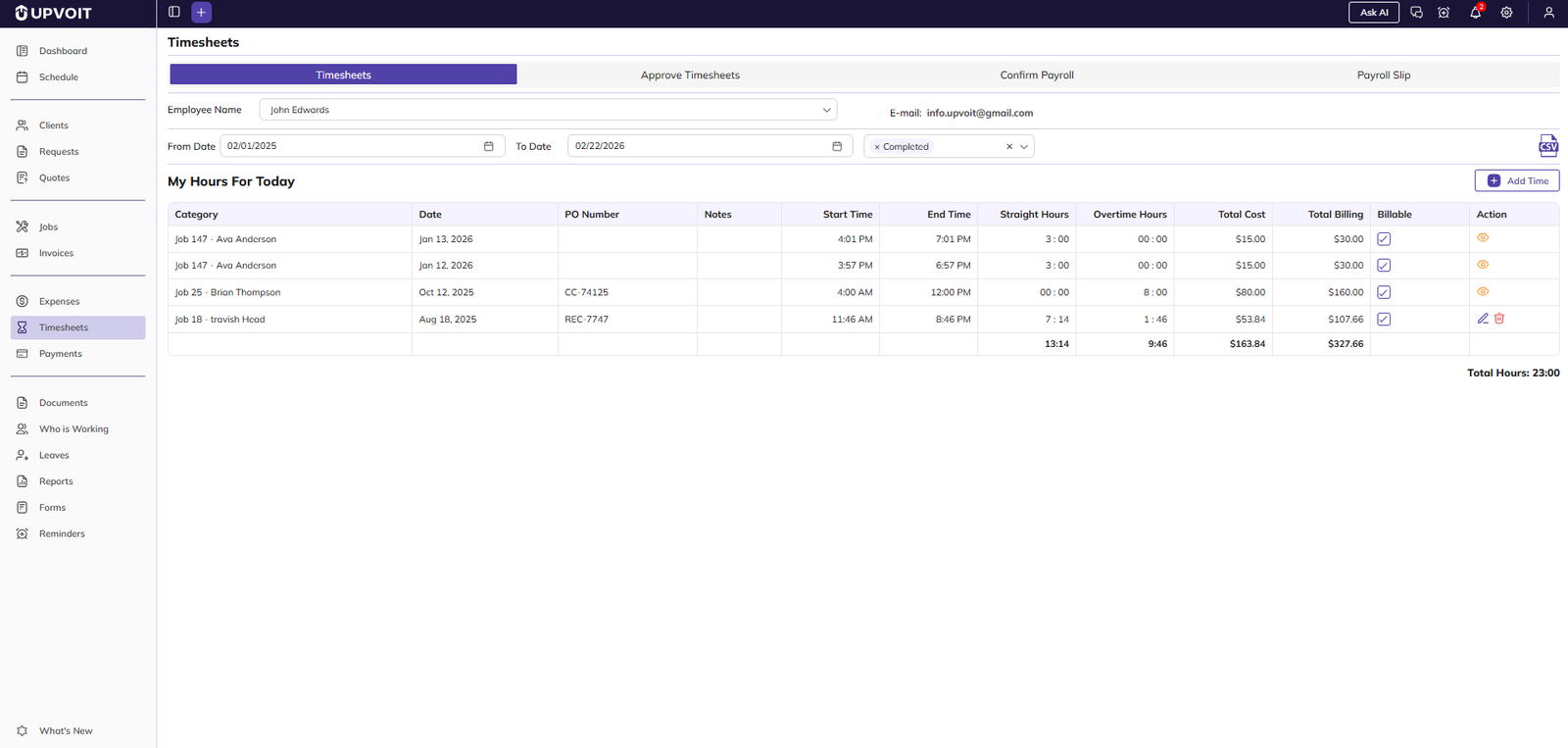
The Timesheet module is organized into four main tabs:
-
Timesheets
-
Approve Timesheets
-
Confirm Payroll
-
Payroll Slip
Timesheets
View Employee Timesheets
View and manage individual time entries for employees.
How it works
-
Select an employee from the Employee Name dropdown
-
The employee’s email appears automatically
-
The timesheet list updates based on the selected employee
Filter Time Entries
Quickly find relevant time entries.
Available filters
-
Today
-
Specific date using the date picker
-
Custom date range
-
Job status
Timesheet Entry Details
Each timesheet entry displays:
-
Job-related or general time
-
Date
-
Job or purchase order number
-
Notes
-
Start time
-
End time
-
Straight hours
-
Overtime hours
-
Total cost (based on permissions)
-
Total billing (based on permissions)
-
Billable status
-
Action
Add Time Entry
Create a new timesheet entry.
Steps
-
Click Add Time
-
Choose job-related or general time
-
Select the date
-
Enter start and end times
-
Add notes if required
-
Set billable status
-
Click Save
Edit Time Entry
Modify an existing unpaid time entry.
Notes
-
Paid entries cannot be edited
-
Paid entries appear in view-only mode
Delete Time Entry
Remove an unpaid time entry.
Steps
-
Click the delete icon
-
Confirm the action
Timesheet Totals
View a summary of hours and amounts for the selected period:
-
Straight hours
-
Overtime hours
-
Total hours worked
-
Total cost
-
Total billing
Approve Timesheets
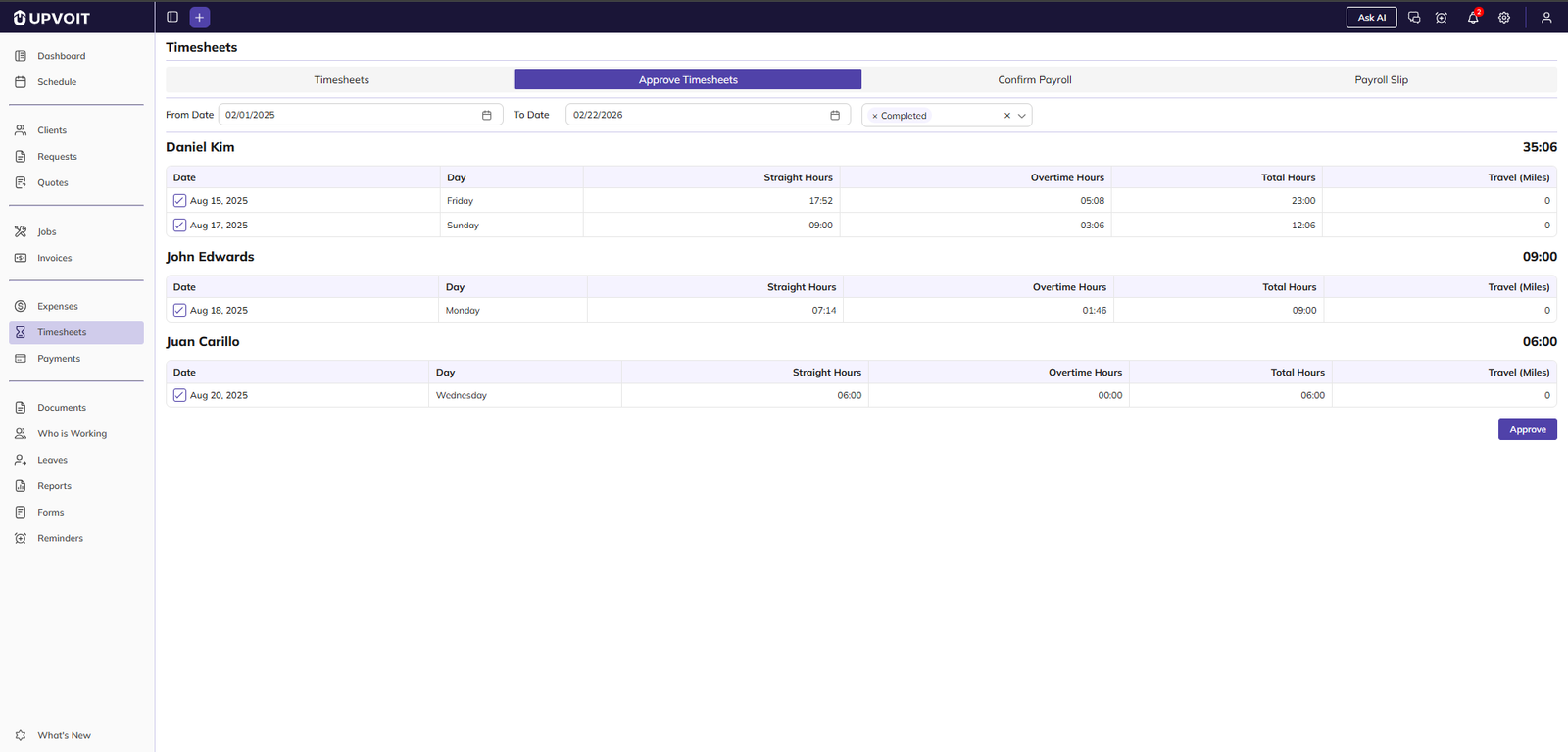
About Timesheet Approval
This tab is available to managers and administrators with approval permissions.
Filter Entries
Quickly find relevant time entries.
Available filters
-
From date
-
To date
-
Job status
View Pending Approvals
See employees with hours awaiting approval.
Details shown
-
Total hours for the selected period
-
Date
-
Day
-
Straight hours
-
Overtime hours
-
Total hours
-
Travel miles
Approve Timesheets
Approve submitted time entries.
Steps
-
Expand an employee record
-
Review daily entries
-
Select dates to approve
-
Click Approve
If no approvals are pending, a confirmation message is displayed.
Confirm Payroll
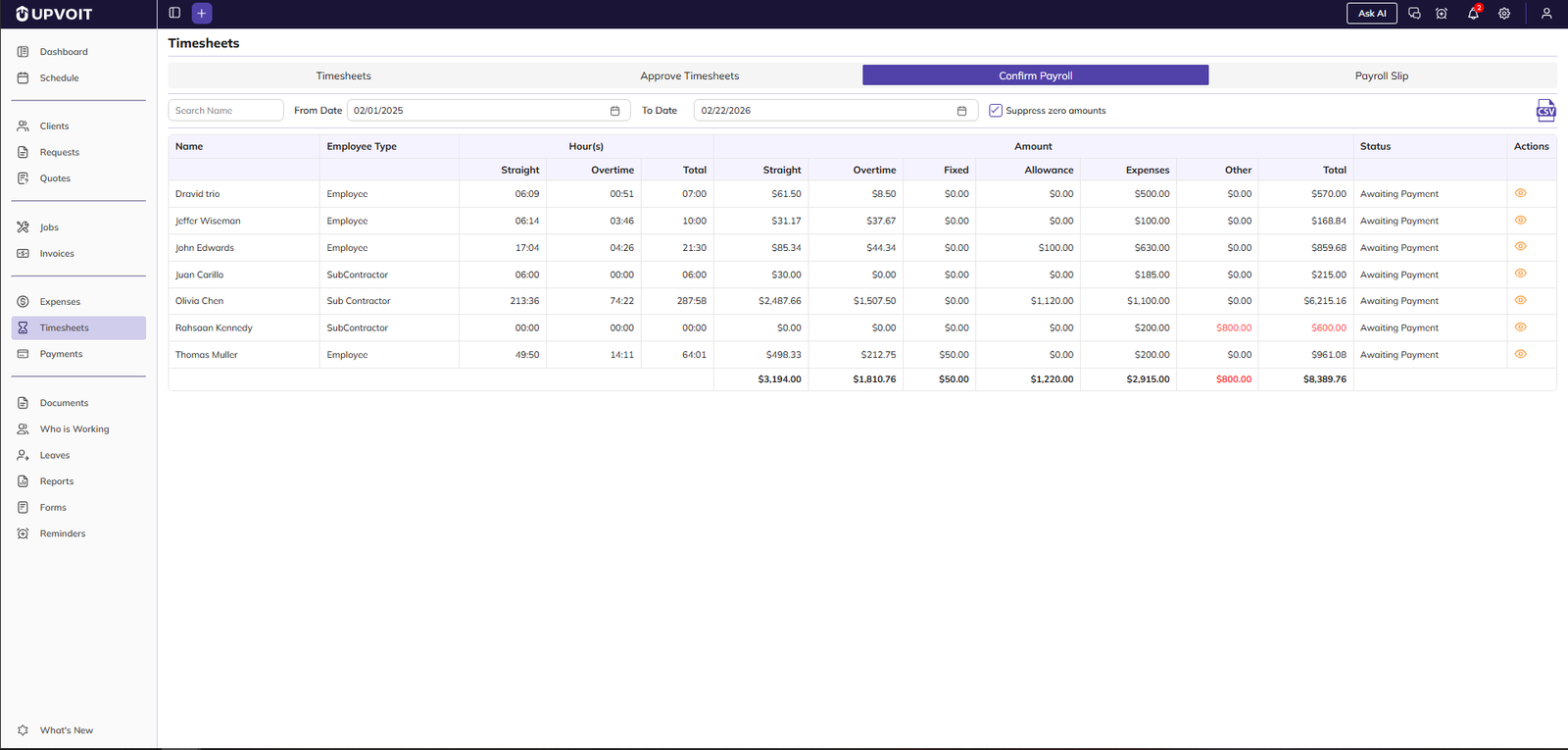
About Payroll Processing
The Confirm Payroll tab is used to review and finalize payroll for employees.
Filter Entries
Quickly find relevant time entries.
Available filters
-
Employee search
-
From date
-
To date
-
Suppress zero amounts
-
Download CSV
Payroll Summary View
View payroll details for all employees in the selected period.
Information shown
-
Name
-
Employee Type
-
Straight, overtime and Total hours
-
Straight, overtime, fixed, allowance, expenses, other and Total amount
-
Status
-
Action
View Employee Payroll Details
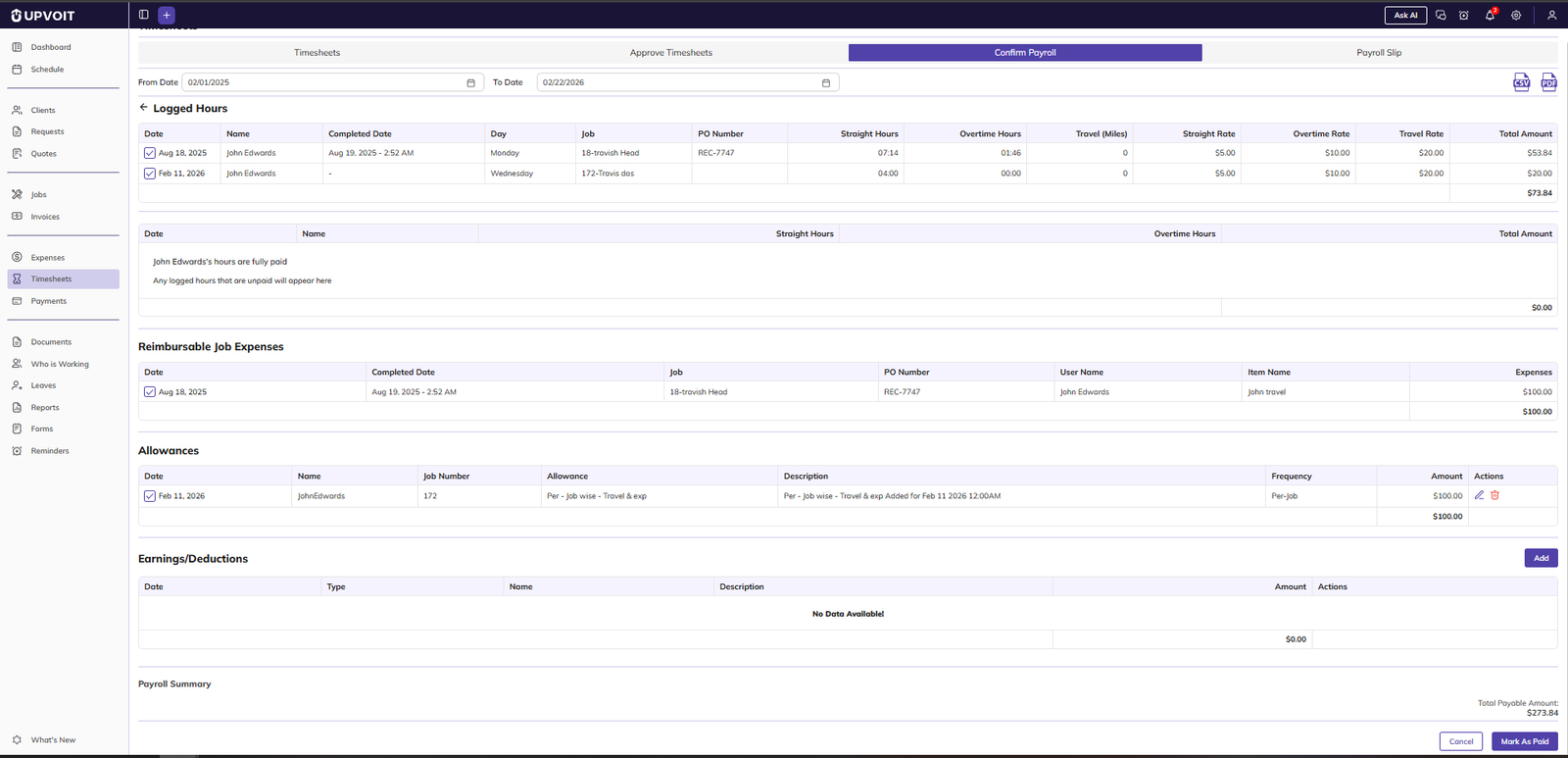
Open detailed payroll information for an employee.
Includes
-
Date
-
Employee name
-
Completed date
-
Day
-
Job number and client name
-
PO number
-
Straight Hours
-
OvertimeHours
-
Travel(Miles)
-
Straight Rate
-
Overtime Rate
-
Travel Rata
-
Total amount
Review Job Expenses
Manage reimbursable job expenses.
Includes
-
Date
-
Completed date
-
Job number and client name
-
PO Number
-
User Name
-
Item Name
-
Expenses
Manage Allowances
Review and manage allowances included in payroll.
Examples
-
Travel allowances
-
Custom allowances
Includes
-
Date
-
Name
-
Job number
-
Allowance
-
Description
-
Frequency
-
Amount
-
Edit and delete
Add Earnings or Deductions
Adjust payroll amounts as needed.
Use cases
-
Bonuses
-
Commissions
-
Reimbursements
-
Advances
Includes
-
Date
-
Type
-
Name
-
Description
-
Amount
-
Edit and Delete
How to add earnings/deductions Steps
-
Clieck on add button
-
Enter date
-
Select type (earning or deduction)
-
Add Name
-
Add description and amount
-
Save changes
Finalize Payroll
Complete payroll processing.
Steps
-
Review all payroll components
-
Select items to include
-
Click Mark As Paid
This finalizes payroll for the employee.
Payroll Slip
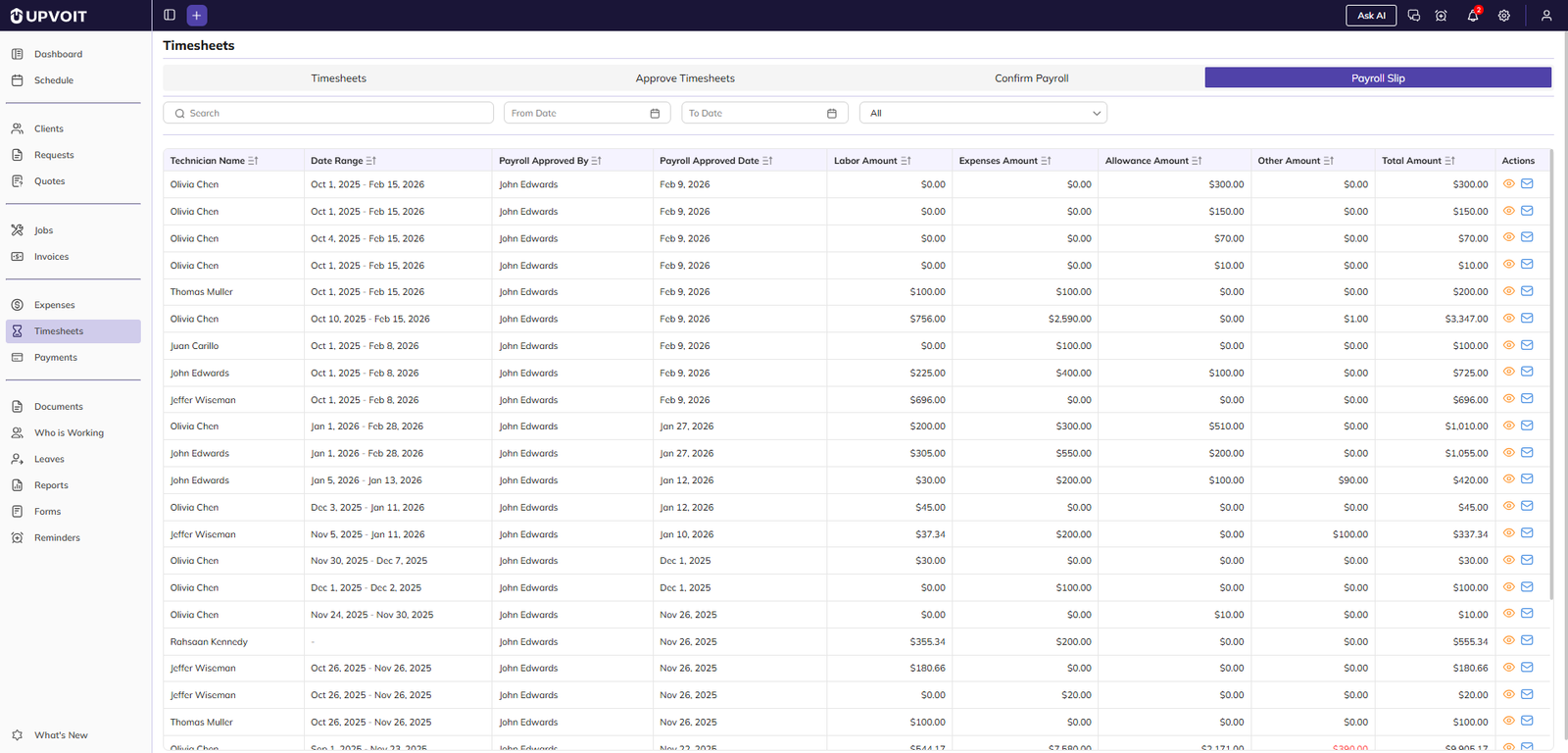
About Payroll Slips
The Payroll Slip tab stores historical payroll records for reference and reporting.
View Payroll History
Search and filter payroll slips by:
-
Employee name
-
Date range
-
Technician
Payroll Slip Details
Each payroll slip includes:
-
Technician Name
-
Date Range
-
Payroll Approved by
-
Payroll Approved date
-
Labor amount
-
Expenses Amount
-
Allowance Amount
-
Other Amounts
-
Total Amount
-
View and Email
View Payroll Slip
Open a payroll slip to see:
-
Logged hours
-
Expenses
-
Allowances
-
Earnings
-
Deductions
-
Final payable amount
Send Payroll Slips
Email payroll slips directly to employees using the email option.
Payroll Configuration
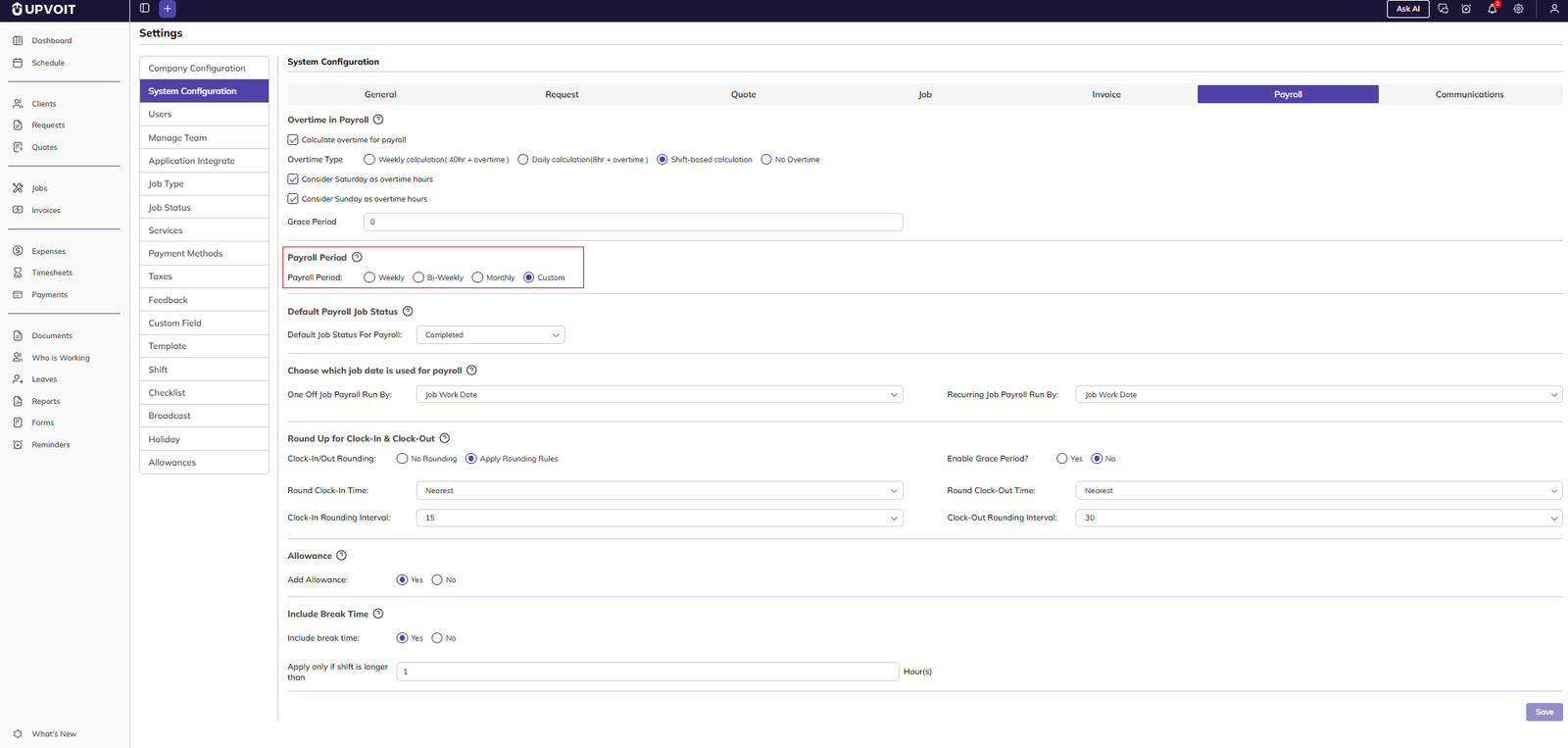
Payroll Periods
Go to the Settings menu, then System Configuration, and open the Payroll tab to view the Payroll Period section.
Payroll can be configured as:
-
Weekly
-
Bi-weekly
-
Monthly
-
Custom periods
Standard payroll periods calculate dates automatically. Custom periods allow manual date selection.
Employee Pay Types
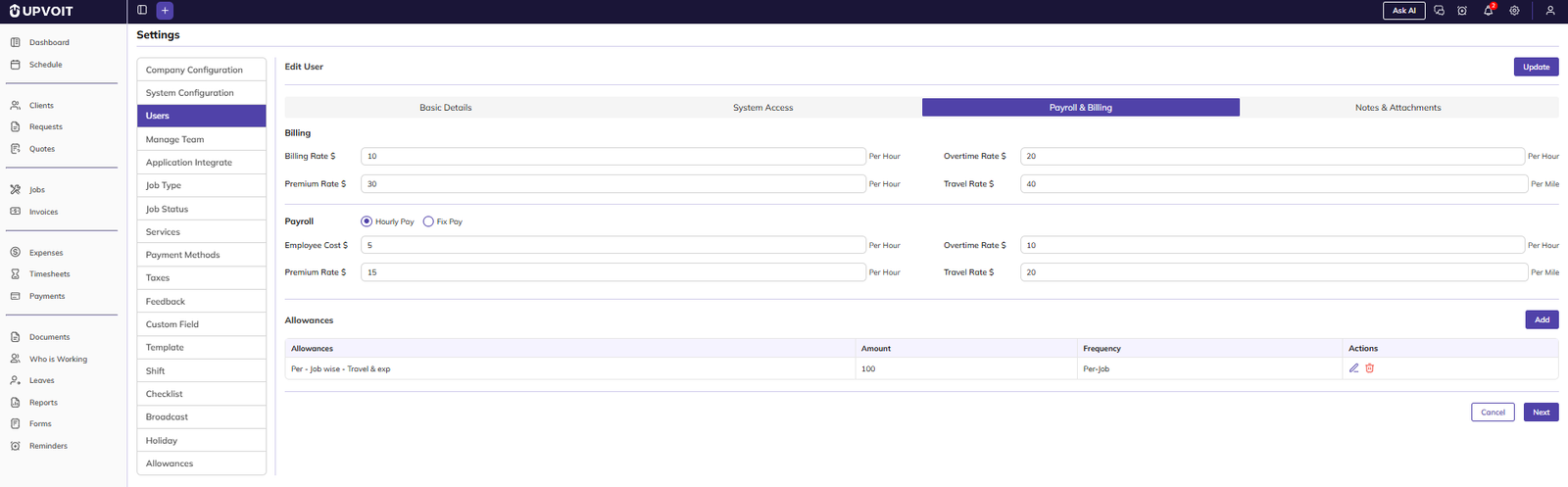
Go to the Settings menu, then User, and open the Payroll & billing tab to view the Payroll section.
Employees can be configured as:
-
Hourly Pay – paid based on straight and overtime hours
-
Fix Pay – paid a fixed amount per pay period
Premium Days
Certain days may be marked as premium days, applying higher pay rates automatically.
Allowances
Allowances provide additional compensation beyond wages.
Types
-
One-time allowances
-
Recurring allowances (weekly, bi-weekly, monthly)
Earnings and Deductions
Used to adjust payroll accurately.
-
Earnings increase total pay
-
Deductions reduce total pay
-
Final net pay is calculated automatically
Exporting Data
Export Timesheets
Export timesheet data as CSV files for reporting and analysis.
Export Payroll
Export payroll summaries as PDF files for:
-
Printing
-
Sharing
-
Record keeping
Export options are available only when data exists.
Best Practices
Recommended Usage
-
Encourage employees to log time daily
-
Approve timesheets regularly
-
Review payroll thoroughly before marking as paid
-
Export payroll records for backup and compliance
Did this answer your question?


