
Services Overview
The Services page is where you create, review, and manage the products and services your company offers. Services keep your pricing and descriptions consistent across templates, quotes, jobs, and invoices.
You can access Services from Settings → Services in the left-hand Settings menu.
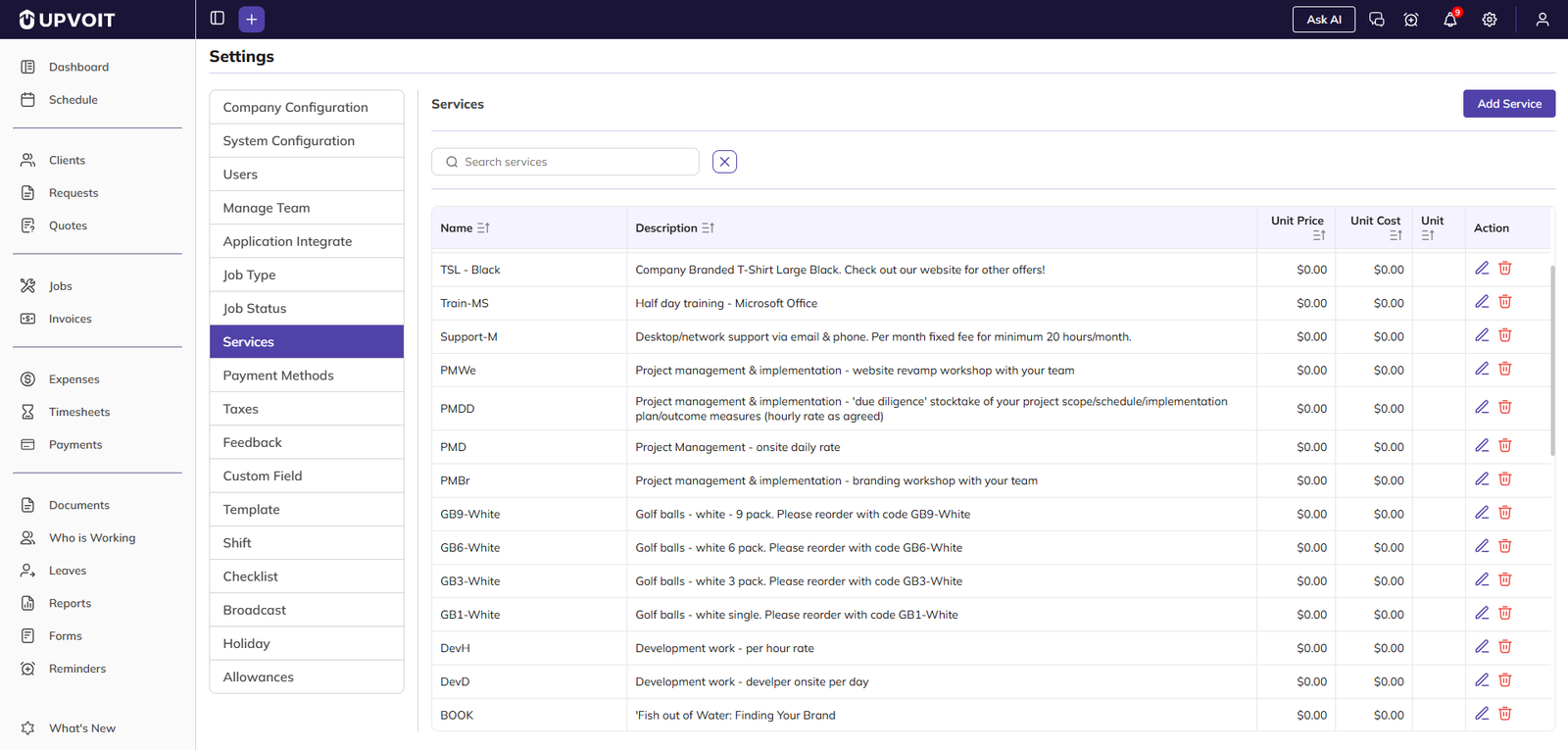
Services List
When you open Settings → Services, you land on the Services list by default.
Each row shows:
Name – Service code or name
Description – Details of what the service includes
Unit Price – Amount charged to the customer
Unit Cost – Internal cost to your business
Unit – Measurement, such as hour, visit, or square meter
Action – Edit (pencil) and Delete (trash) icons for each service
Searching and Sorting
Use the Search services field above the list to quickly find a service by name or description. The list updates as you type.
Click a column header, such as Name or Unit Price, to sort the list.
Click the same header again to toggle between ascending and descending order.
If you see No Data Available, it usually means:
No services have been added yet, or
Your search text does not match any records.
Adding a New Service
To create a new service:
Go to Settings → Services.
Click Add Service in the top-right corner.
In the New Service popup, fill in the following fields.
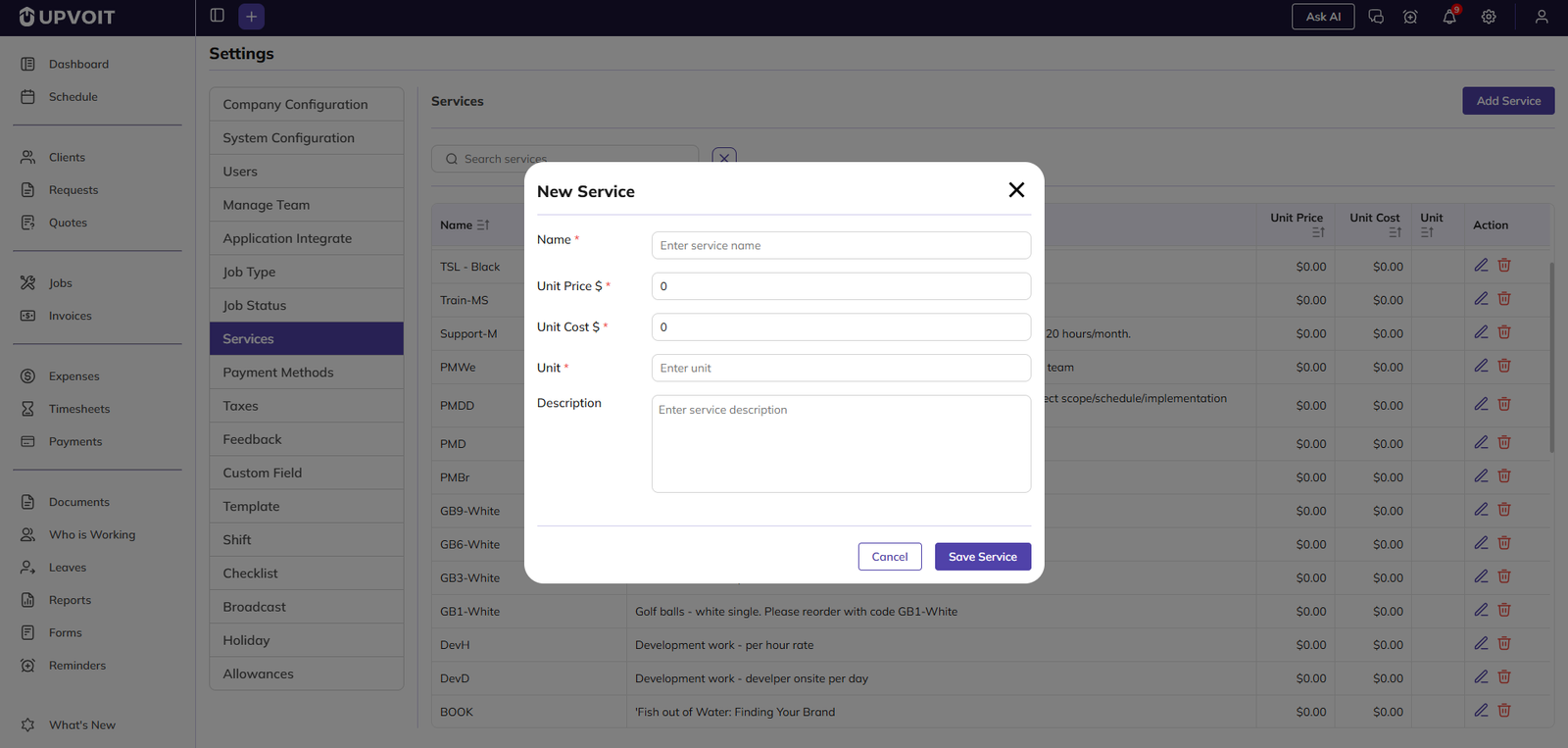
Service Name
Enter a clear Name for the service.
By default, the name can be up to 100 characters.
If Xero is connected to your account, the service name limit is 30 characters to meet Xero’s requirements.
This name is used when selecting services in templates, quotes, jobs, and invoices.
Pricing and Cost
Unit Price – The amount billed to the customer.
Unit Cost – Your internal cost for providing the service.
Both fields must be zero or greater; negative values are not allowed.
Unit
Unit – The measurement for the service, such as:
hour
visit
square meter
each
Choose the unit that best matches how you sell or track this service.
Description
Description – Optional text to help your team understand what’s included in the service, usage notes, or internal guidelines.
Save or Cancel
Click Save Service to add the new service to the list.
Click Cancel to close the popup without saving.
Editing and Deleting Services
Edit a Service
In the Services list, find the service you want to update.
Click the Edit (pencil) icon in the Action column.
Adjust any fields such as Name, Unit Price, Unit Cost, Unit, or Description.
Click Update Service (Save) to apply your changes.
Delete a Service
In the Services list, click the Delete (trash) icon on the service row.
Confirm the action in the popup to permanently remove the service.
Once deleted, the service will no longer be available for new templates, quotes, jobs, or invoices.
Accounting Integrations (QuickBooks / Xero)
If your company has an accounting integration enabled, you may see extra options and fields on the Services page.
Sync Options
Depending on your integration:
A Sync all services button may appear at the top of the page.
A sync icon may appear next to individual services in the Action column.
These sync options connect your service list with QuickBooks or Xero. Only one integration can be active at a time, so you’ll see sync options for either QuickBooks or Xero — not both.
Accounting Fields
When adding or editing a service, you may see accounting-related fields such as:
Income Account – Where revenue from this service is booked
Expense Account – Where related costs are recorded
These fields ensure that transactions using this service are posted correctly to your accounting system.
Alert Icons
If an Alert column is visible:
Green or blue icon – Sync was successful.
Red icon – There is a sync issue. Hover over the icon to see the error details (for example, account mapping problems or name-length limits).
Best Practices
Use consistent naming so services are easy to recognize across templates, quotes, jobs, and invoices.
Keep Unit Price and Unit Cost up to date to maintain accurate margins and reporting.
Use descriptive units (hour, visit, m², etc.) to avoid confusion for your team and clients.
If using QuickBooks or Xero, review Income/Expense Account mappings and fix any red alert icons promptly to keep accounting in sync.
Did this answer your question?


