
Reminder Module
The Reminder module helps you stay organized and never miss important tasks. It provides a centralized place to create, view, and manage reminders for yourself and your team.
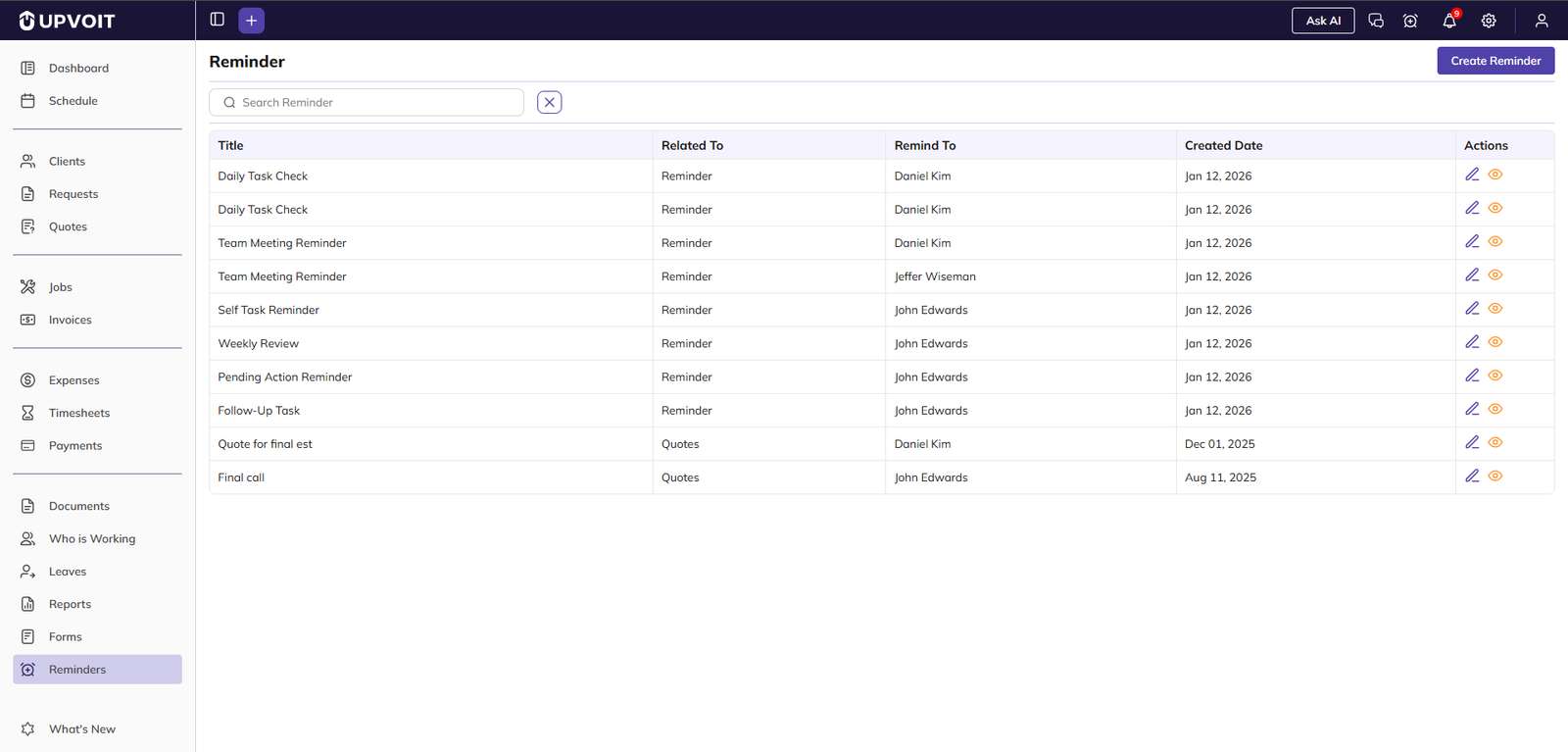
Reminder List Overview
When you open Reminders from the left menu, you see the main list view.
Each row shows:
Title – Name of the reminder
Related To – Module or area it is linked with (for example, Reminder, Quotes)
Remind To – User who will receive the reminder
Created Date – When the reminder was created
Actions – Icons to edit or view the reminder details
At the top you have:
Search Reminder – Quickly filter reminders by typing part of the title
Create Reminder button – Start a new reminder
This view makes it easy to scan all upcoming and existing reminders and manage them in one place.
Creating a Reminder
Creating a new reminder is simple and takes just a few steps.
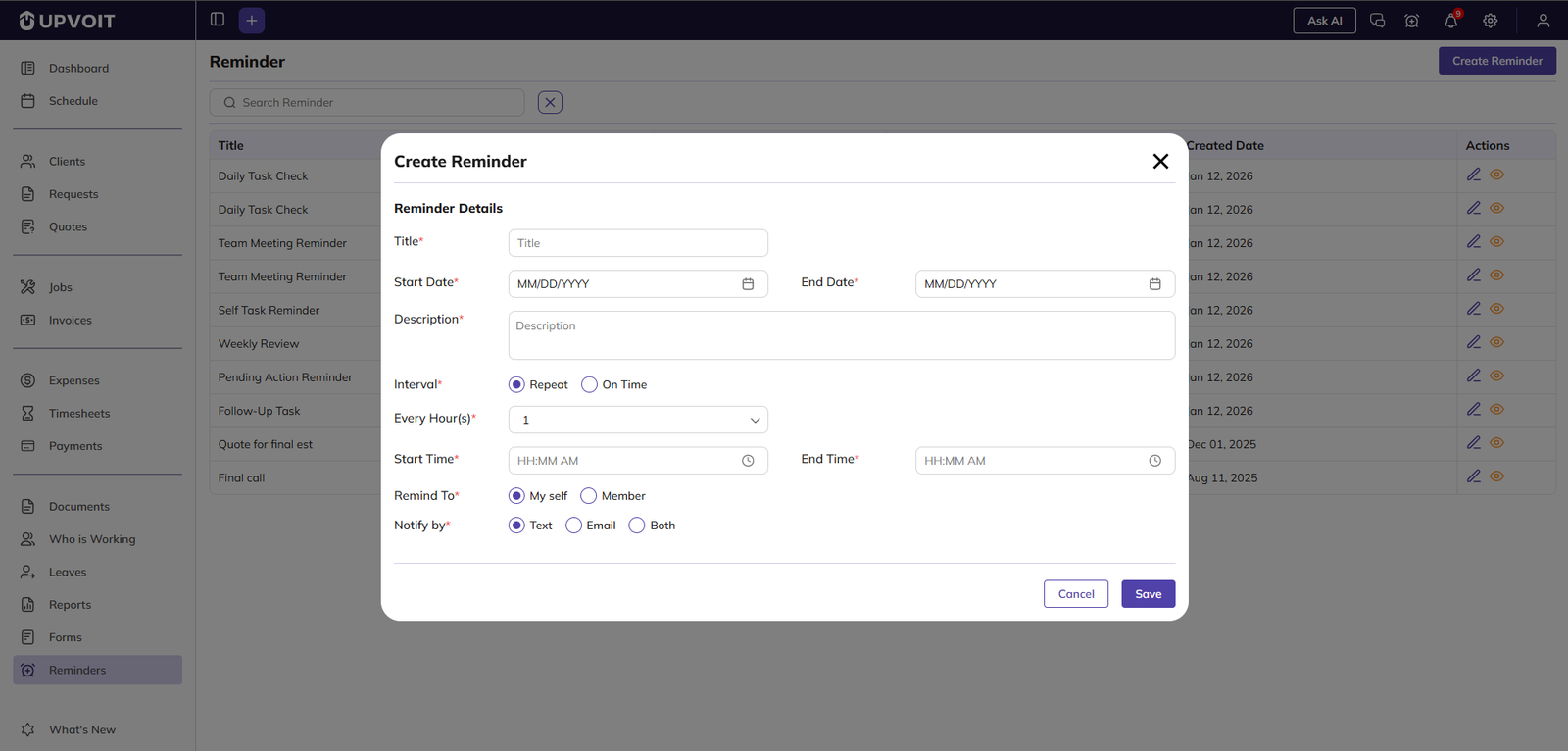
Click Create Reminder at the top-right of the Reminder list.
Enter a clear, meaningful Title so you can recognize the reminder later.
Set the Start Date and End Date to define when the reminder should be active.
Add a short Description to provide context about the task or follow-up.
Repeat Options
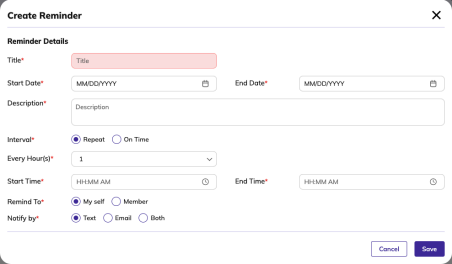
Choose how often the reminder should trigger:
Repeat – Use this when you need a recurring reminder.
Select an hourly interval between 1 and 24 hours.
Define the start and end dates for the repeat duration.
On Time – Use this for a one-time reminder at a specific date and time.
Assigning the Reminder
Decide who should receive the reminder:
My Self – Sends the reminder directly to you, ideal for personal tasks.
Member – Assigns the reminder to other users. Select one or more users from the dropdown to notify team members.
Notification Methods
Choose how the reminder should notify the user:
Text message (SMS)
Email
Both – For maximum visibility
After you’ve configured all fields, click Save. The reminder is added to the list and will trigger according to the schedule and notification settings you defined.
Viewing Reminder Details
To see full details for any reminder:
From the Reminder list, click the View icon (eye) in the Actions column.
The View screen shows: Title, Description, Schedule (dates, repeat/on-time settings), Assigned users (My Self or selected Members), and Notification methods (text, email, or both).
This screen gives you complete visibility into how and when the reminder will be sent.
Editing a Reminder
If you need to change an existing reminder:
Click the Edit icon (pencil) from the Actions column in the Reminder list.
Update any fields as needed: change the title or description, adjust start and end dates, switch between Repeat and On Time, modify the hourly interval or duration, reassign the reminder to different users, or change notification preferences (text, email, or both).
Click Save to apply the updates.
Changes take effect immediately and future notifications will follow the new configuration.
Managing Reminders Effectively
Use descriptive titles like “Weekly Review” or “Pending Action Reminder” so reminders are easy to recognize in the list.
Assign My Self for personal tasks and Member with multiple users for team follow-ups.
Use Repeat with hourly intervals for frequent checks, and On Time for single, important events.
Review the Reminder list regularly and update or remove outdated reminders to keep the list clean.
With Upvoit Reminders, staying on schedule becomes simple, efficient, and stress-free for you and your team.
Did this answer your question?


