
The Quotation Module in Upvoit is designed to help businesses create, manage, and track quotations quickly and accurately. Manual quotation creation is often time-consuming, error-prone, and difficult to monitor once sent. This module automates calculations, standardizes formatting, and centralizes quotation data, enabling users to generate professional quotes in seconds instead of hours.
With this module, teams can:
Create accurate and professional quotations
Track quotation status in real time
Collaborate with technicians and managers
Convert quotations into jobs effortlessly
Maintain a complete activity and communication history
Accessing the Quotation Module
The Quotation Module can be accessed from the Sidebar Menu.
Navigate to Quotes from the sidebar.
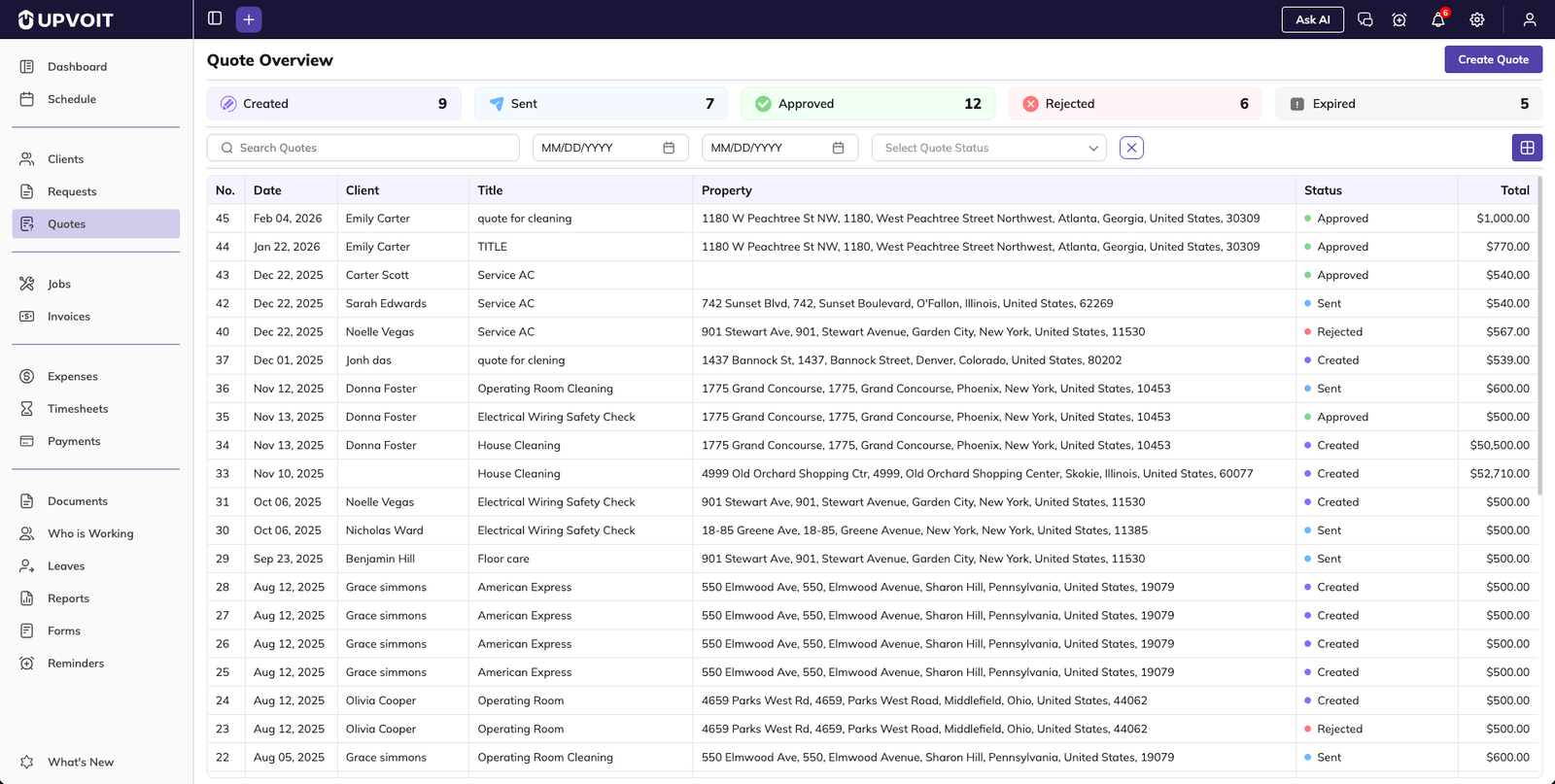
This opens the Quotation Listing Page, which provides a complete overview of all quotations.
Quotation Listing Page
The listing page gives a consolidated view of all quotations and helps users manage them efficiently.
Status Overview
At the top of the page, status-wise counters are displayed:
Created
Sent
Approved
Rejected
Expired
This helps in tracking quotation progress at a glance.
Filters and Search
Users can narrow down quotations using multiple filter options:
Search by client name, quotation title, or any keyword
Filter by date range
Filter by quotation status
These filters help locate specific quotations quickly, even in large datasets.
View Options
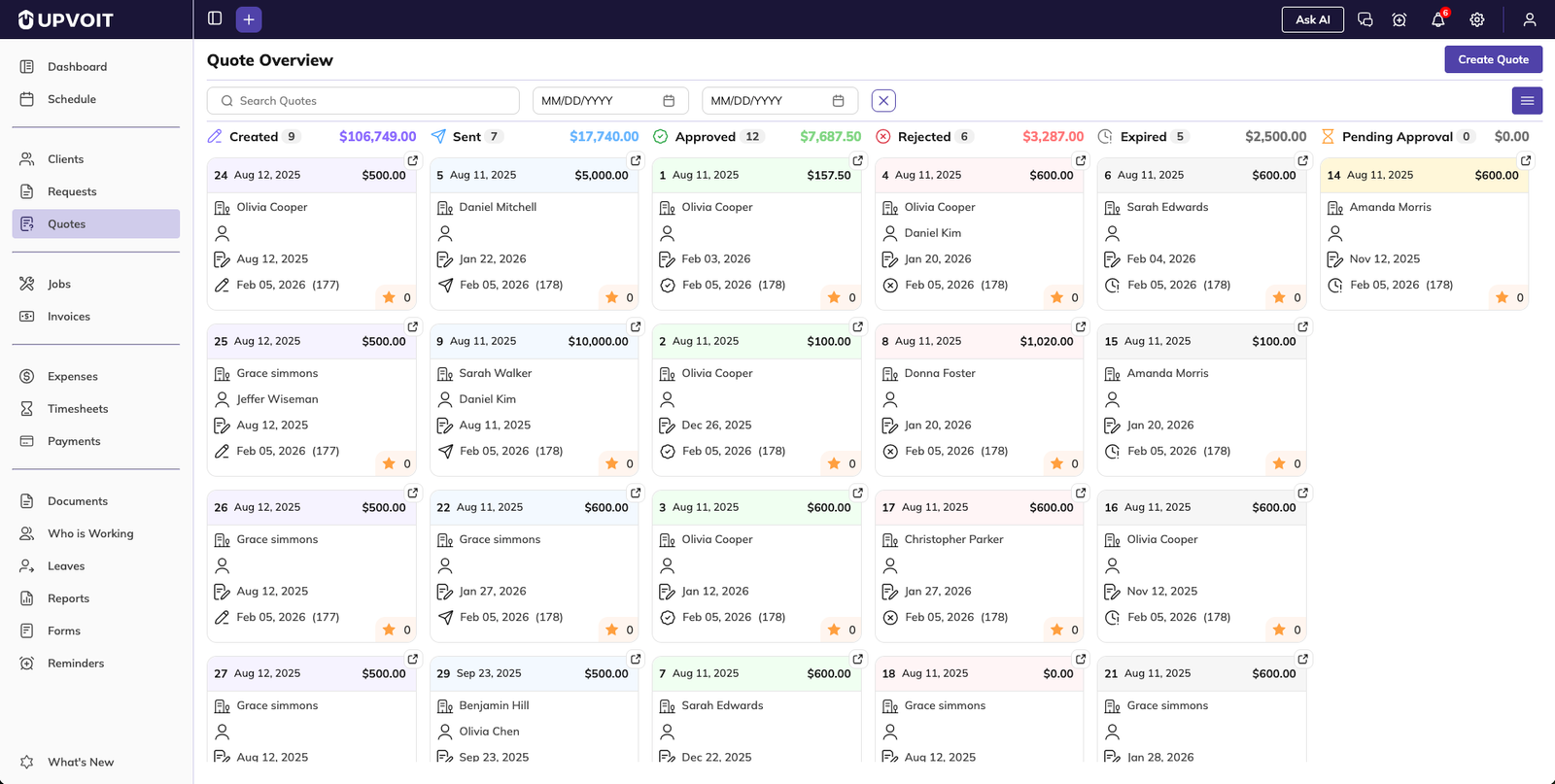
Users can switch between two views:
List View – Displays quotations in a structured table format
Kanban View – Displays quotations by status columns
Supports drag and drop to move quotations between statuses
List View Details
Each quotation row displays the following information:
Quote number
Date
Client name
Title
Property
Status (editable directly from the list)
Total amount
Creating a New Quotation
Located at the top-right corner of the page.
Clicking Create Quote opens the quotation creation form.
Basic Details Section
This section captures essential quotation information:
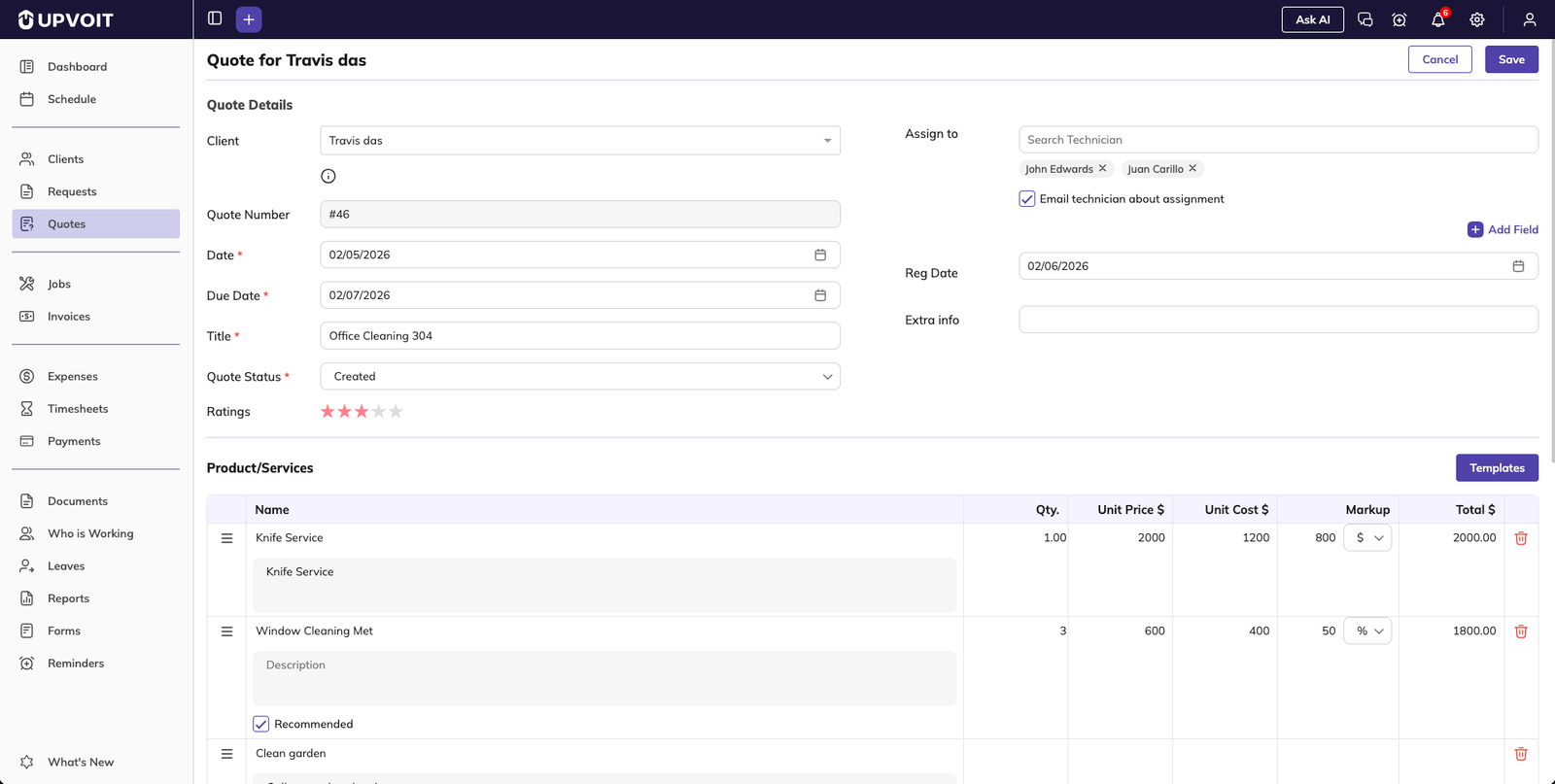
Quote Number: Auto-generated for unique identification
Client: Select an existing client or add a new one using Add New Client
Property Selection: A pop-up appears after selecting the client. If only one property exists, it is auto-selected
Quotation Date: Defaults to today’s date (editable)
Due Date: Optional and configurable
Title: Short description of the quotation
Status: Select the current status
Rating: Optional, based on internal workflow
Assigning Technicians
Use Assign To field to assign technicians.
Enable email notification by ticking the checkbox.
Custom Fields
Additional custom fields can be added based on configuration.
Helps align the quotation with specific business workflows.
Products and Services Section
This section defines the items included in the quotation.
Item Types
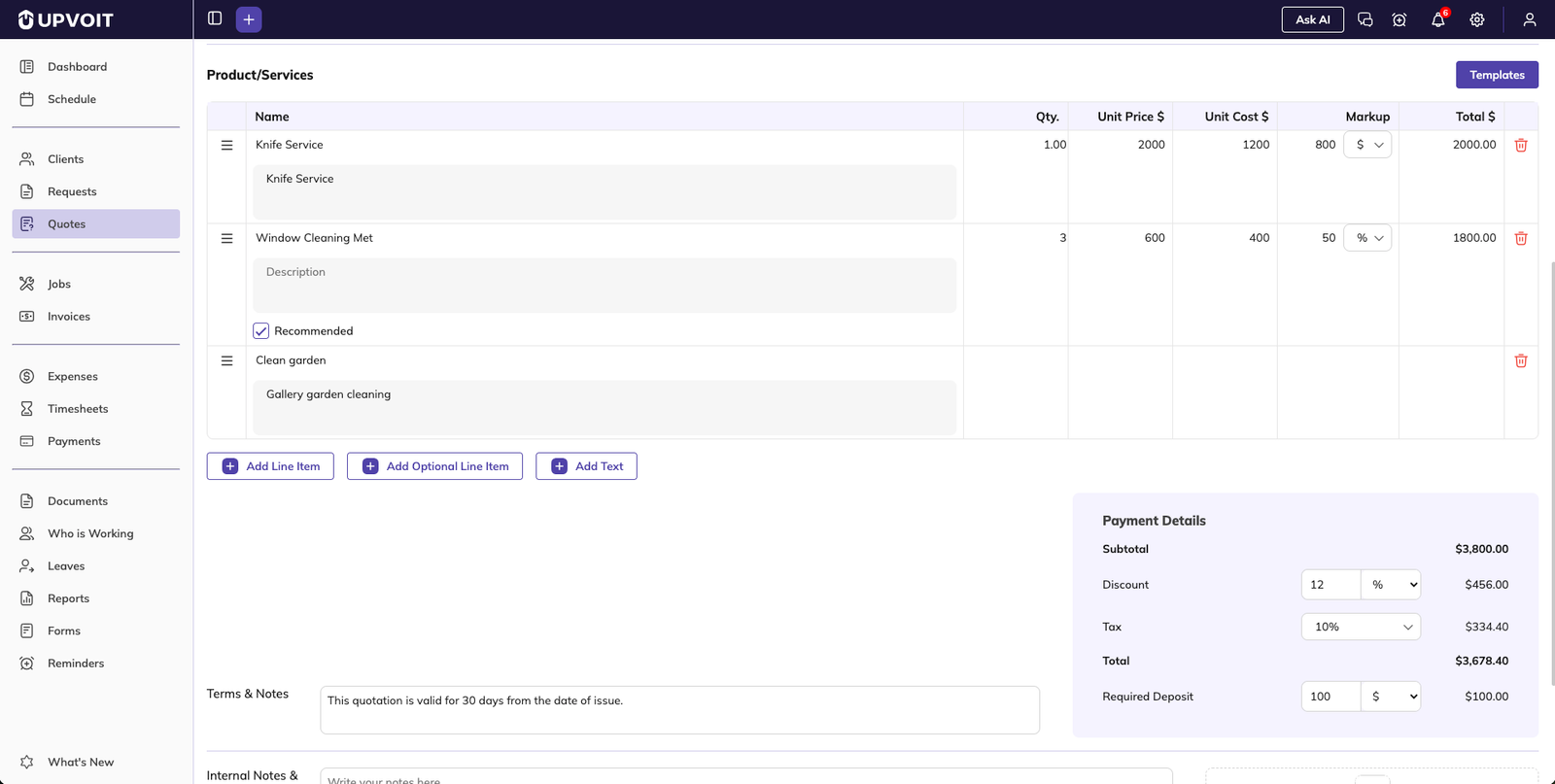
There are three types of items:
Simple Items: Standard products or services, includes name, quantity, and pricing
Optional Items: Similar to simple items, can be marked as Recommended, useful for upselling
Text-Only Items: Contain only a title and description, useful for notes, instructions, or clarifications
Adding Items
Search existing products or services.
If an item does not exist, use Create New Service to add it.
Quantity and details can be adjusted.
Markup is also set if markup is on from configuration.
Markup can be counted in percentage or fixed amount.
Item Management
Drag and drop items to reorder.
Edit or delete items at any time.
Templates
Templates help save time when frequently using the same set of items.
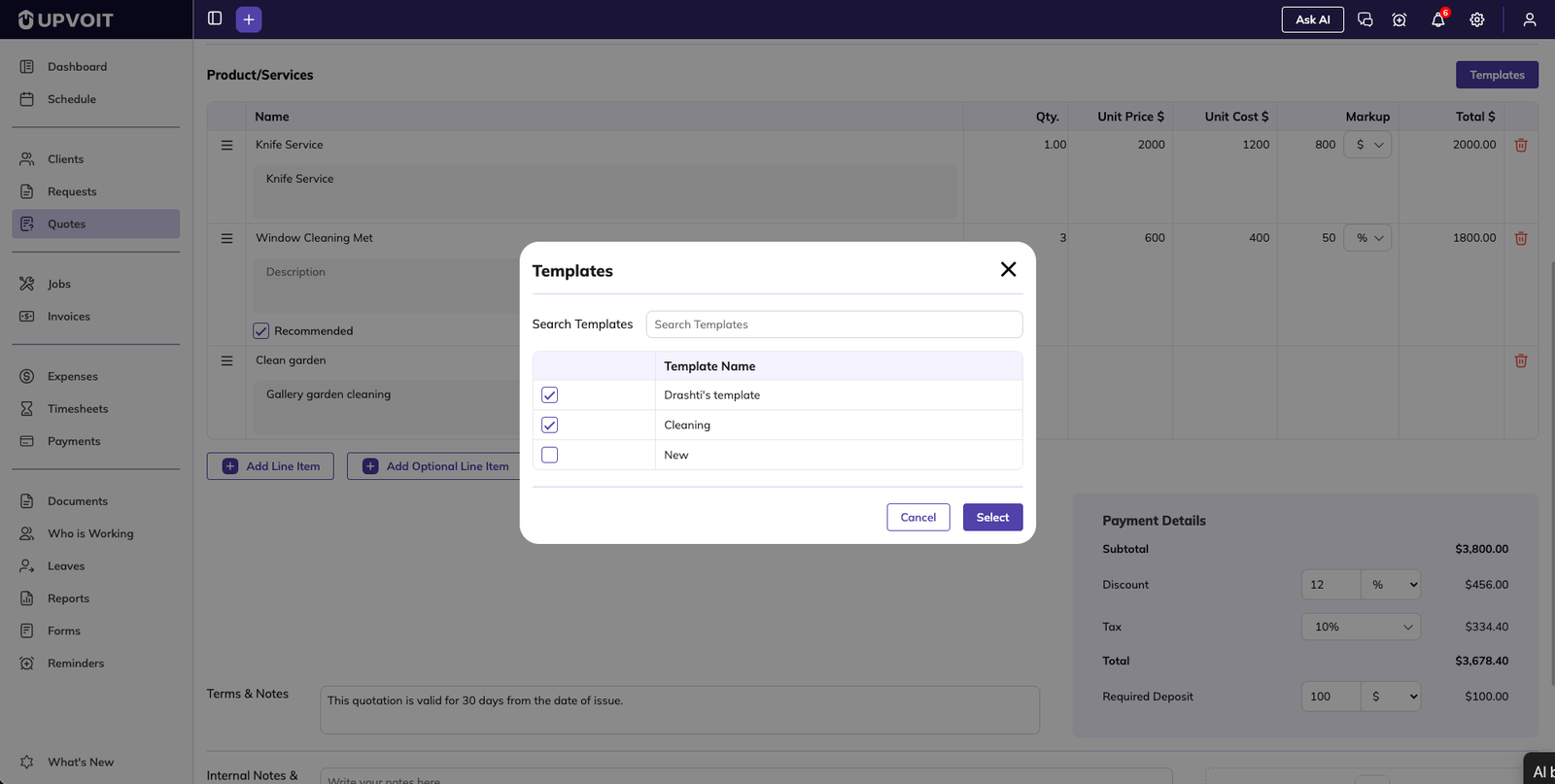
Click Templates to select a predefined template.
All template items are automatically added to the quotation.
Items can be edited or removed after selection.
Templates can be created and managed from Settings.
Terms, Notes, and Payment Summary
Terms and Notes
Add conditions or messages for the client.
Default terms and notes (if configured) are auto-applied to new quotations.
Payment Calculations
All calculations are handled automatically:
Subtotal is calculated based on items.
Discounts: Flat amount or percentage.
Deposit: Flat amount or percentage.
Tax Rate: Selectable from dropdown.
Tax configurations are managed in settings.
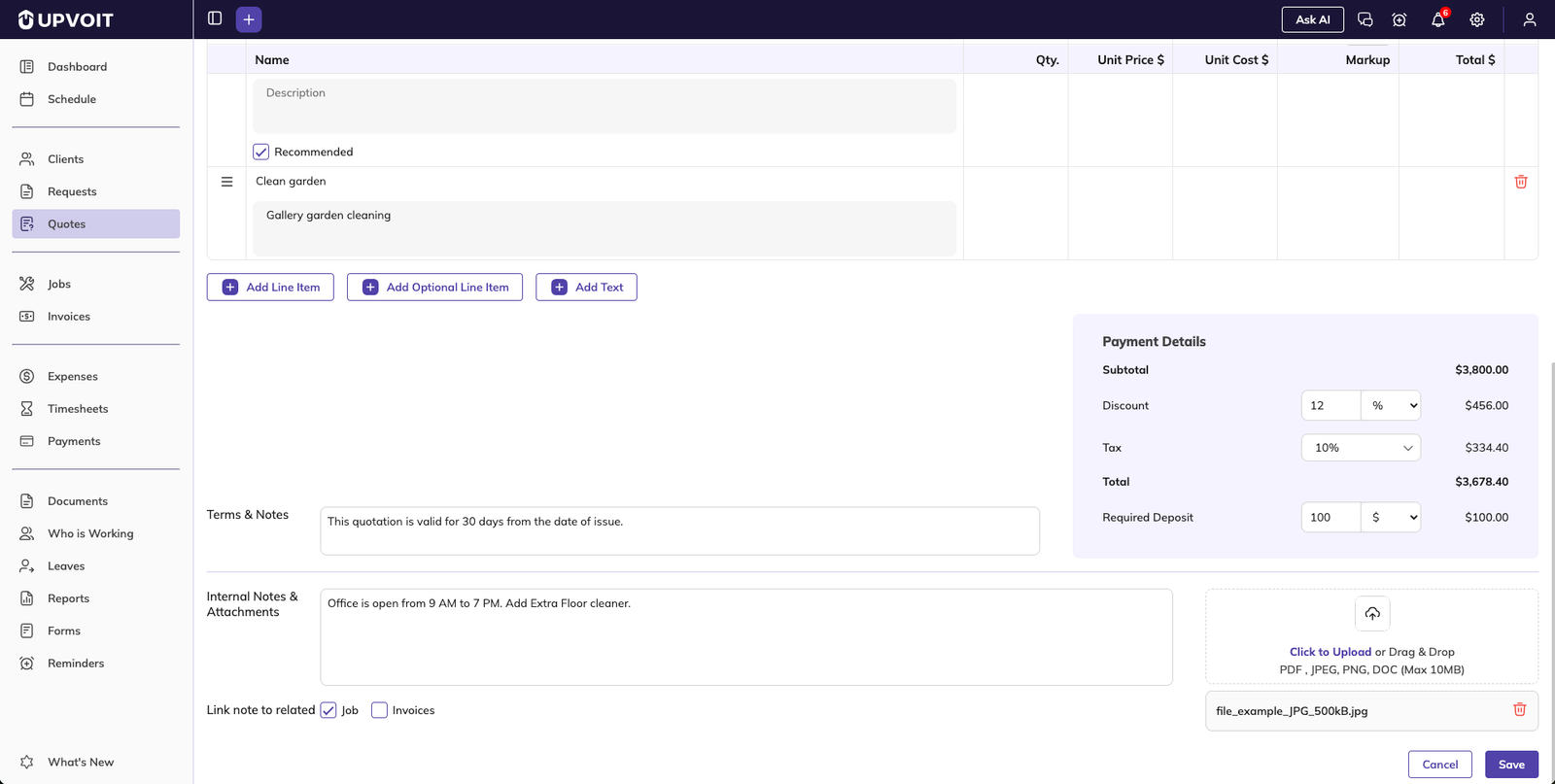
Internal Notes and Attachments
This section is designed for internal collaboration.
Add internal notes for technicians or managers.
Upload attachments.
Choose whether notes and attachments should also appear in jobs and invoices linked to the quotation.
Once all information is added, save the quotation.
Quotation Details Page
Clicking a quotation from the list opens the detailed view.
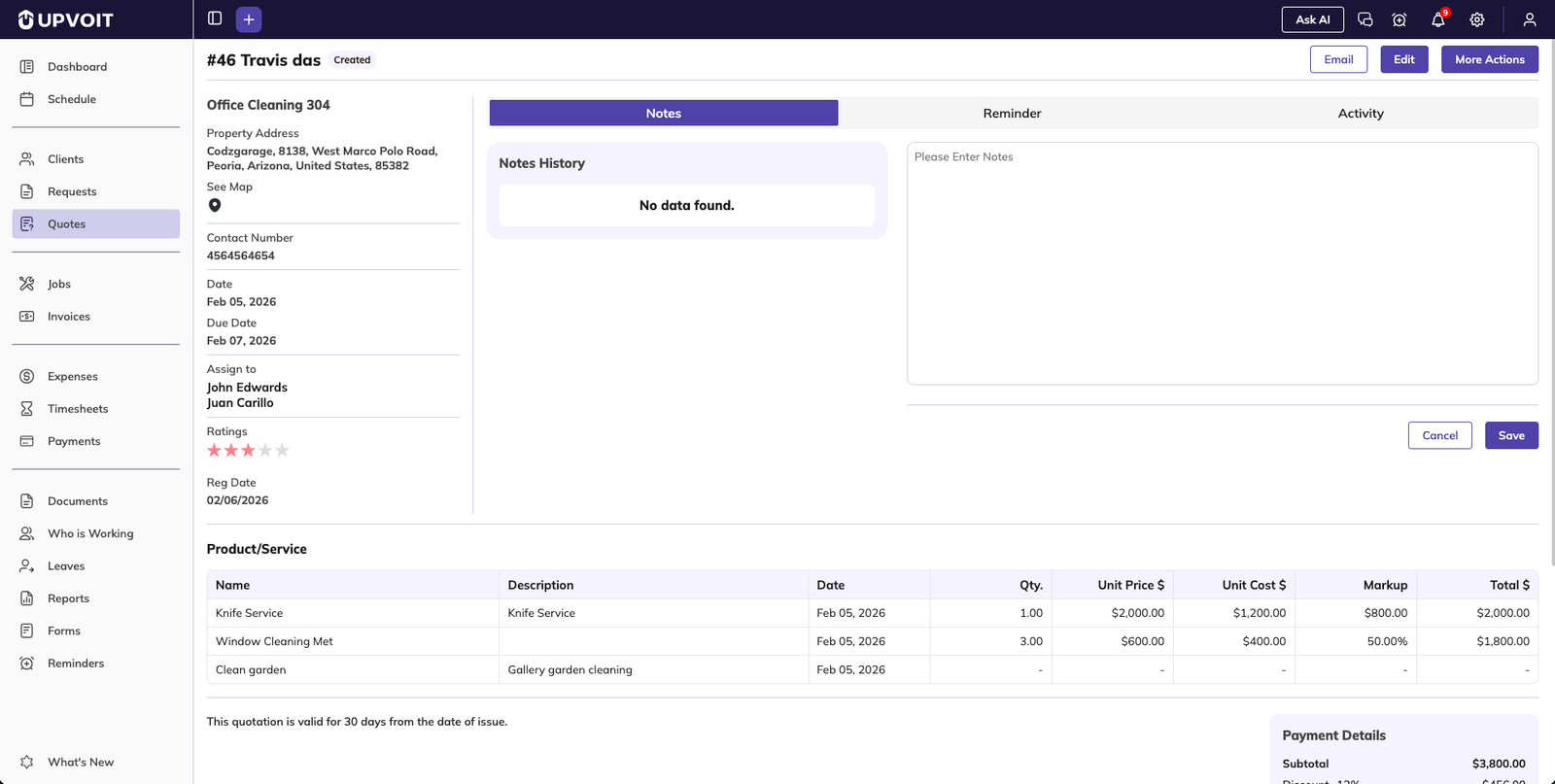
Header Information
At the top of the page:
Quote number
Client name
Current status
Action buttons
Left Panel – Quotation Details
Displays:
Title
Client and property details
Dates
Assigned technicians
Rating
Custom fields
Right Panel – Collaboration Tools
Notes
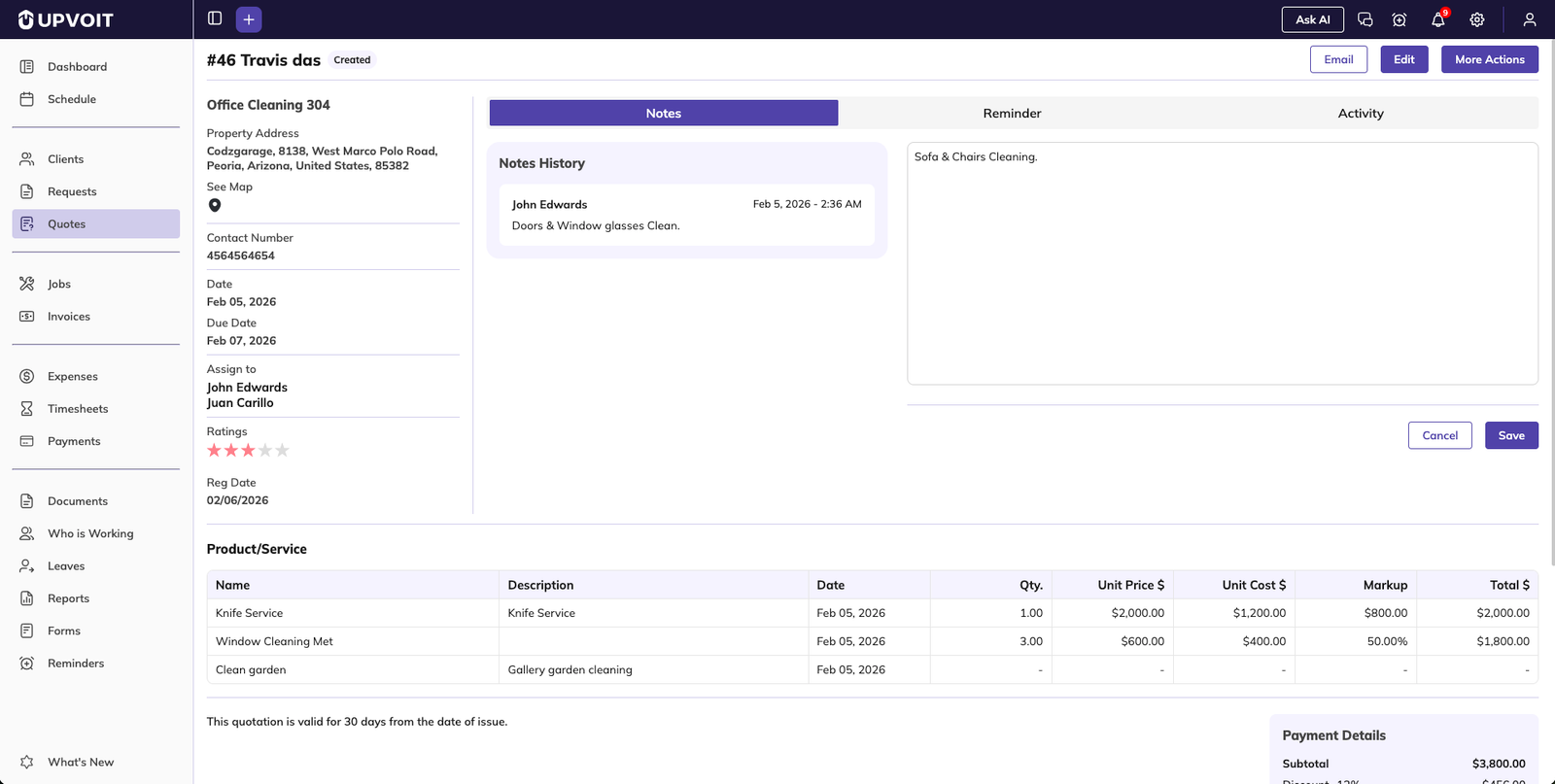
Technicians and admins can add notes for tracking quote smoothly.
Reminders
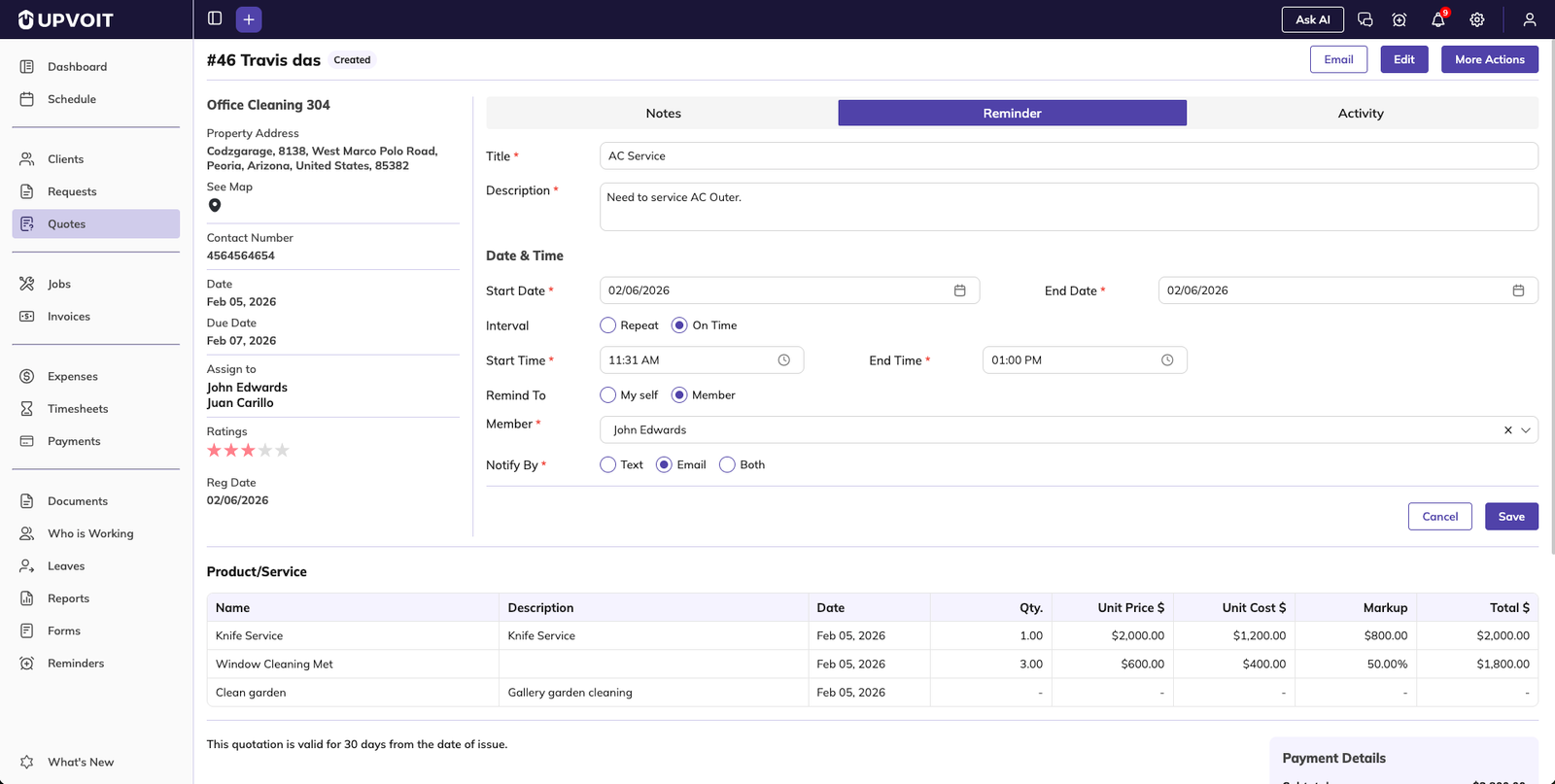
Set reminders related to the quotation. Detailed reminder functionality is covered in a separate module.
Activities
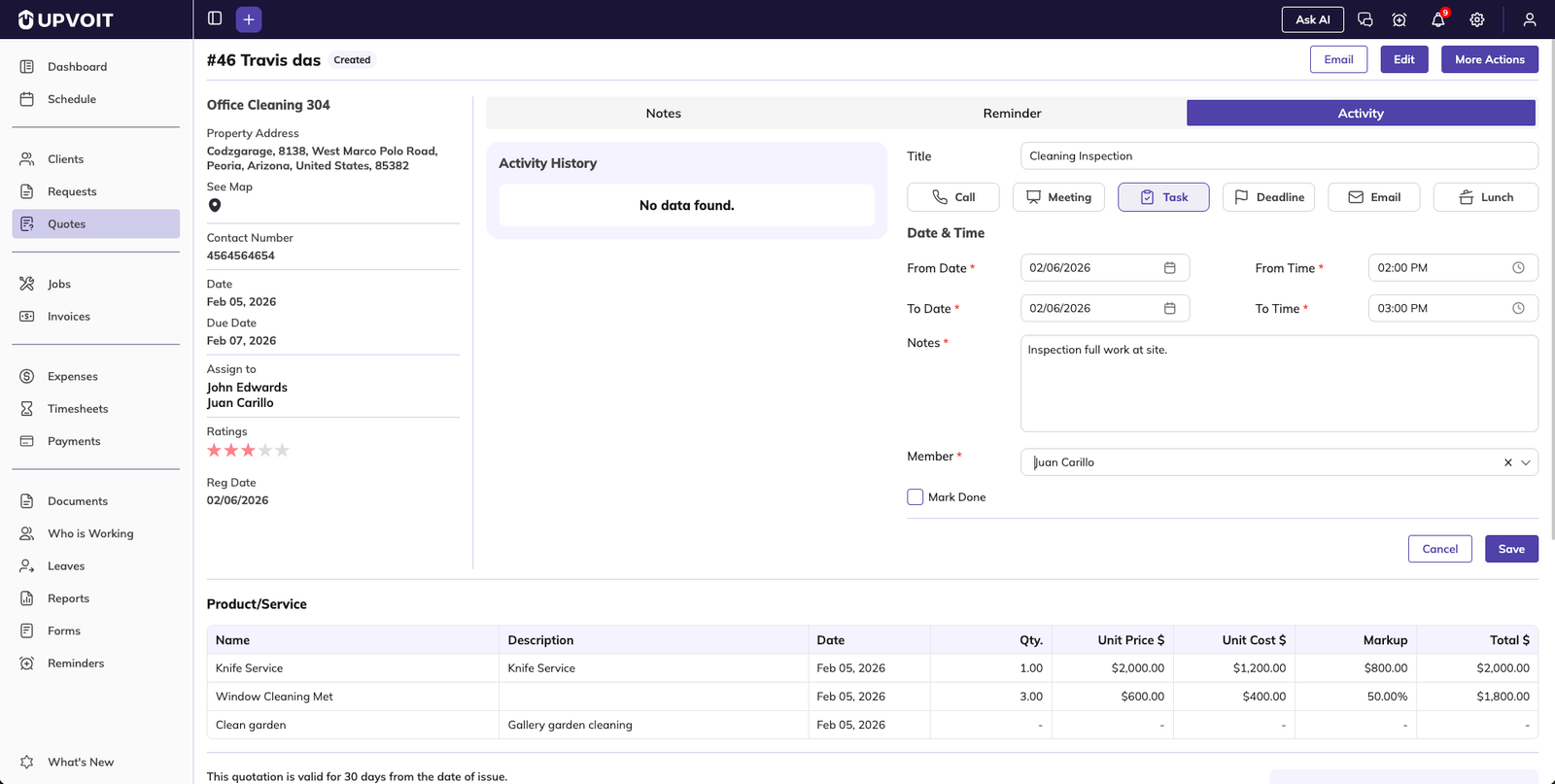
Users can log activities such as:
Calls
Meetings
Tasks
Deadline
Email
Lunch
Each activity includes:
Title
Activity type
Date and time
Notes
Responsible member
Completion status
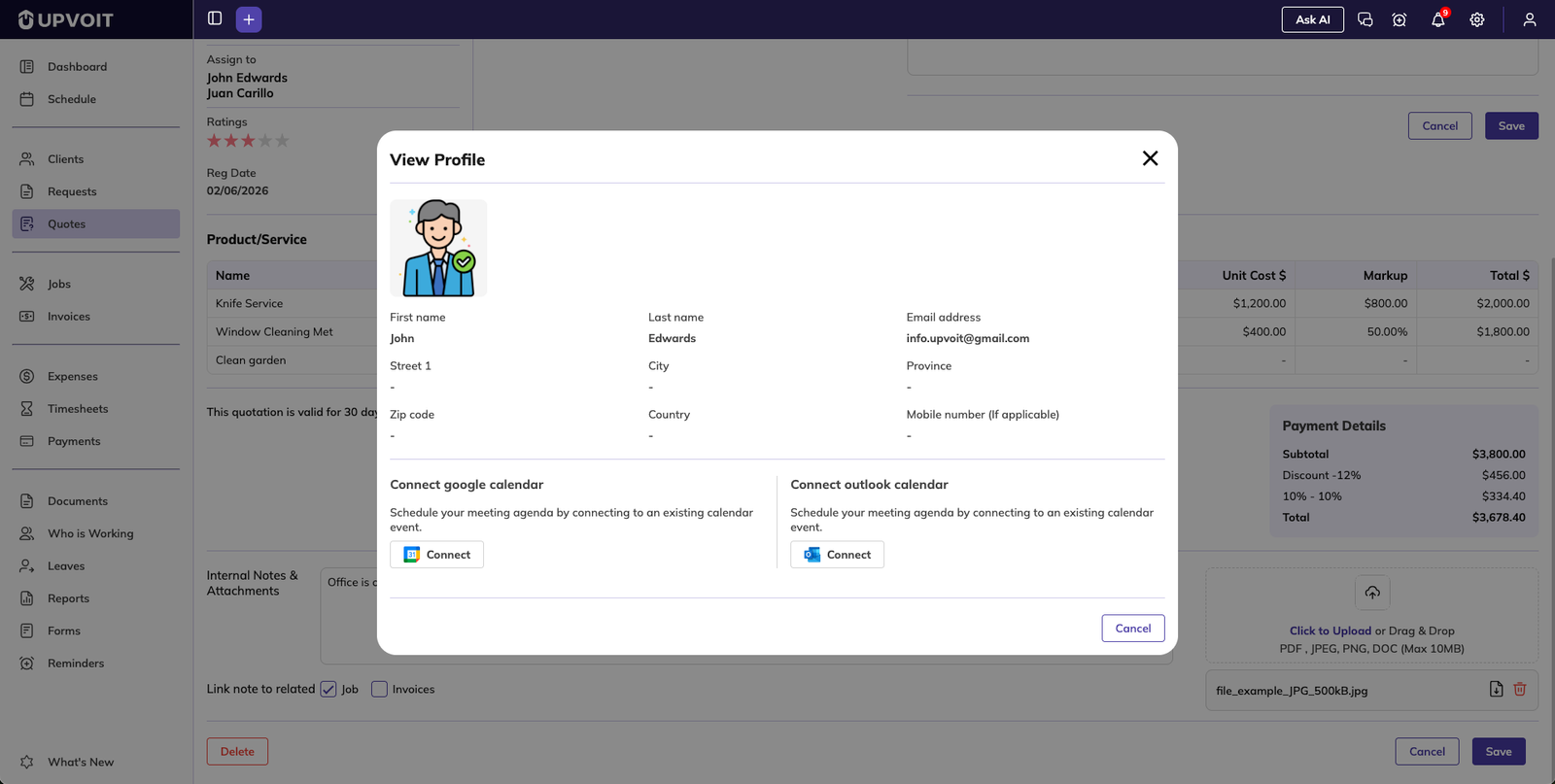
Upvoit allows activities to stay automatically synced with your personal calendar. Users can connect or disconnect their Google Calendar or Outlook Calendar from the User Profile section. Once a calendar is connected, any new activities created in Upvoit—such as calls, meetings, or tasks—are automatically added to the selected calendar. This ensures better schedule management and helps prevent missed activities. Calendar syncing can be turned off at any time, and once disconnected, no further activities will be synced.
Quotation Content Overview
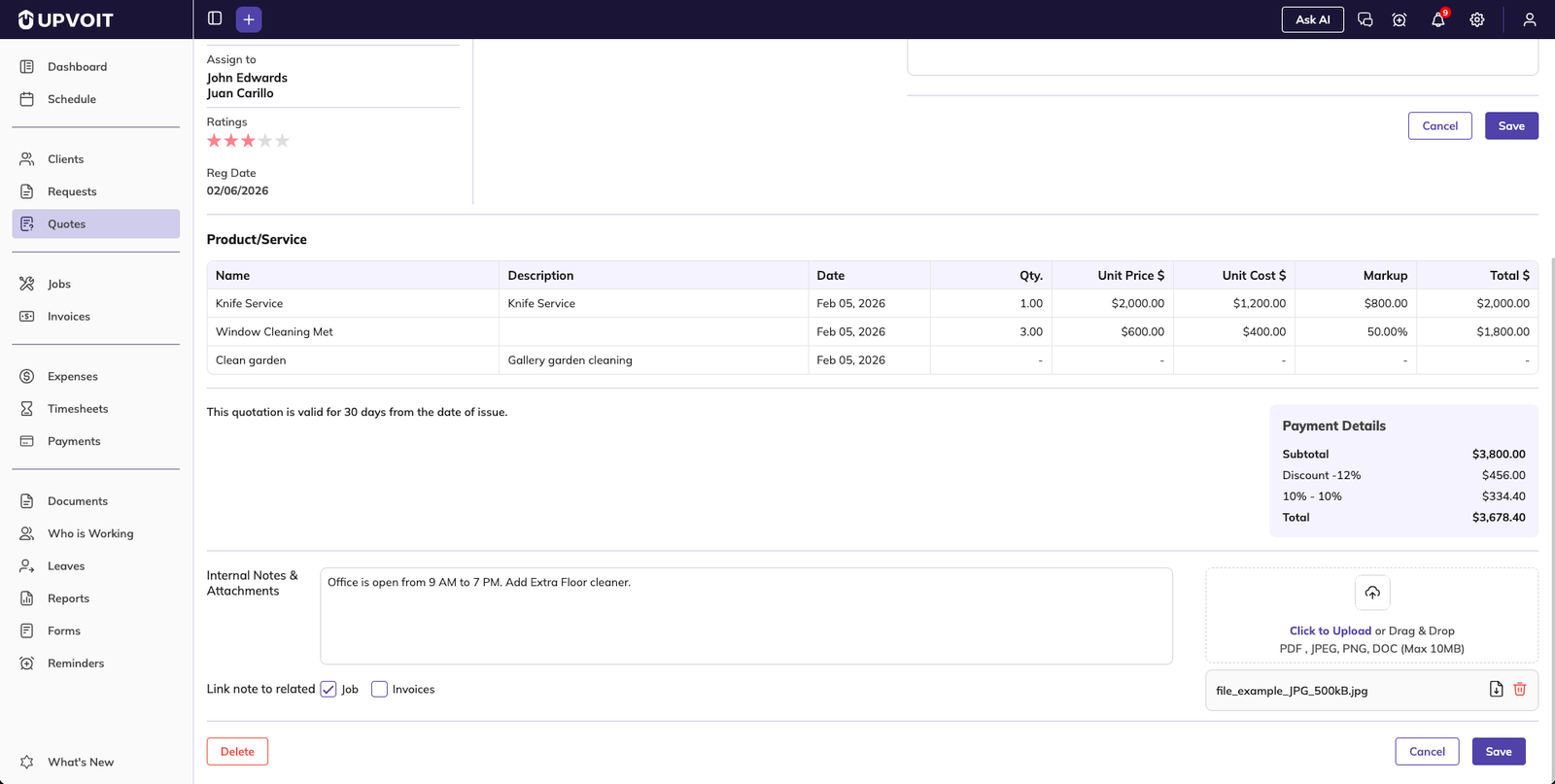
Below the activity section:
Full list of products and services
Terms and notes
Payment summary
Internal notes and attachments
Delete Quotation
A Delete button is available at the bottom-left.
Used when a quotation is no longer required or created by mistake.
Action Buttons
Located at the top of the quotation details page.
Send Email
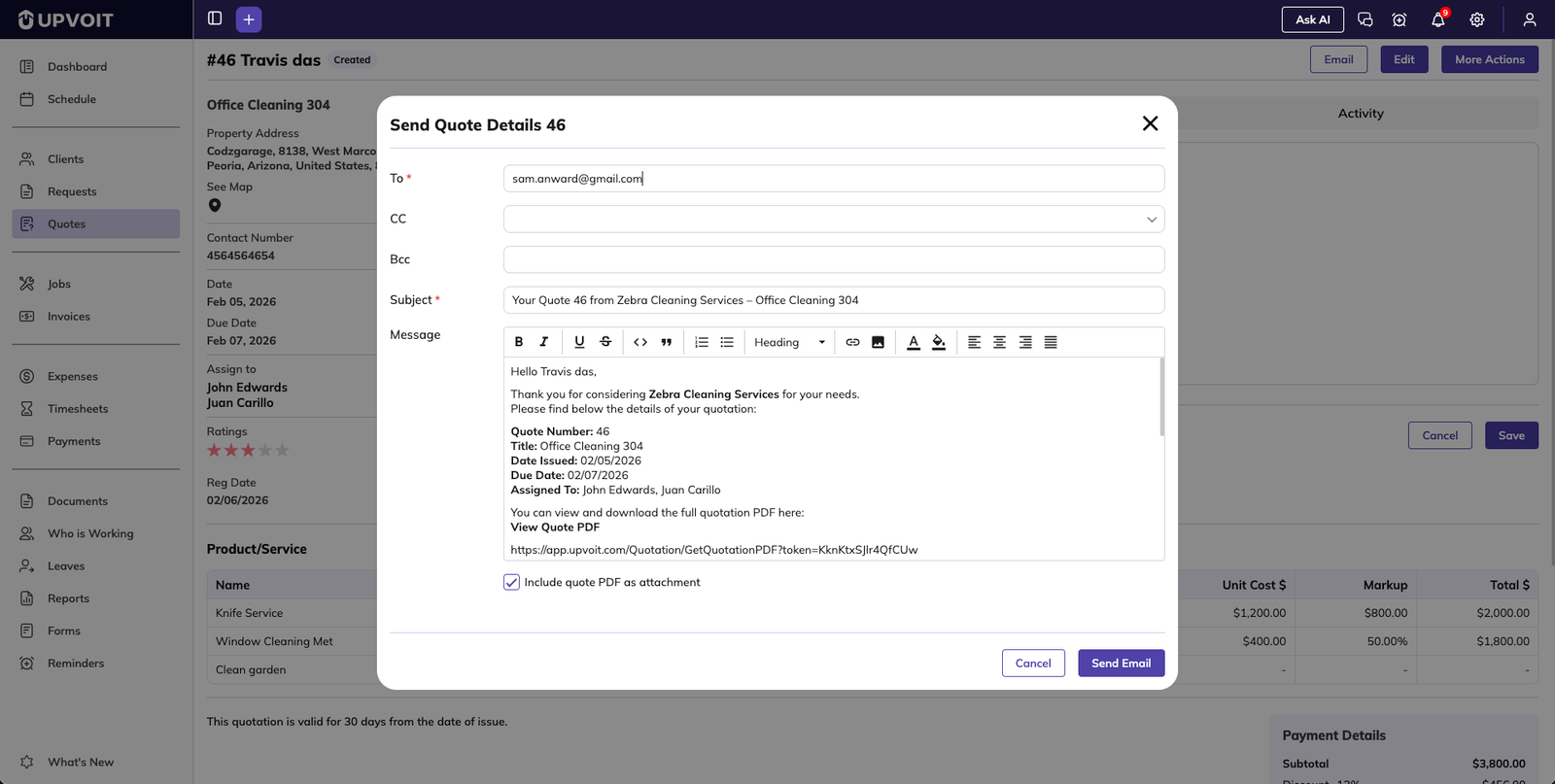
Send quotation directly to the client.
Email template is loaded from configuration.
Template can be edited before sending.
Option to attach quotation PDF.
Edit
Modify quotation details.
Client cannot be changed.
Property address can be changed if multiple addresses exist.
More Actions
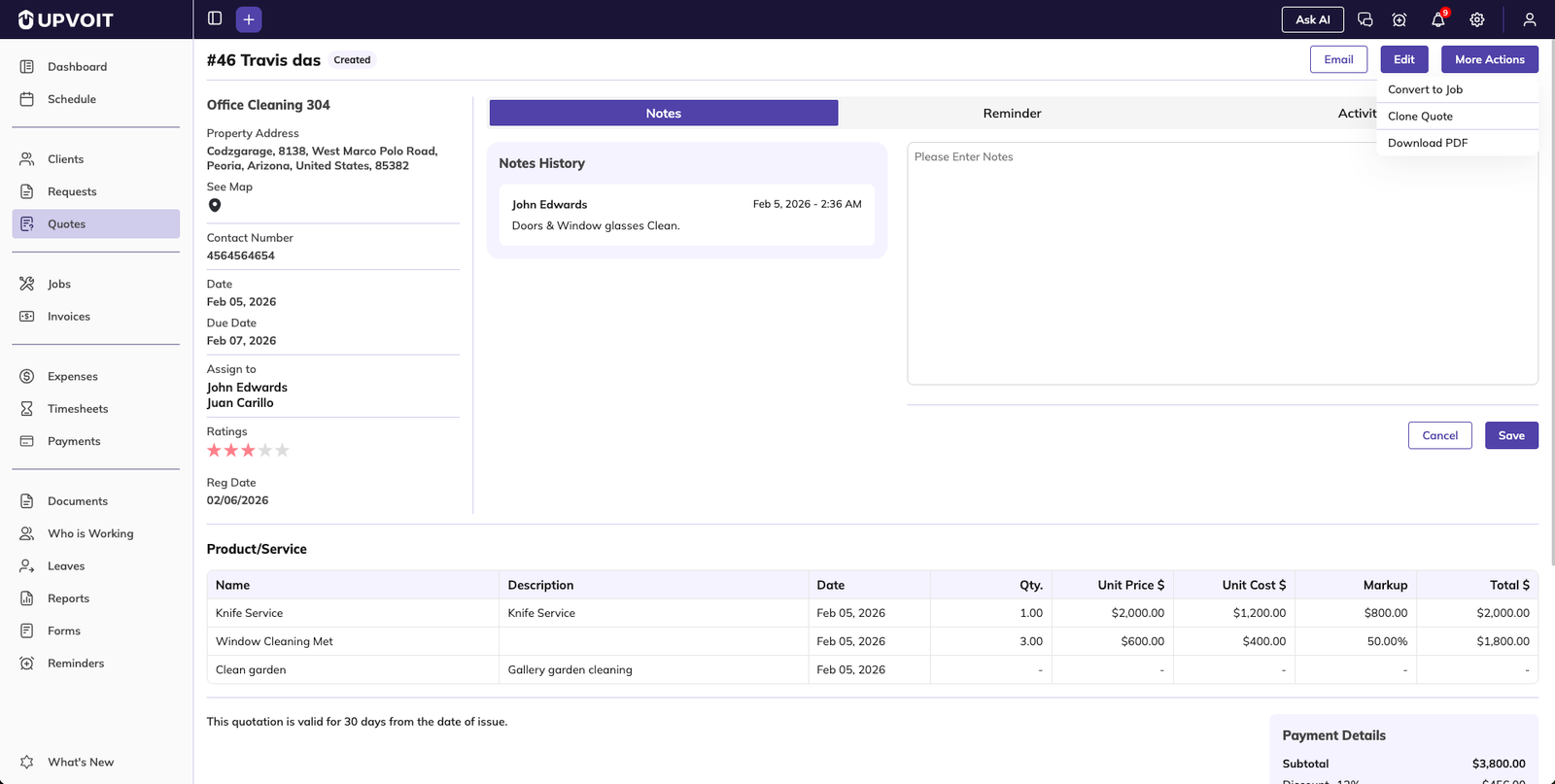
Convert to Job: Instantly convert quotation into a job, key details are carried forward.
Clone Quote: Duplicate the quotation, generates a new quote number.
Download PDF: Download the latest version of the quotation as a PDF.
Summary
The Quotation Module in Upvoit streamlines the entire quotation lifecycle from creation to conversion. It ensures accuracy, improves collaboration, and keeps all quotation-related data organized in one place. By automating calculations and offering flexible management tools, the module significantly reduces manual effort and enhances overall efficiency.
Did this answer your question?


