
Module Overview
The Invoice Module in Upvoit helps convert completed work into clear, accurate, and professional bills. It ensures all billable items — including products, services, labor, and expenses — are captured automatically and billed correctly.
Invoices can be created directly from jobs, reviewed for pricing and taxes, and managed end-to-end from a single screen.
Accessing the Invoice Module
Navigate to Invoices from the sidebar menu. This opens the Invoice Overview page, which displays all invoices in the system.
Invoice Overview (Listing Page)
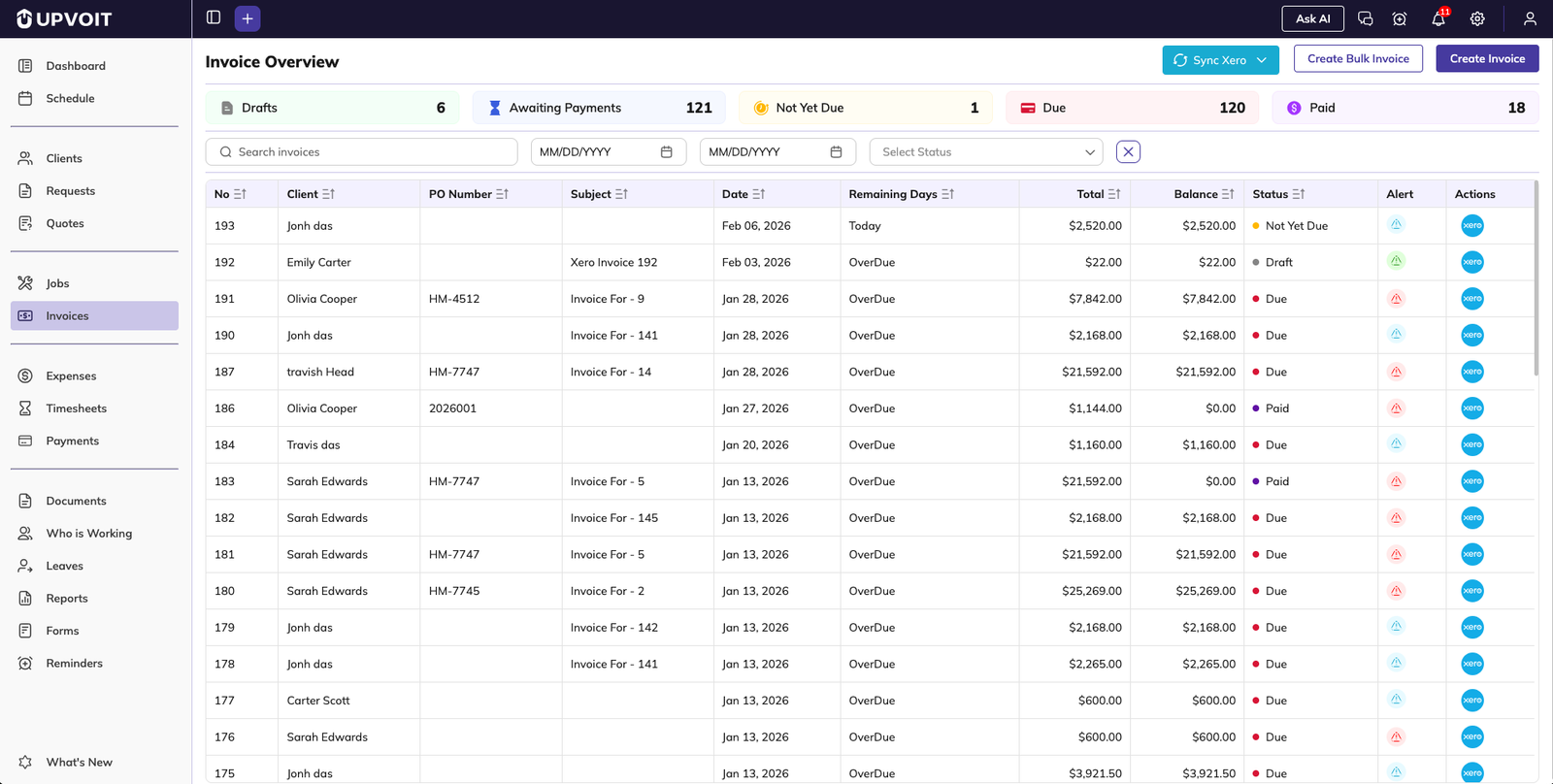
The invoice overview provides a complete snapshot of billing status across the organization.
3.1 Invoice Status Summary
At the top of the page, status cards display invoice counts such as:
Draft
Awaiting Payment
Due
Paid
3.2 Invoice List
Below the status cards, the invoice list displays key details for each invoice:
Invoice number
Client name
Invoice date
Outstanding balance
Invoice status
Alert
Actions
3.3 Sync with Xero
Click Sync Xero in the top-right corner to synchronize client data with Xero for consistent accounting records.
3.4 Filters and Search
Use filters to quickly locate invoices by client, date range, and invoice status. Clicking any invoice row opens the Invoice Details page.
Invoice Details Page
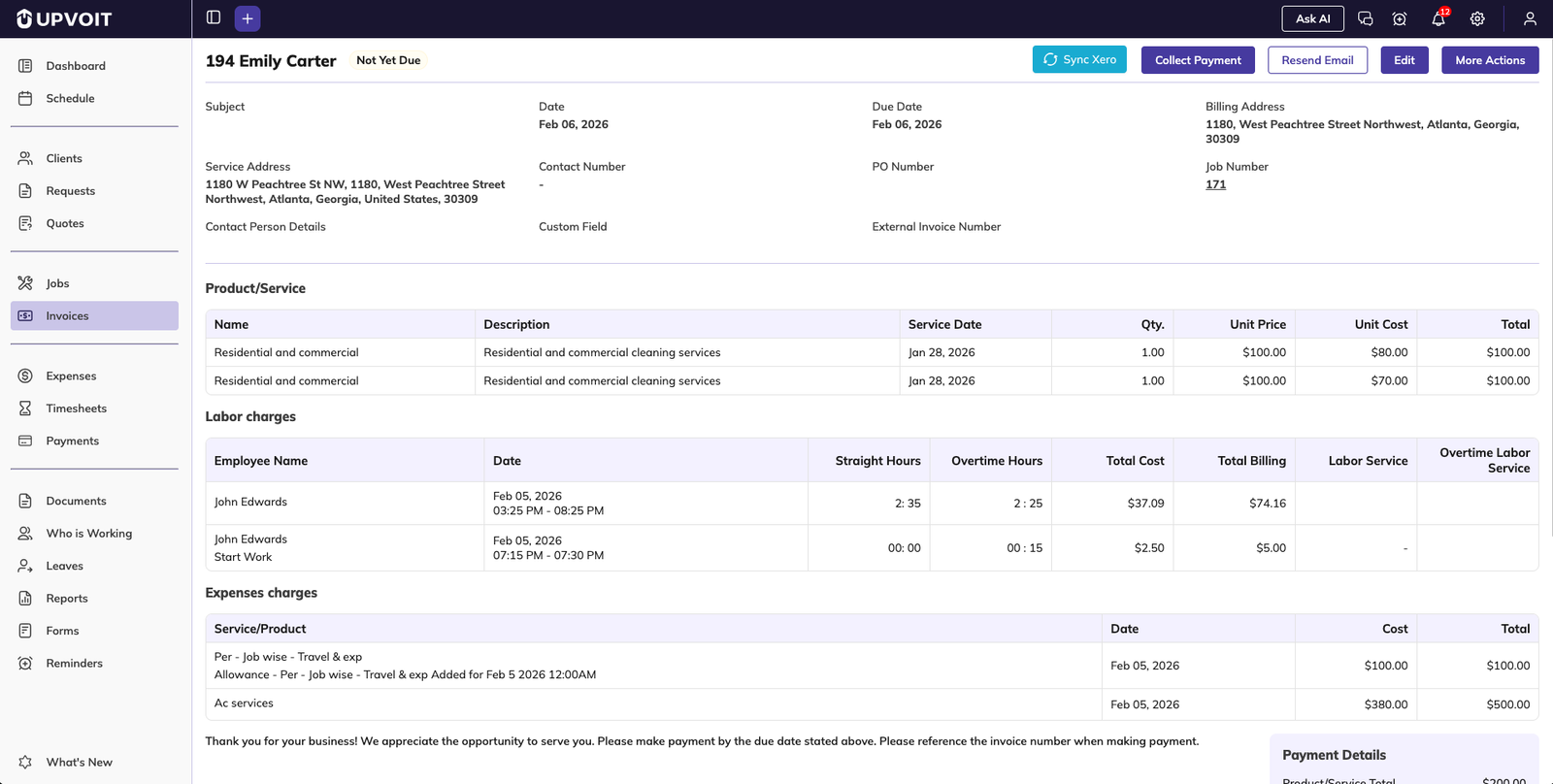
The Invoice Details page allows you to review, manage, share, and collect payments for a specific invoice.
4.1 Invoice Header Information
At the top of the page, users can review:
Invoice number
Client name
Current invoice status
Invoice date
Due date
4.2 Invoice Information Section
This section contains all core invoice details:
Invoice subject or title
Billing address
Service address
Contact number
Contact person details
PO number
Job number
Custom invoice fields (as configured in settings)
All information should be reviewed for accuracy before sending the invoice or collecting payment.
4.3 Products and Services
This section lists all billable products and services included in the invoice. Each line item displays:
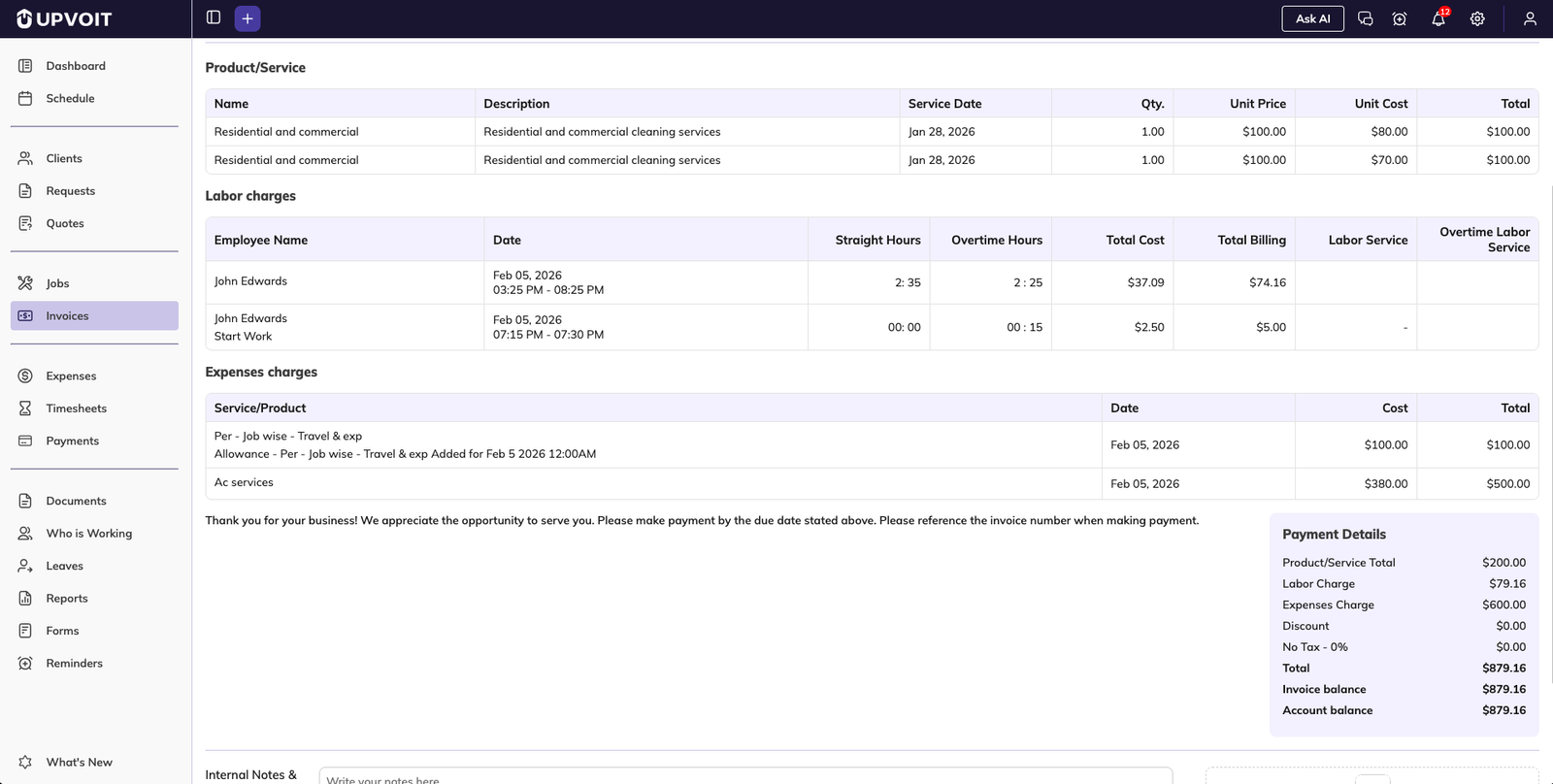
Product or service name
Service date
Quantity
Unit price
Unit cost
Line total
4.4 Labor Charges
If technician time tracking is enabled, labor charges are automatically added to the invoice. Displayed details include:
Technician name
Work date
Logged hours (straight time and overtime)
Total billable labor amount
Labor entries are pulled directly from linked job time records and do not require manual entry.
4.5 Expense Charges
This section displays any job-related expenses included in the invoice:
Expense name
Expense date
Cost
Total amount
Expense charges are automatically added from recorded job expenses.
4.6 Invoice Totals and Payment Summary
The payment summary provides a complete breakdown of charges:
Product and service totals
Labor charges
Expense charges
Discounts
Taxes (if applicable)
Final invoice amount
This final review ensures accurate billing before sending the invoice or collecting payment.
Payments
5.1 Collect Payment
The Collect Payment action allows users to record payments directly against an invoice. When selected:
A payment window opens
Enter payment method, amount, transaction date, and reference details
Partial payments are supported
The system prevents entering an amount greater than the remaining balance
Once saved, the invoice balance and status update automatically.
5.2 Payment History
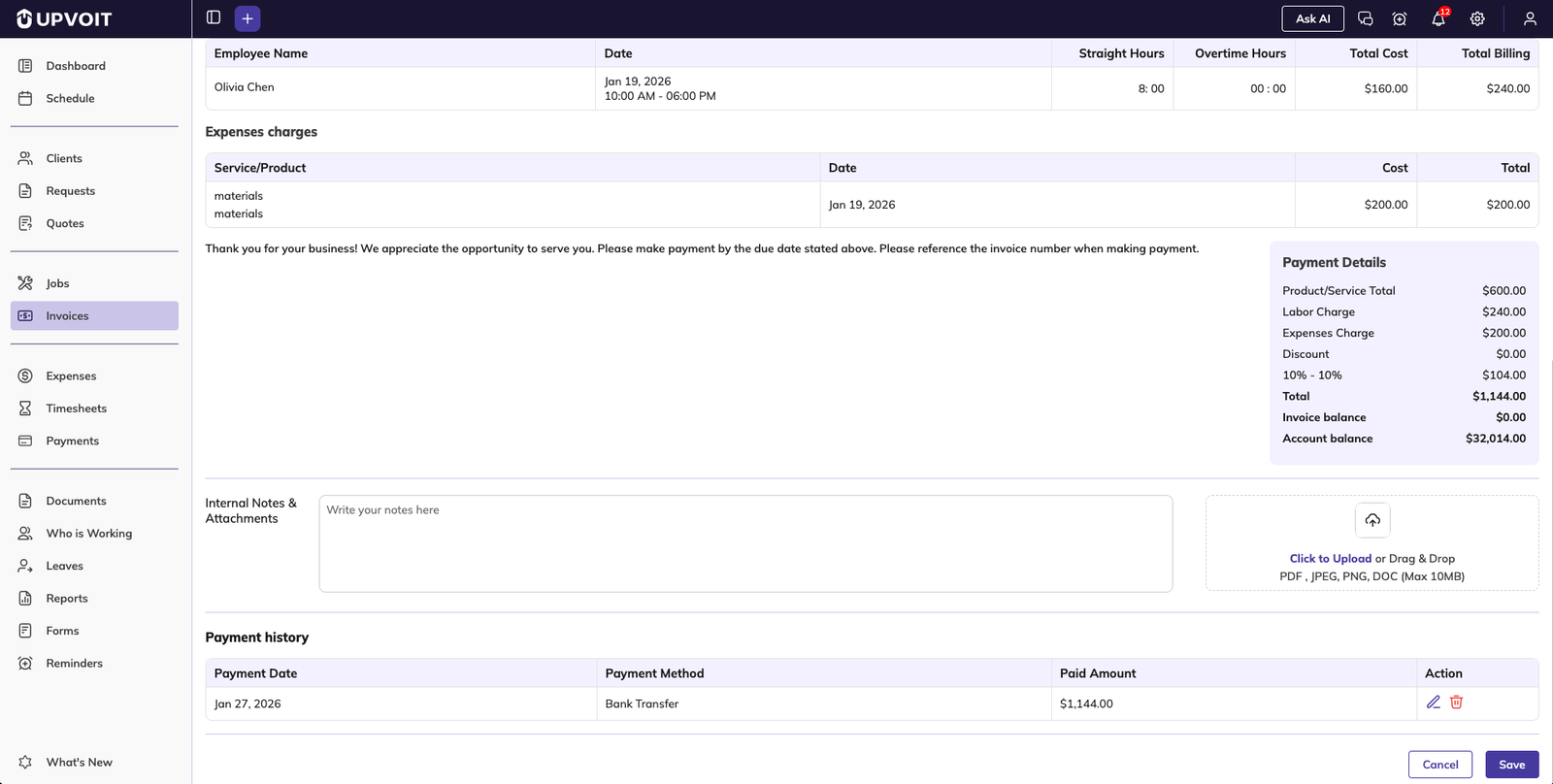
All payments recorded against the invoice appear at the bottom of the page, showing:
Payment amount
Payment method
Transaction date
Invoice Actions
All invoice actions are available directly from the invoice page.
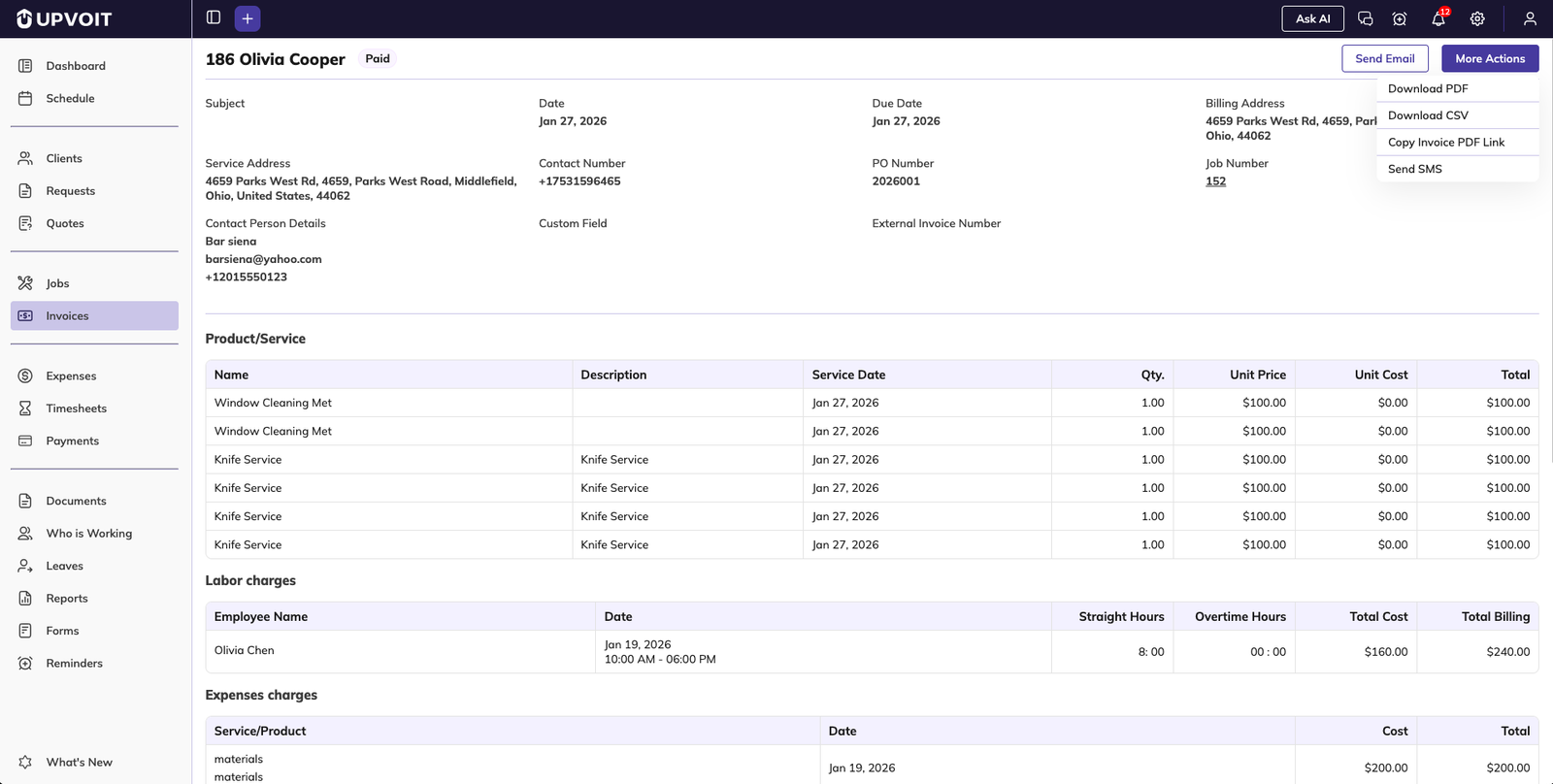
6.1 Send Email
Sends the invoice email to the client. The email editor opens with invoice details pre-filled. Recipient list, subject, message, and attachments can be edited.
6.2 Download PDF
Downloads the latest invoice version as a PDF, reflecting the selected invoice layout and current totals.
6.3 Download CSV
Exports invoice data in CSV format, useful for accounting, reporting, or external processing.
6.4 Copy Invoice PDF Link
Copies a secure link to the invoice PDF so it can be shared via email or messaging apps without attaching the file.
6.5 Send SMS
Sends the invoice or invoice link directly to the client via SMS.
6.6 Generate Payment Link
Generates an online payment link using the configured payment provider, allowing clients to complete payment securely online.
Creating an Individual Invoice
7.1 Start Invoice Creation
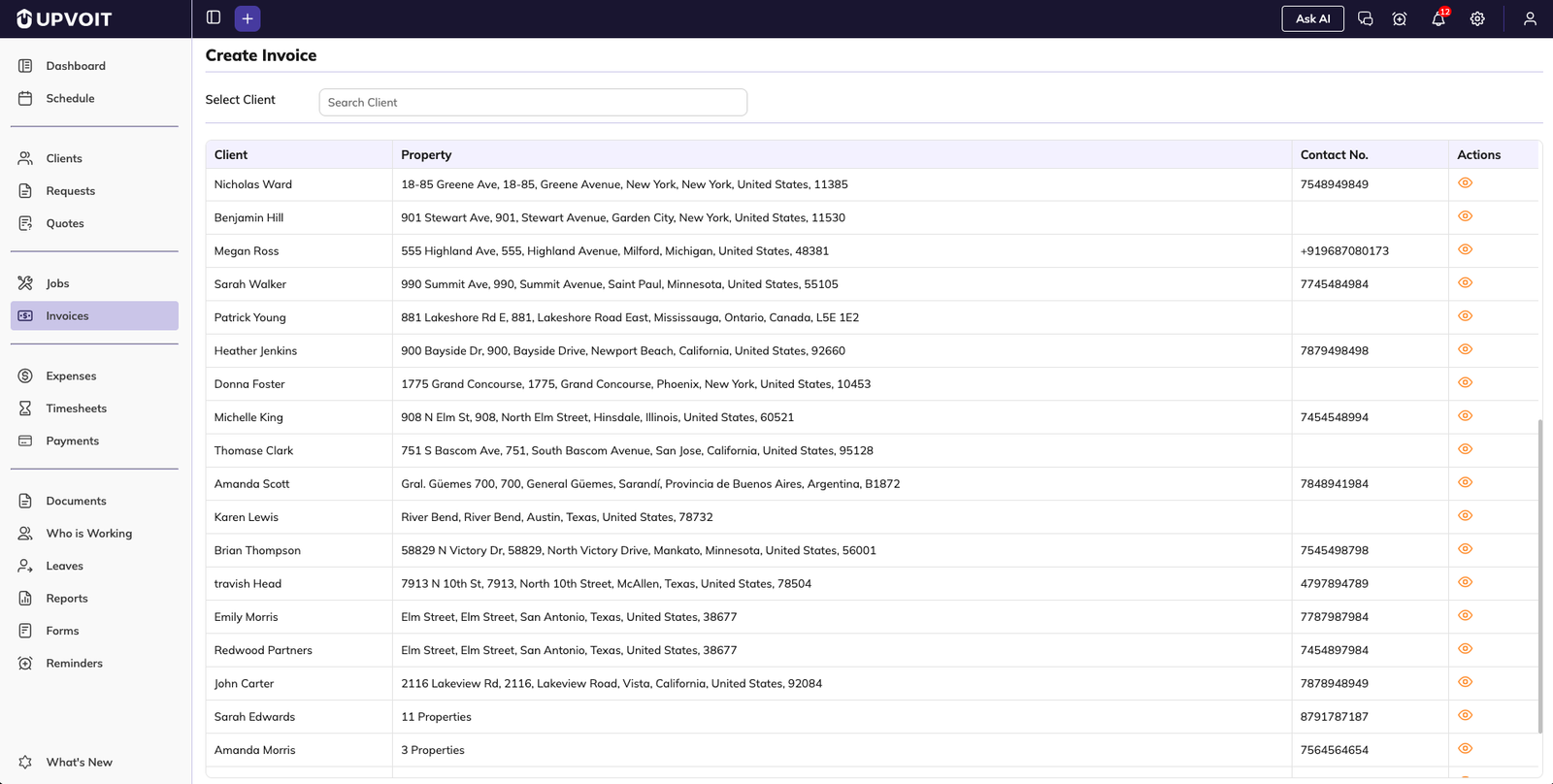
Click Create Invoice from the Invoice Overview. A list of all clients appears with property and contact details. Use search to quickly find a client.
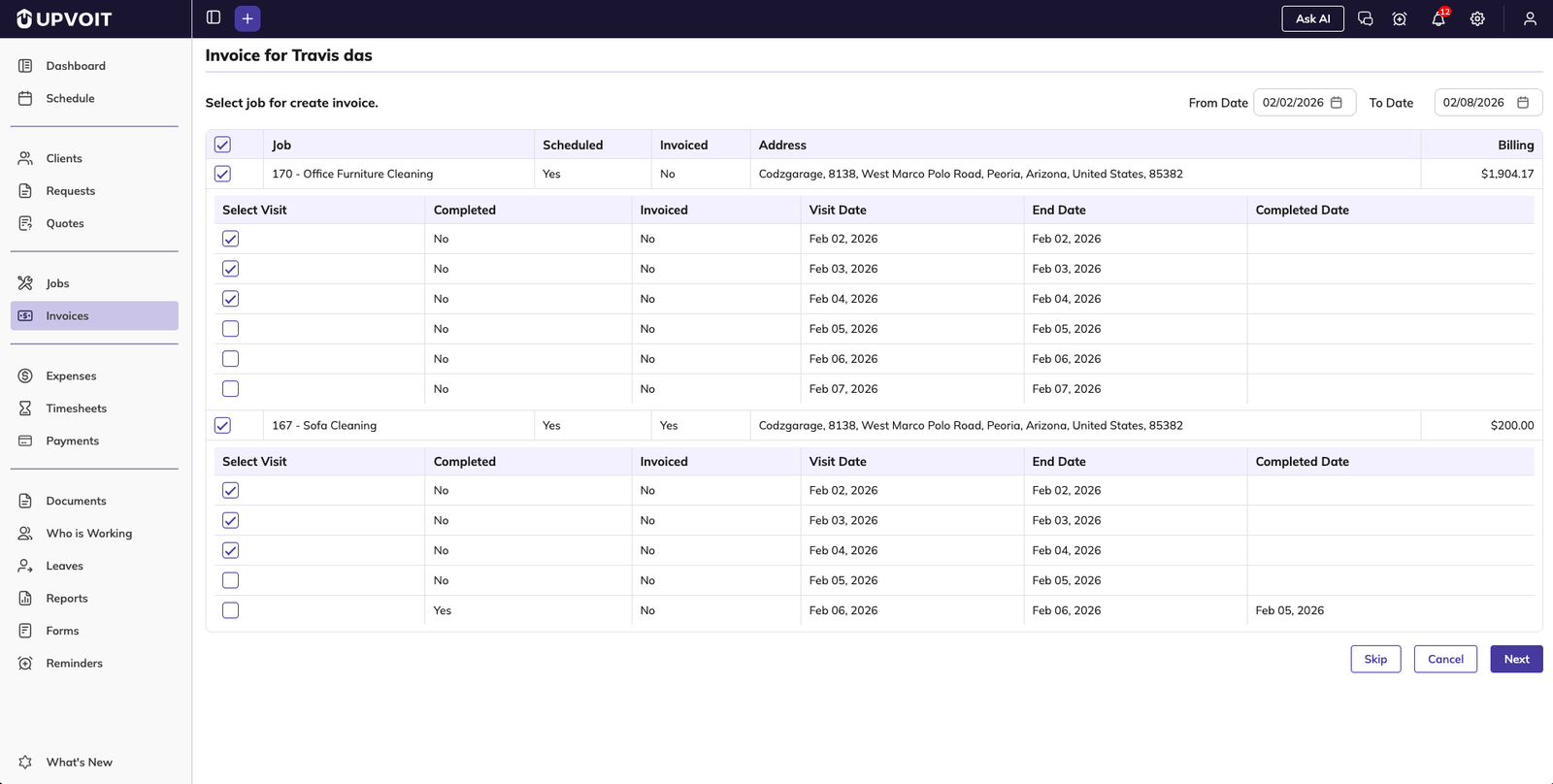
After selecting a client, select jobs and their corresponding visits for invoicing. Simply check the job and select the visits. Once selected, Upvoit pre-loads client information for faster billing.
7.2 Invoice Setup
On the invoice creation page, the invoice number is generated automatically. Update subject, invoice date, due date, or PO number if required. Billing and service addresses appear on the right, and custom fields configured for invoices are displayed.
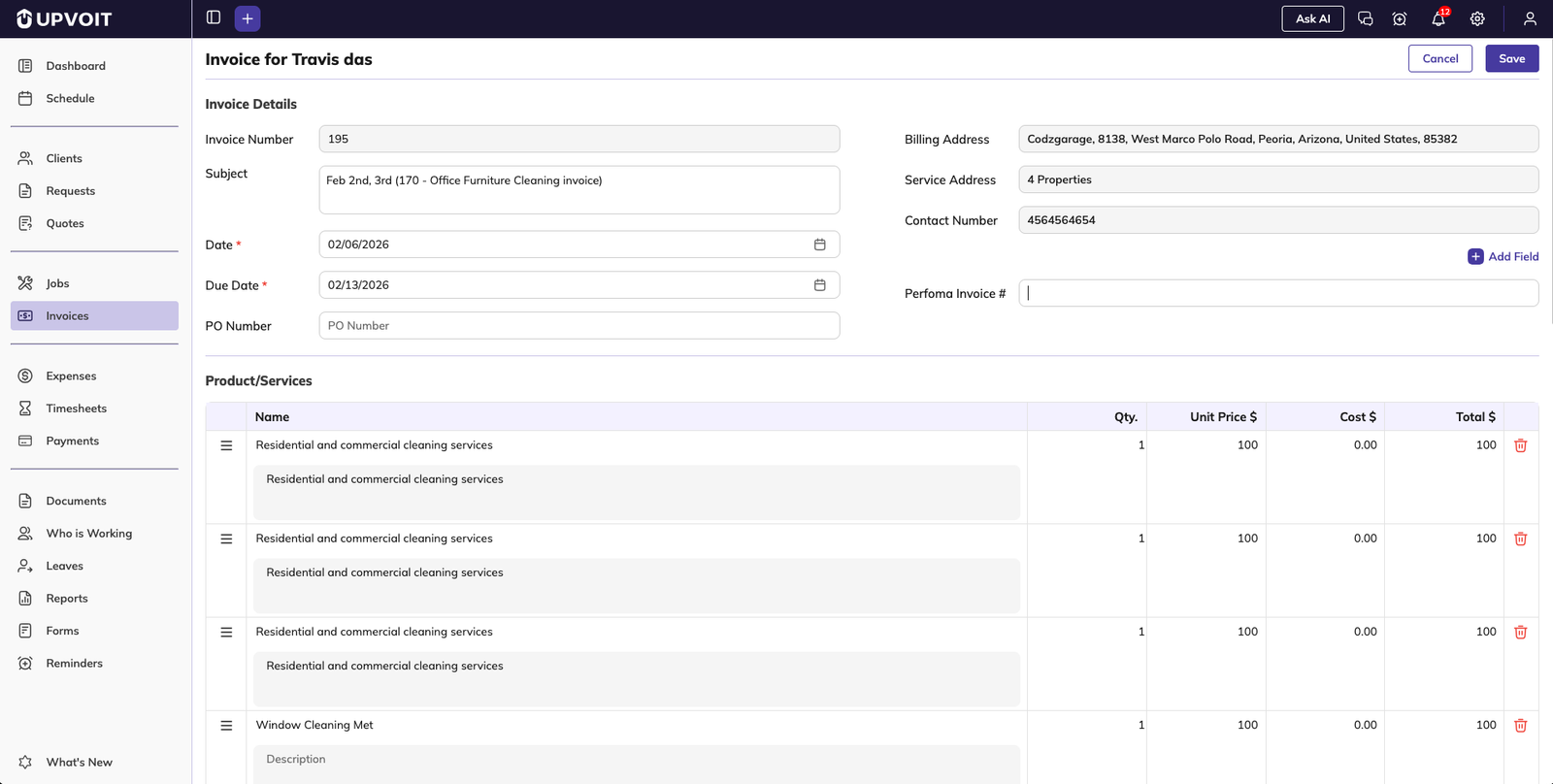
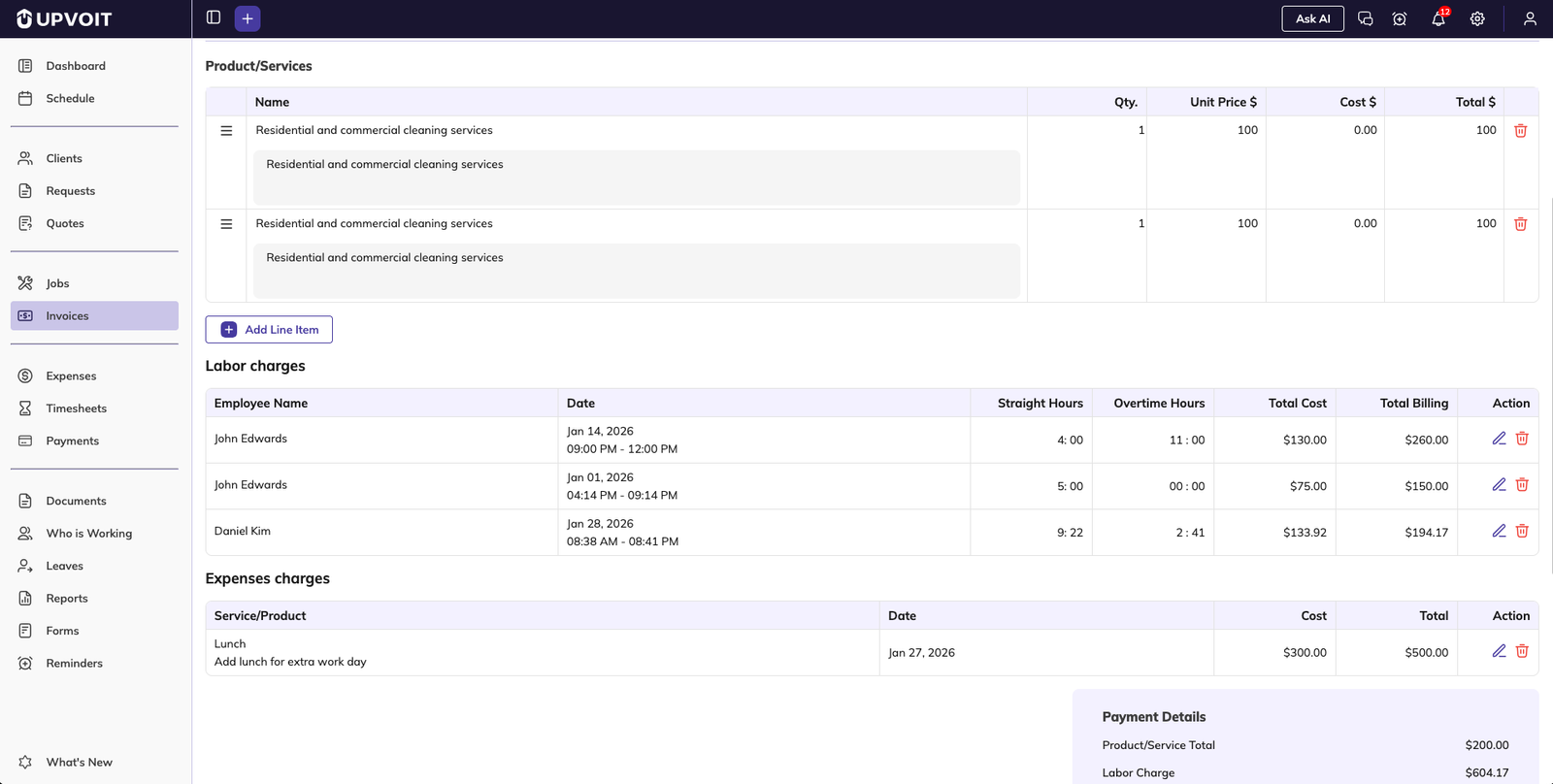
7.3 Products and Services Management
Users can:
Add new products or services
Edit descriptions
Change quantities or pricing
Remove items
All values update instantly, whether items are pulled from jobs or added manually.
7.4 Labor Charges Review
If labor tracking is enabled, this section automatically displays:
Technician name
Work date
Straight vs overtime hours
Billable labor value
7.5 Payment Summary
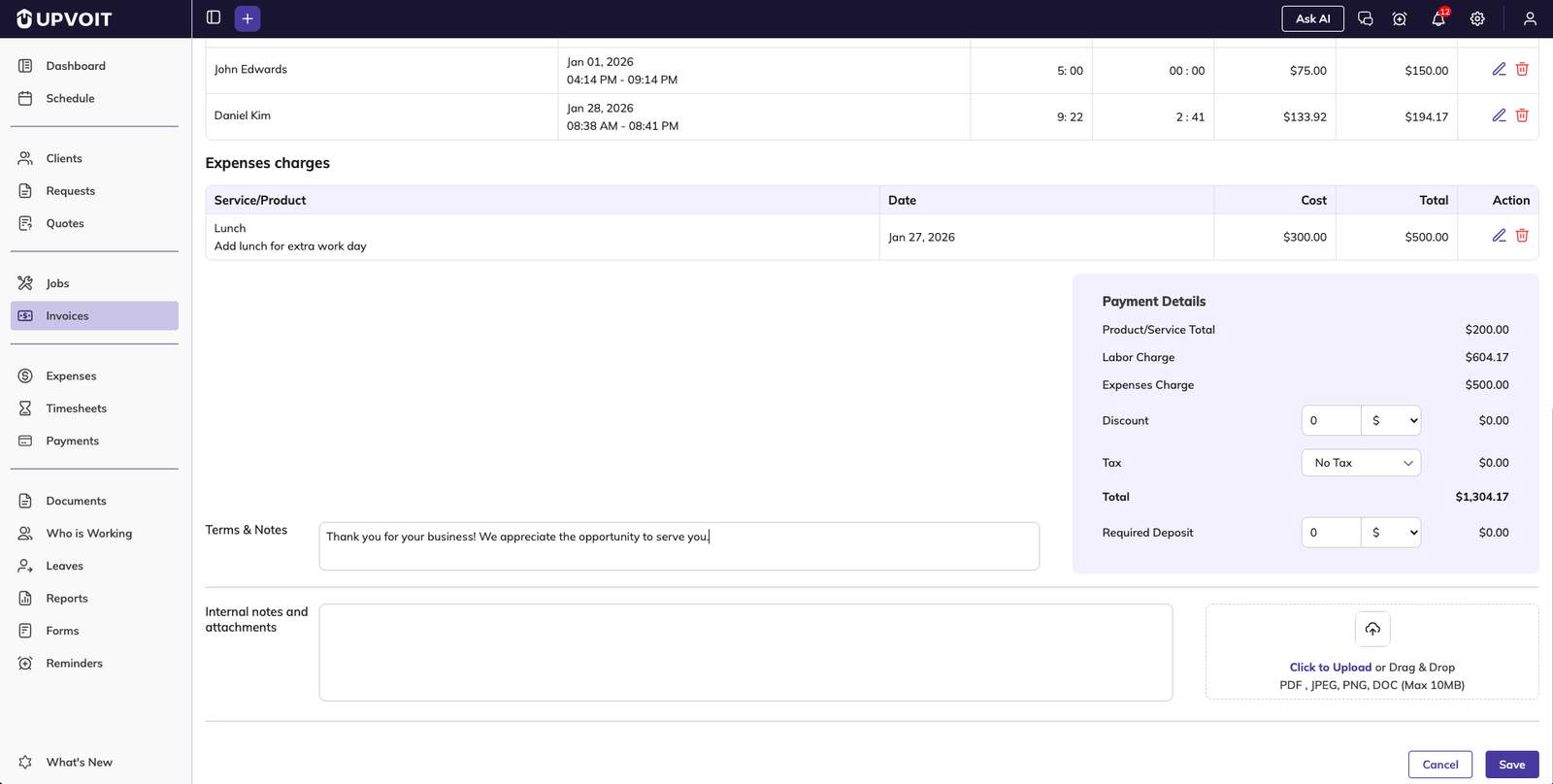
The Payment Summary updates in real time and displays line item totals, discounts, taxes, and the final invoice value.
7.6 Notes and Terms
This section displays the notes and terms shared with the client, such as payment instructions, due date reminders, and standard business messages.
Notes and terms are pre-filled based on system settings: Settings → System Configuration → Invoice. Content can be edited before saving the invoice.
7.7 Save Invoice
Once reviewed, click Save. The invoice is created and appears in the invoice list, ready to be emailed, downloaded, or paid.
Bulk Invoicing
8.1 Overview
Bulk invoicing is designed for teams handling high volumes of completed jobs, such as recurring services or route-based work.
8.2 Creating Bulk Invoices
From the Invoice Overview, click Bulk Invoice and follow these steps:
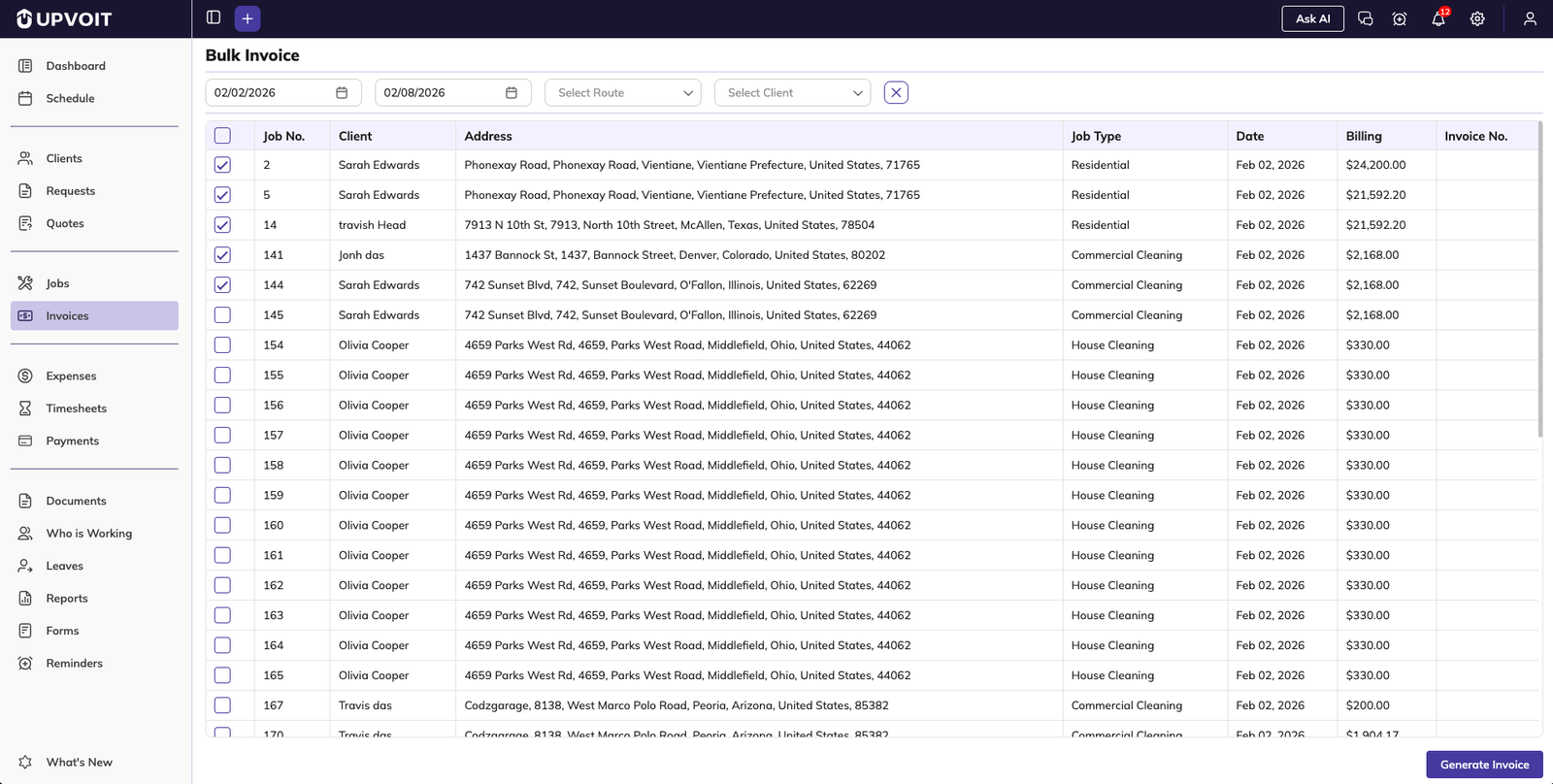
Select date range or route
All completed, uninvoiced jobs appear automatically
Select the jobs to invoice
Click Generate Invoice
The system creates individual invoices for each selected job, even across different clients.
8.3 Bulk Invoice Downloads
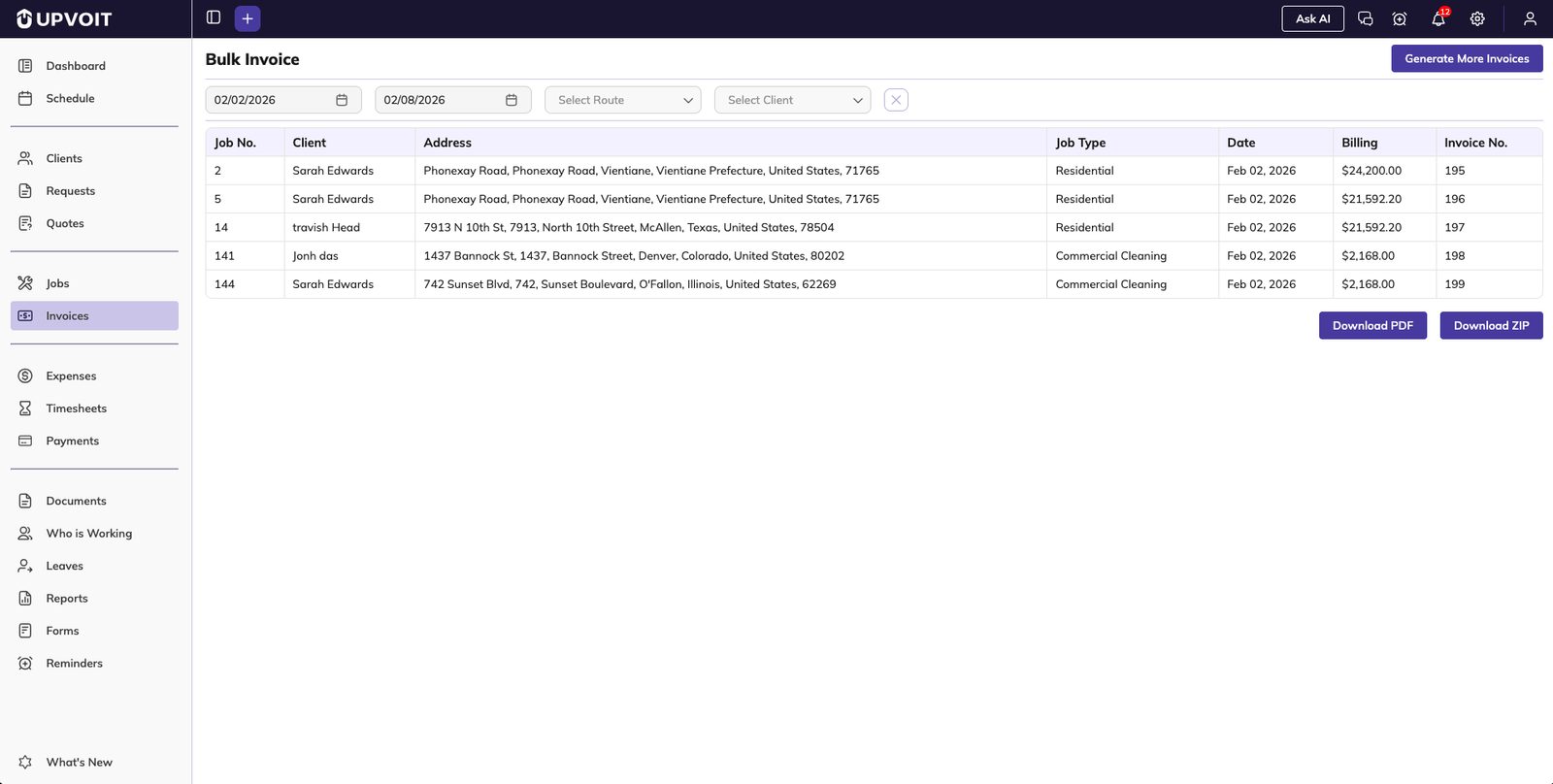
After invoices are generated, you can:
Download individual invoice PDFs
Download all generated invoices as a single ZIP file
These options allow quick review, sharing, or archiving without opening each invoice individually.
Summary
The Invoice Module in Upvoit streamlines the entire billing workflow — from invoice creation to payment collection. With support for individual and bulk invoicing, automated labor and expense capture, flexible sharing options, and built-in payment tracking, teams can manage billing confidently and keep payments organized with minimal effort.
Did this answer your question?


