
The Expenses module allows you to add, track, manage, and review all business-related expenses, whether they are job-related or general company expenses. It ensures accurate client billing, employee reimbursement, and profit & loss tracking.
Expenses List – What You Can See
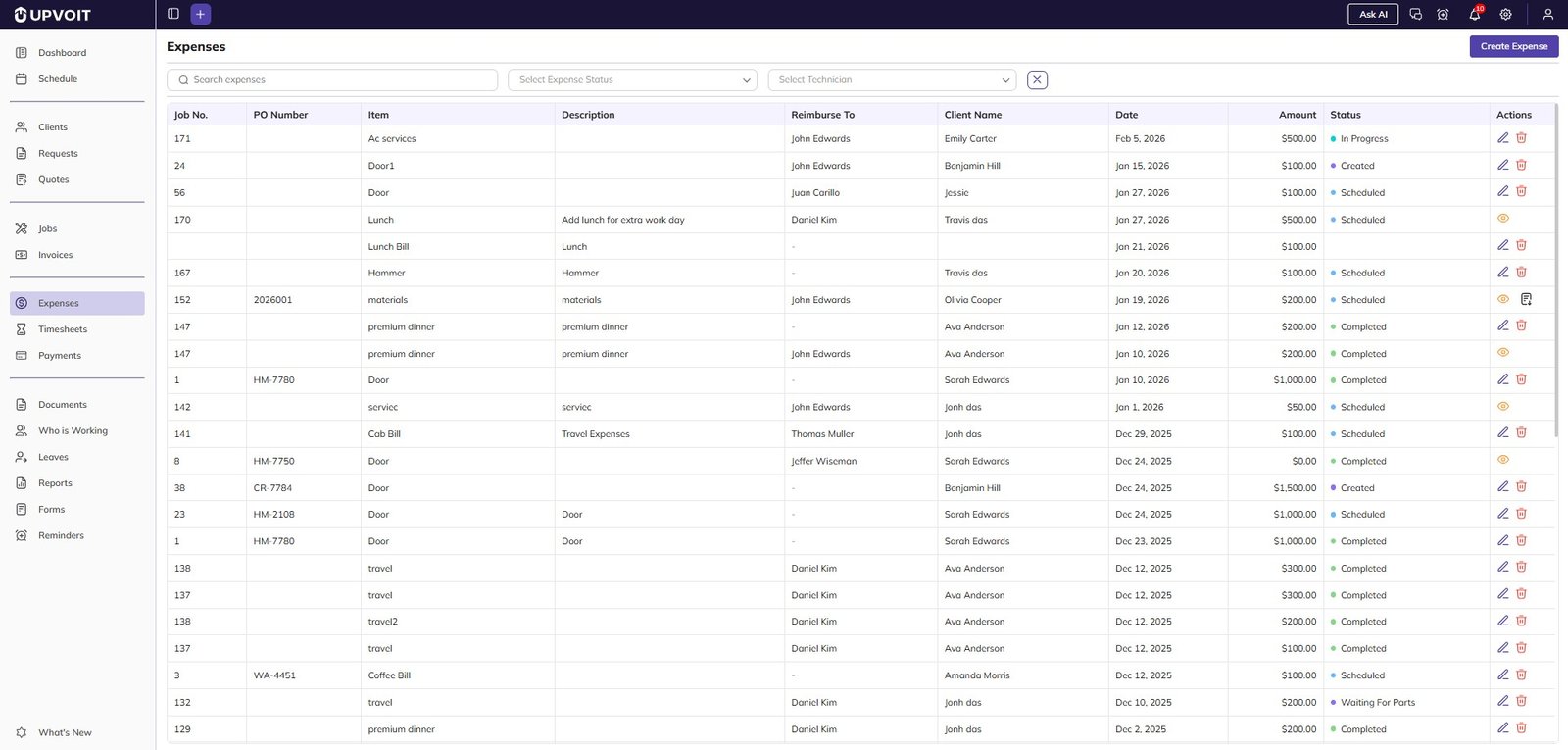
The Expenses List provides a complete view of all recorded expenses.
Columns Explained
Job No. – Associated job number (if applicable)
PO Number – Purchase order reference
Item – Expense item or product
Description – Additional details
Reimburse To – User receiving reimbursement
Client Name – Client linked to the job
Date – Expense date
Amount – Expense value
Status – Expense workflow status
Actions – View, edit, or delete expense, download attachment
Expense Status Indicators
Created
Scheduled
Waiting For Parts
Completed
Filter & Search Options
Filters help you quickly find specific expenses from large datasets.
Available Filters
Search Expenses
Expense Status
Technician
Clear Filters
How To Add Expenses?
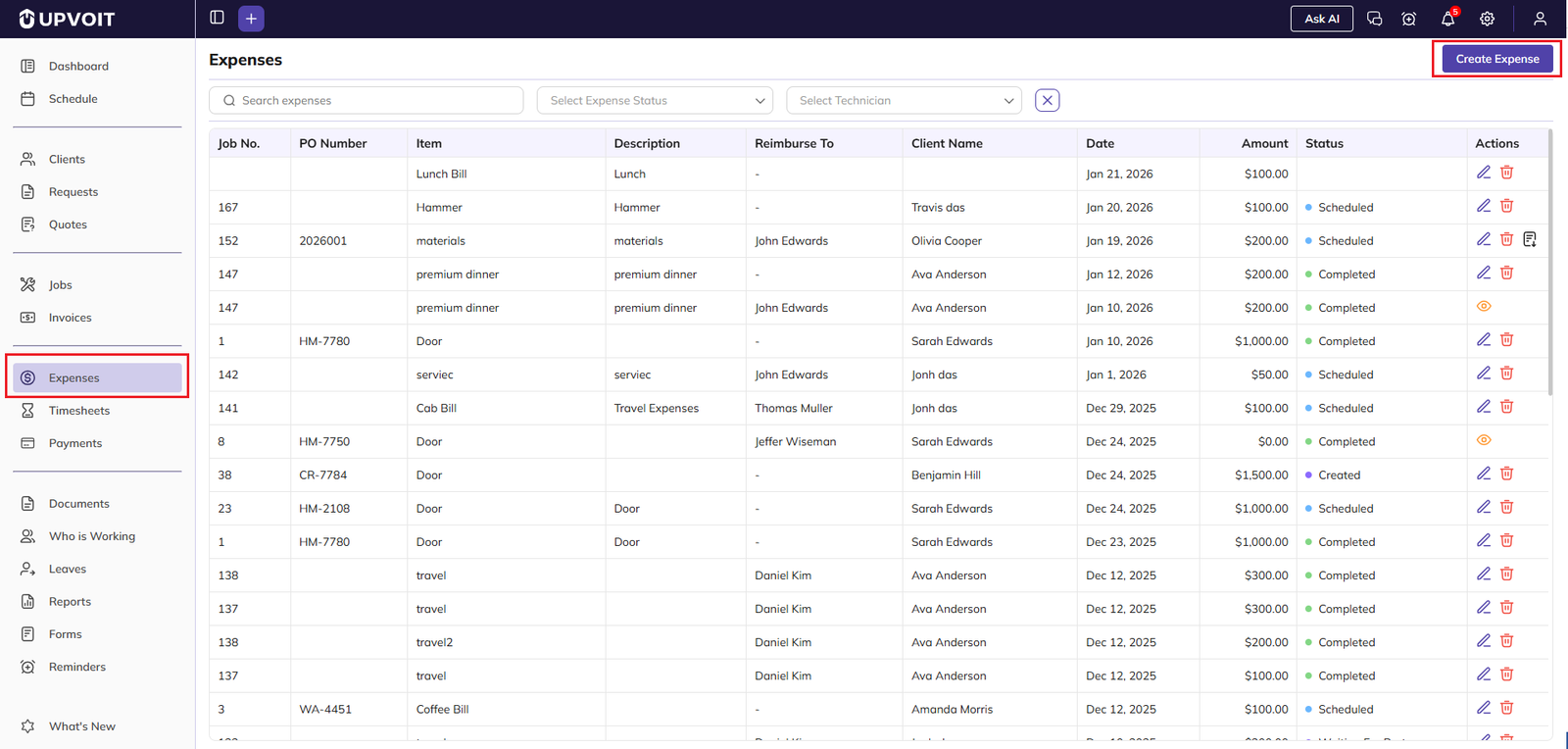
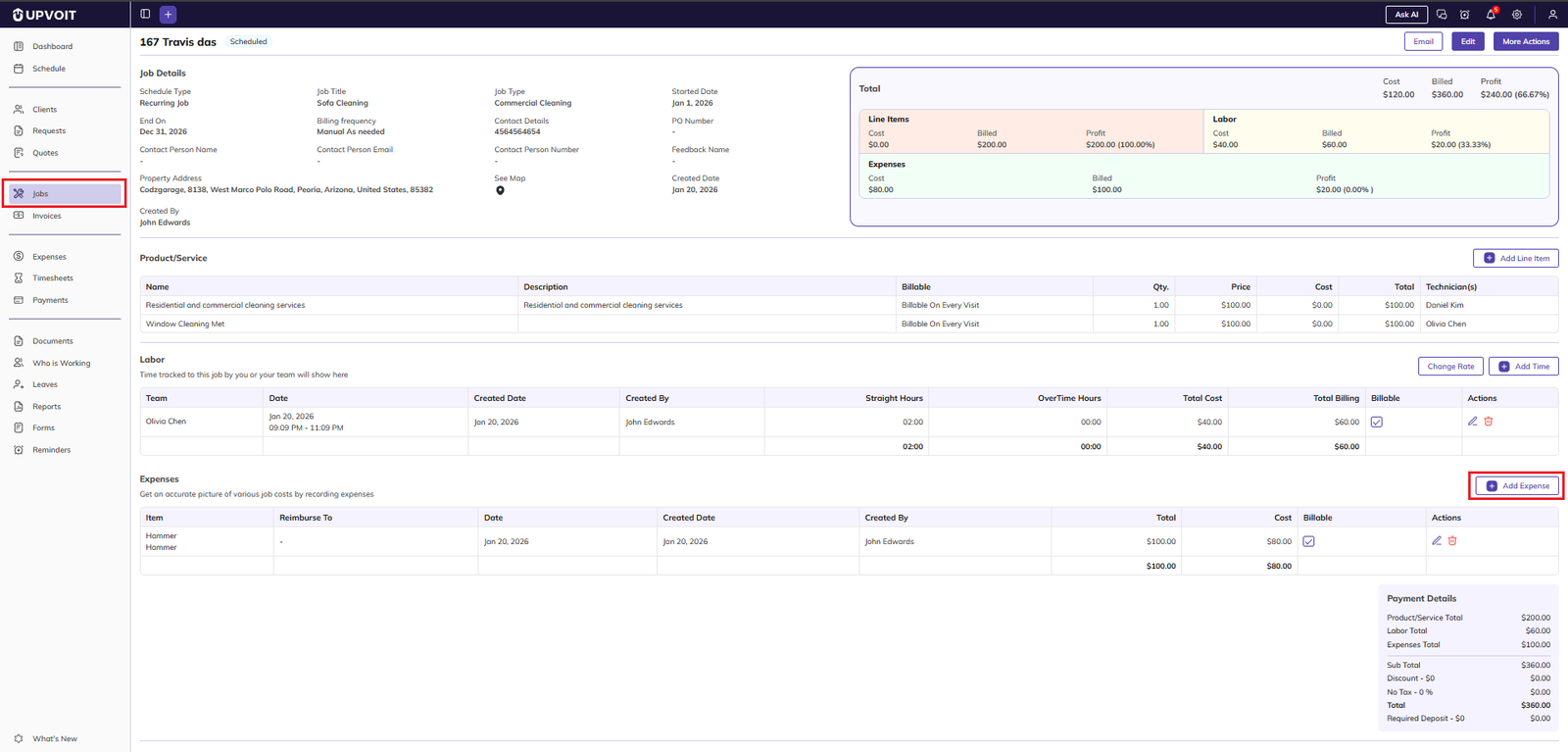
There are two ways to add expenses:
Using Expenses
On Job Add Expense
Add Expense Fields
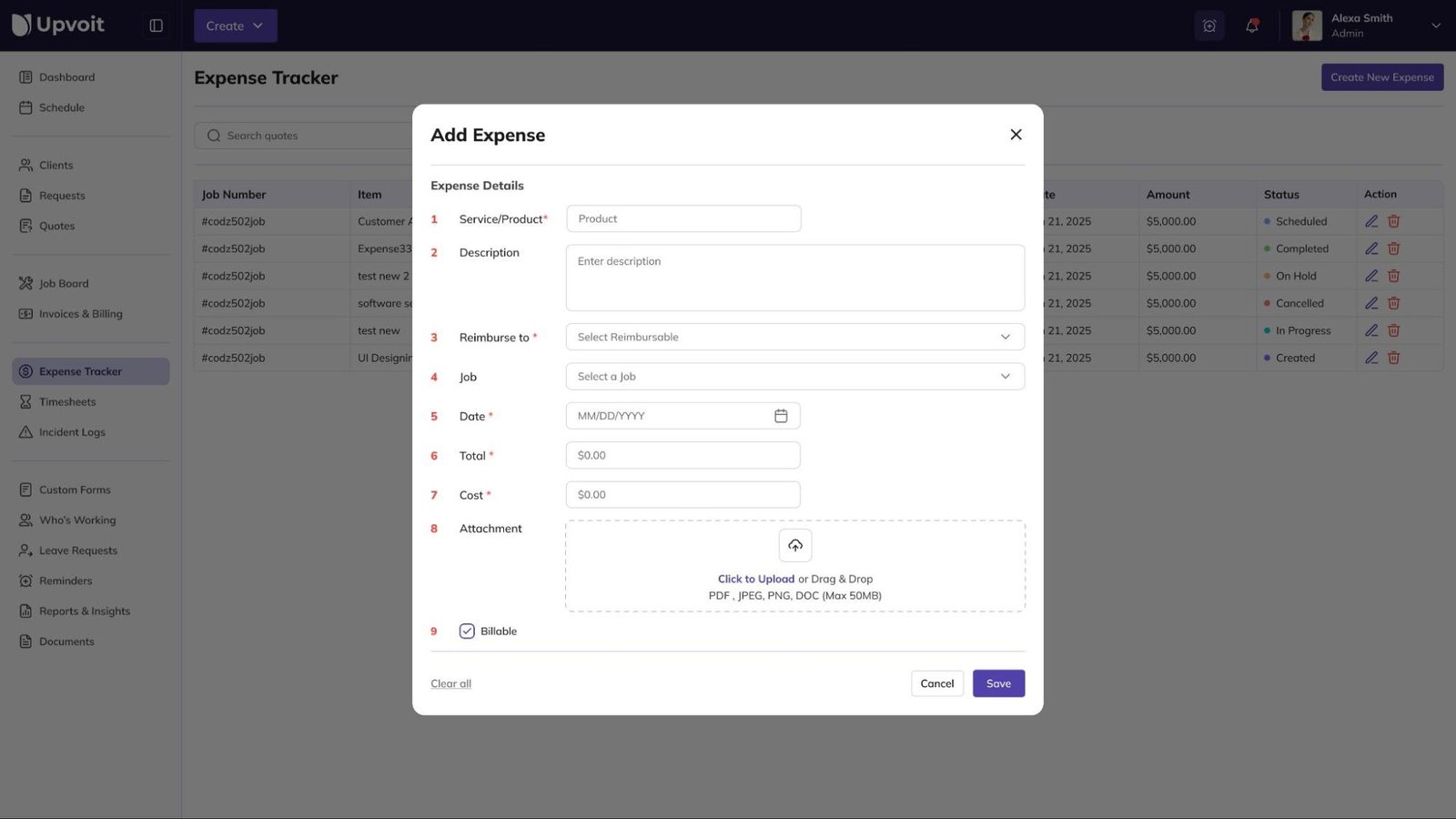
Service/Product* – Add service or product details
Description – Add description
Reimburse to* – Select the user to reimburse. If Not Reimbursable, it is considered a company expense.
Job – Select a job when you want to reimburse this expense for the invoice. Also include it when creating that job invoice.
Date* – Select the date
Total* – Include that amount in client invoice
Cost* – For actual expense
Attachment – Add attachment if needed
Billable – If selected, include in client invoice
Report
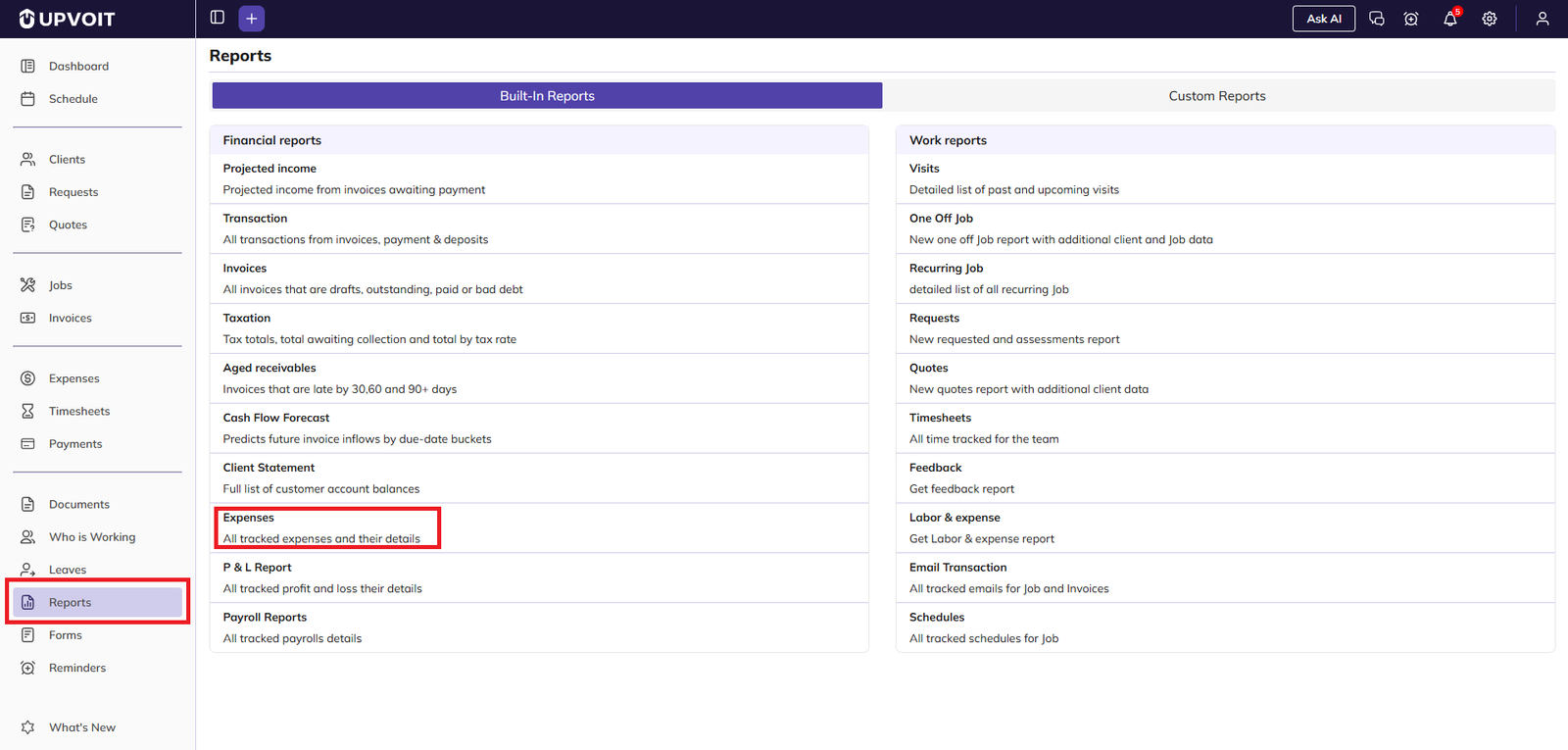
All tracked expenses and their details are in Expenses Report.
Other Details
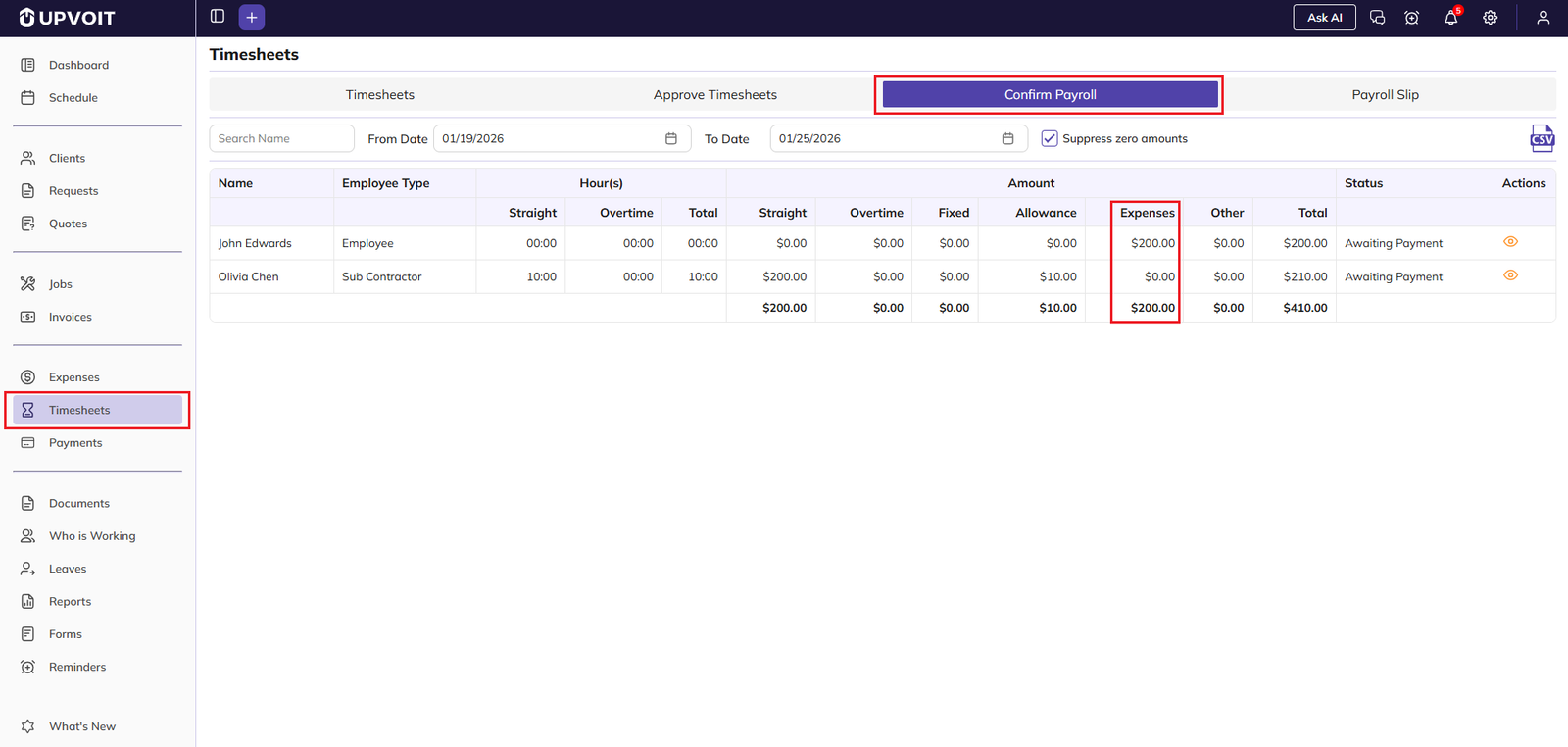
Show Expenses Details in TimeSheets Confirm Payroll.
Did this answer your question?


