
Document Module
The Document feature shows how admins can easily and securely add, organize, and manage public and private documents using categories, subcategories, technician assignments, and visibility options.
Document Overview & Listing
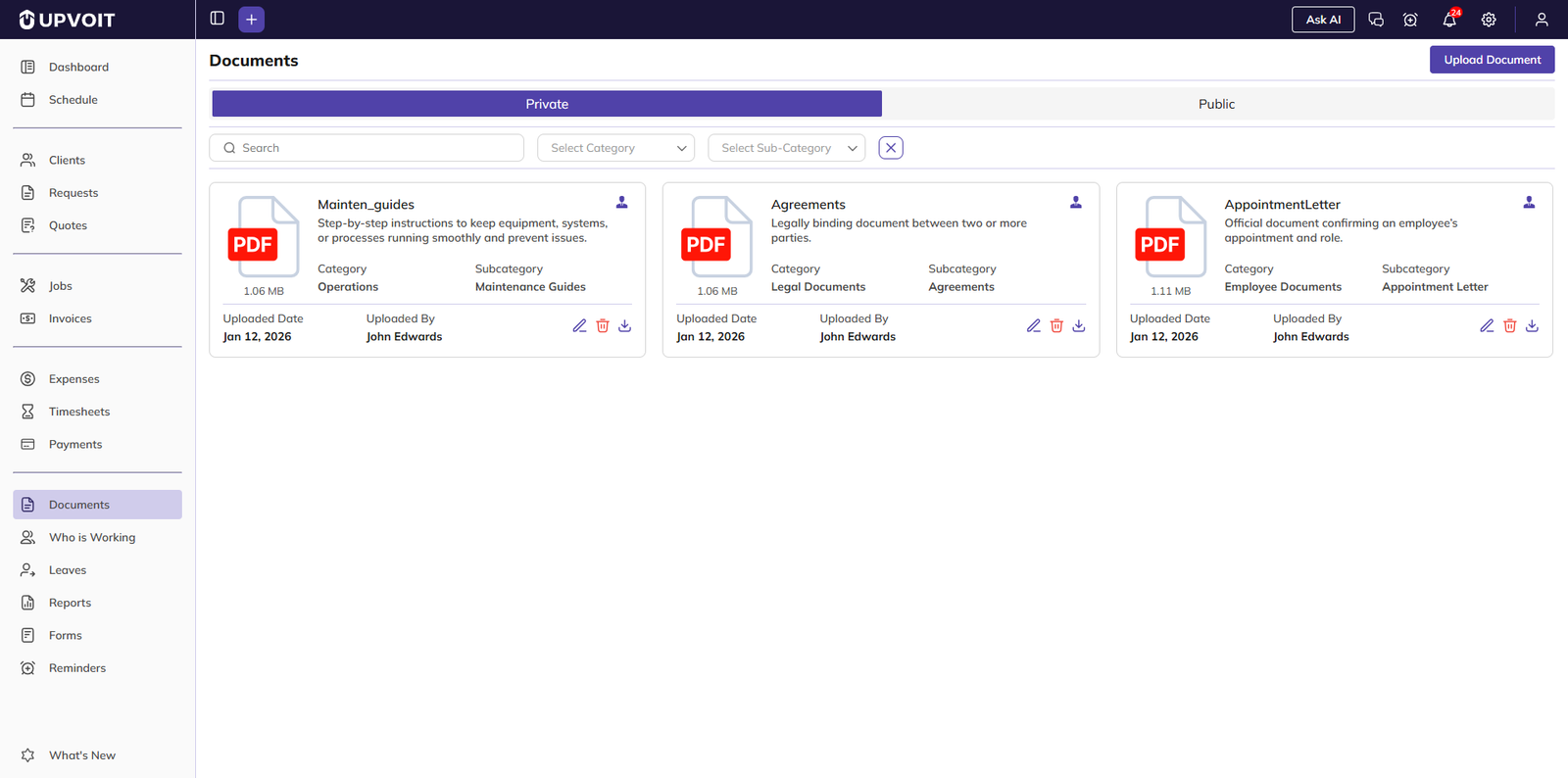
At the top of the page, you’ll see two tabs:
Private – Documents visible only to admins and authorized users.
Public – Documents accessible to all users based on permissions.
Below the tabs, filtering options help you quickly locate documents:
Search – Find documents by name.
Select Category & Sub-Category – Filter by document category.
These filters work together to refine your results instantly.
Document Cards
Each document is displayed as a card with the following details:
Document Name
File Type & Size (e.g., PDF, 1.06 MB)
Short Description
Category & Subcategory
Uploaded Date
Uploaded By
Visibility Indicator (icon shows who can access it)
Available Actions on Each Document
From the document card, you can:
Edit document details
Delete the document
View / Download the file
The Upload Document button (top-right) allows you to add a new document.
Upload Document
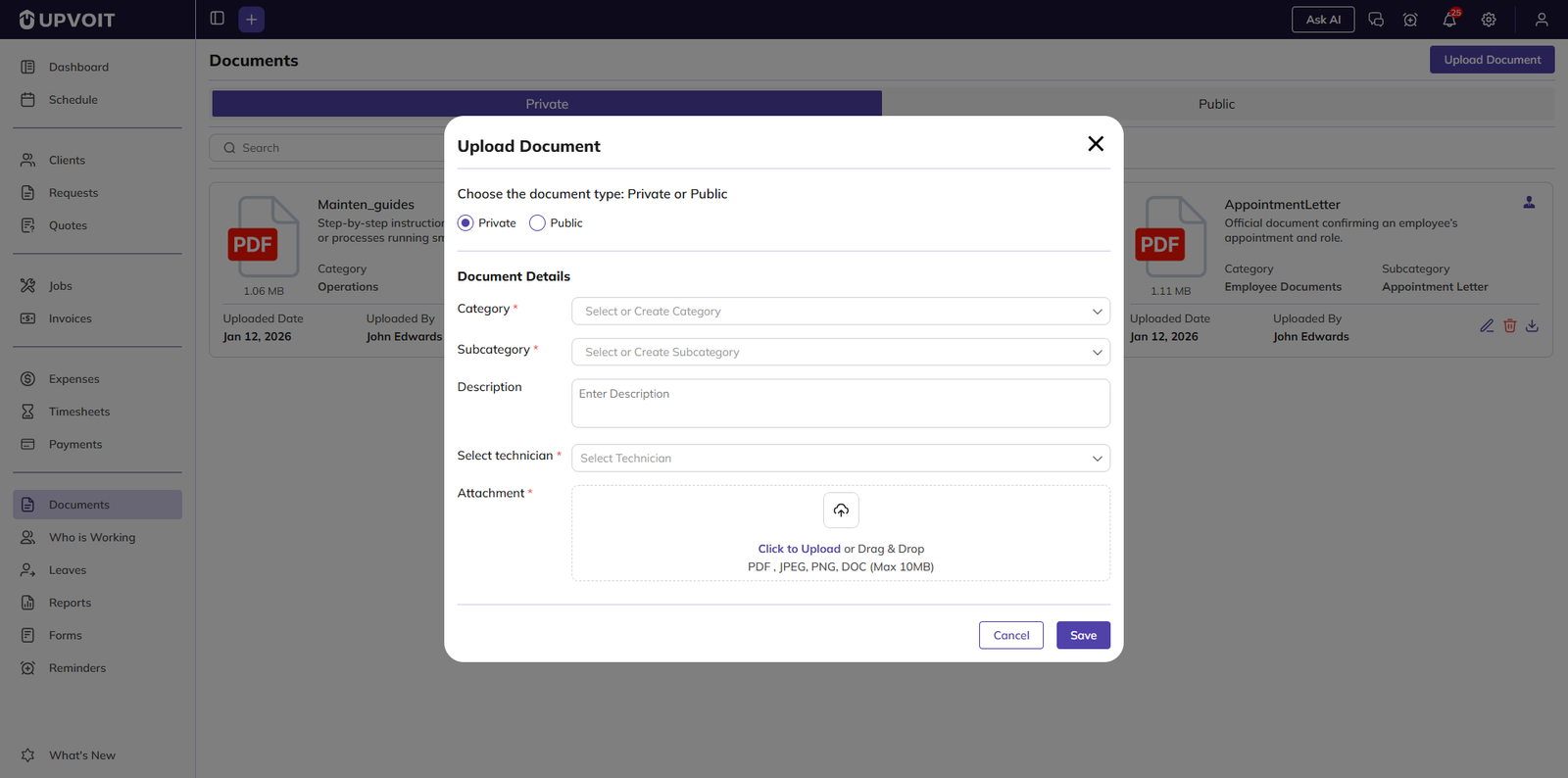
The Upload Document screen allows you to add new files to the document library and control who can access them. You can choose the document visibility, organize it using categories, assign technicians, and upload the file securely.
Document Type
At the top of the form, select the document visibility:
Private – The document is visible only to admins and selected technicians.
Public – The document is visible to all users with access to the Documents module.
This setting controls who can view and download the document.
Document Details
Category
Select an existing category or create a new one to organize your document (for example: Operations, Legal Documents, Employee Documents).
Subcategory
Choose or create a subcategory to further classify the document (for example: Maintenance Guides, Agreements, Appointment Letters).
Description
Add a short description explaining the purpose or contents of the document. This helps users understand the document before opening it.
Technician Assignment (Private Documents)
If the document type is set to Private, you can select one or more technicians who are allowed to access the document. Only assigned technicians and admins will be able to view it.
Attachment
Upload the document file by:
Clicking Upload to select a file, or
Dragging and dropping the file into the upload area
Supported formats: PDF, JPEG, PNG, DOC. Maximum file size: 10 MB.
Save or Cancel
Save – Uploads the document and adds it to the document list.
Cancel – Closes the upload window without saving any changes.
Tips
Use clear categories and subcategories to keep documents easy to find.
Add meaningful descriptions to improve search results.
Assign technicians carefully for private documents to maintain data security.
Did this answer your question?


