
Dashboard Overview
The Dashboard is your central workspace for daily operations, revenue visibility, and team activity monitoring.
Use it to:
-
Track requests, quotes, jobs, and invoices
-
Review financial trends across months
-
Monitor team availability and live status
-
Build and save custom dashboard layouts
Accessing the Dashboard
-
Open Dashboard from the left navigation.
-
Use the top-right controls to switch between Dashboard and Business Dashboard.
-
Use the time filter (for example, 1 Month) to change the reporting window.
Standard Dashboard
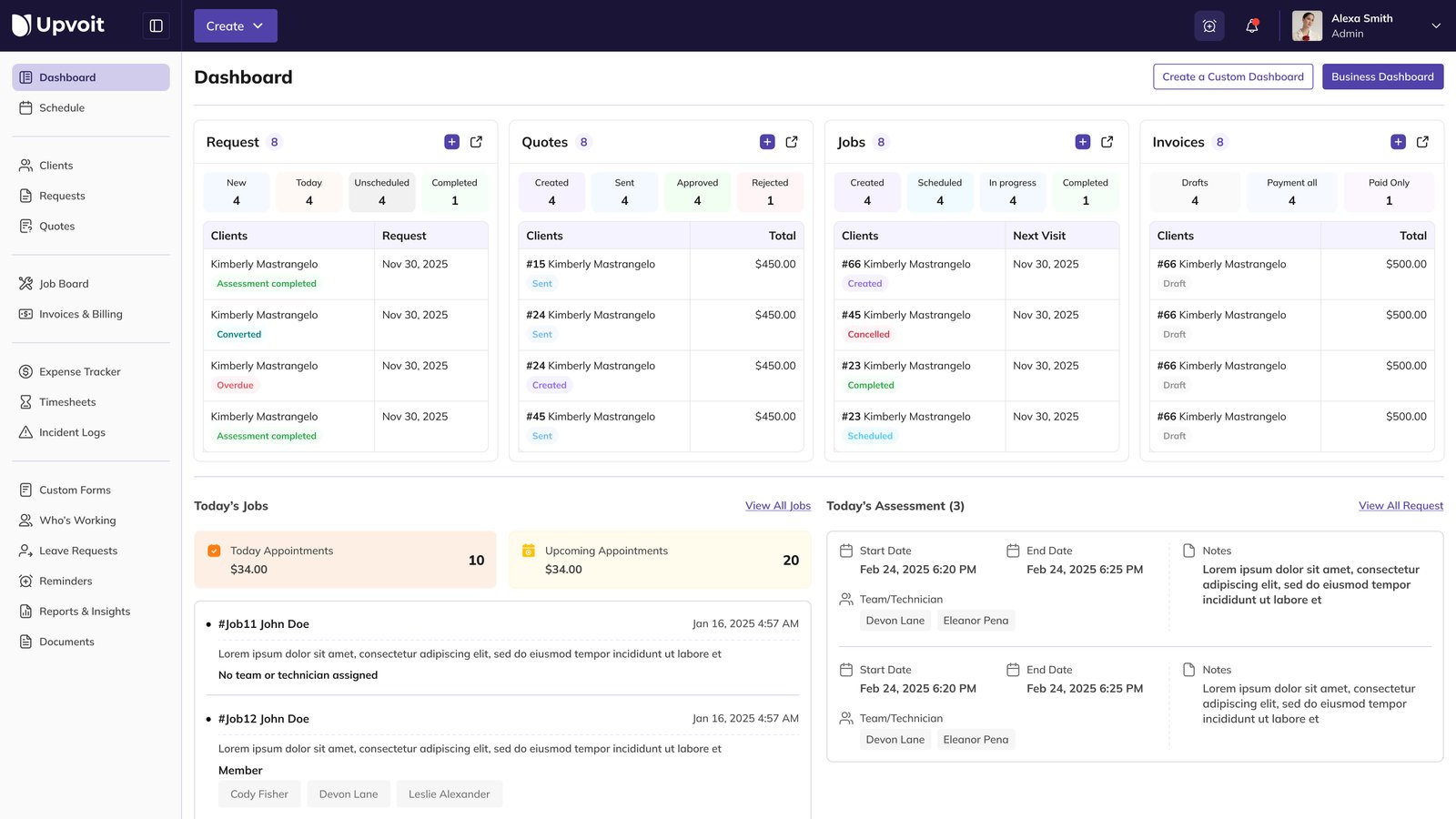
The standard Dashboard focuses on operational queues and daily execution.
Top KPI Blocks
-
Request: New, Today, Unscheduled, Completed
-
Quotes: Created, Sent, Approved, Rejected
-
Jobs: Created, Scheduled, In progress, Completed
-
Invoices: Drafts, Payment all, Paid only
Daily Activity Areas
-
Today’s Jobs: appointment totals and job list with assigned team members
-
Today’s Assessment: visit windows, notes, and assigned technicians
Business Dashboard
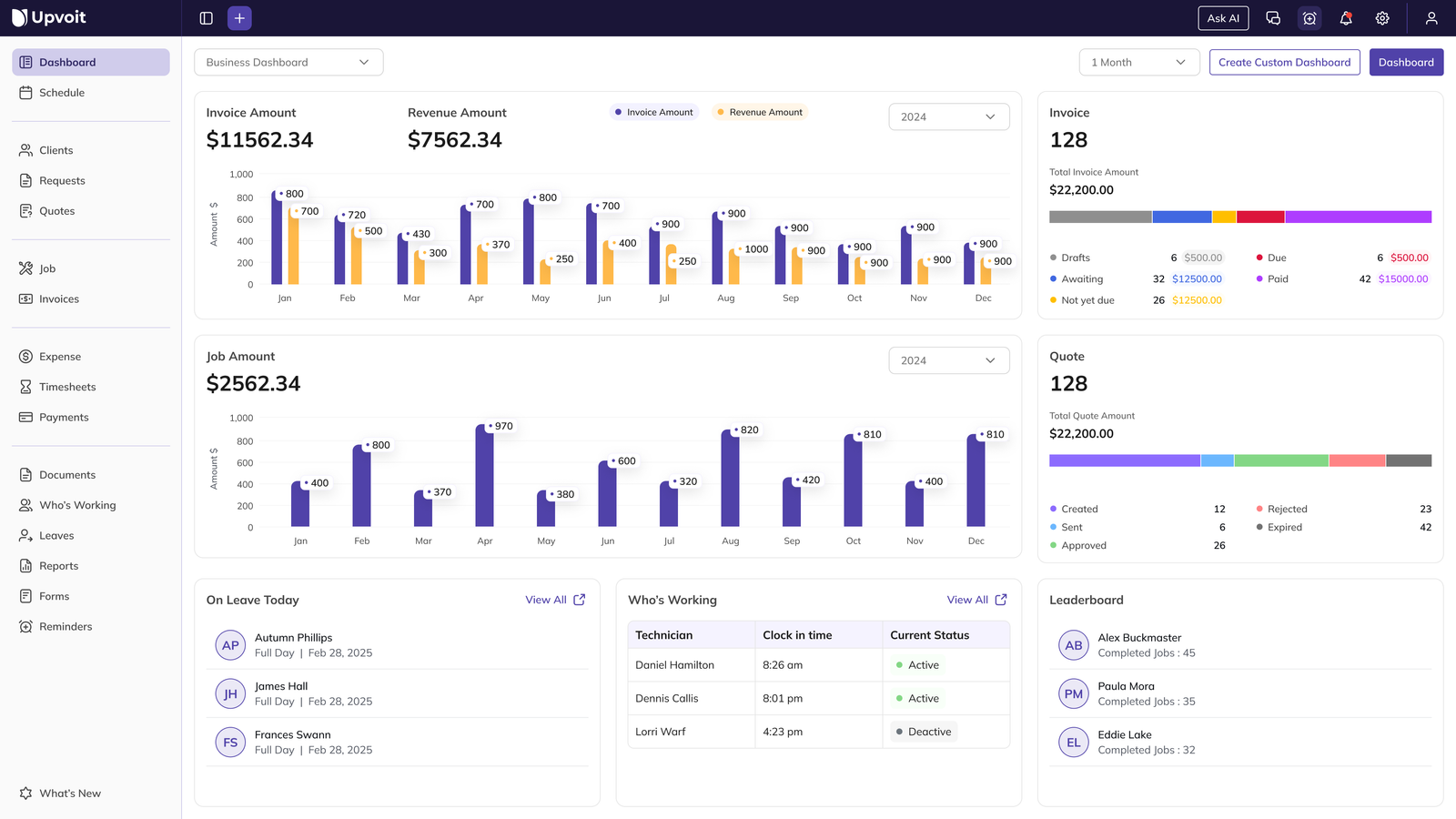
Business Dashboard highlights finance and performance using charts and summary widgets.
Revenue and Invoice Analytics
-
Invoice Amount and Revenue Amount cards
-
Monthly comparison chart with year selector
-
Job Amount chart for operational workload trends
Invoice and Quote Summary
-
Total counts and amounts for invoices and quotes
-
Status distribution (Drafts, Awaiting, Due, Paid, Created, Sent, Approved, etc.)
Team Snapshot Widgets
-
On Leave Today
-
Who’s Working (clock-in and status)
-
Leaderboard (completed jobs)
Switch Dashboard Views
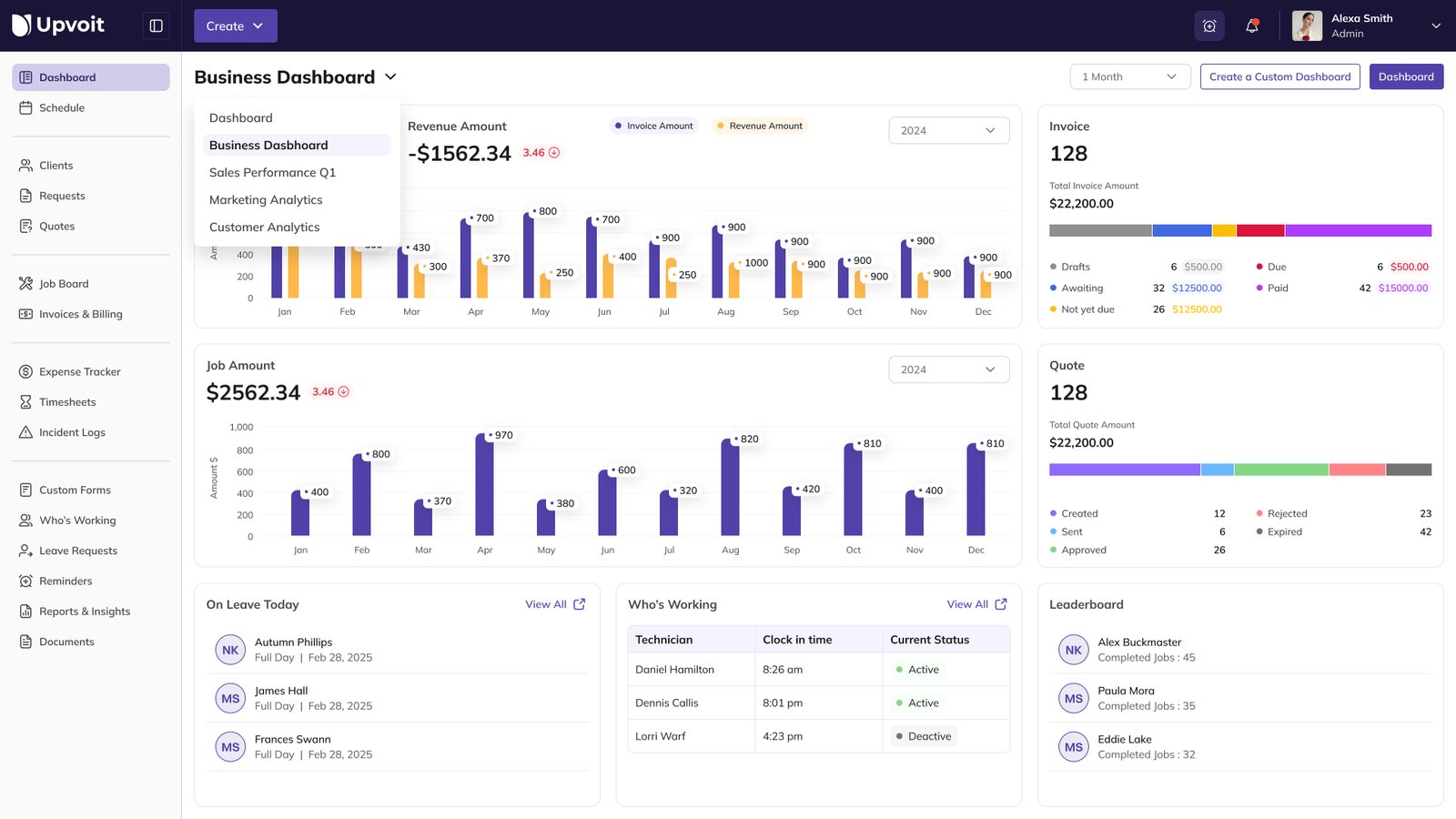
Use the dashboard dropdown near the page title to switch between dashboard templates.
-
Click the dashboard name (for example, Business Dashboard).
-
Select the dashboard view you want to open.
-
The layout and widgets refresh based on your selected dashboard.
Create Custom Dashboard
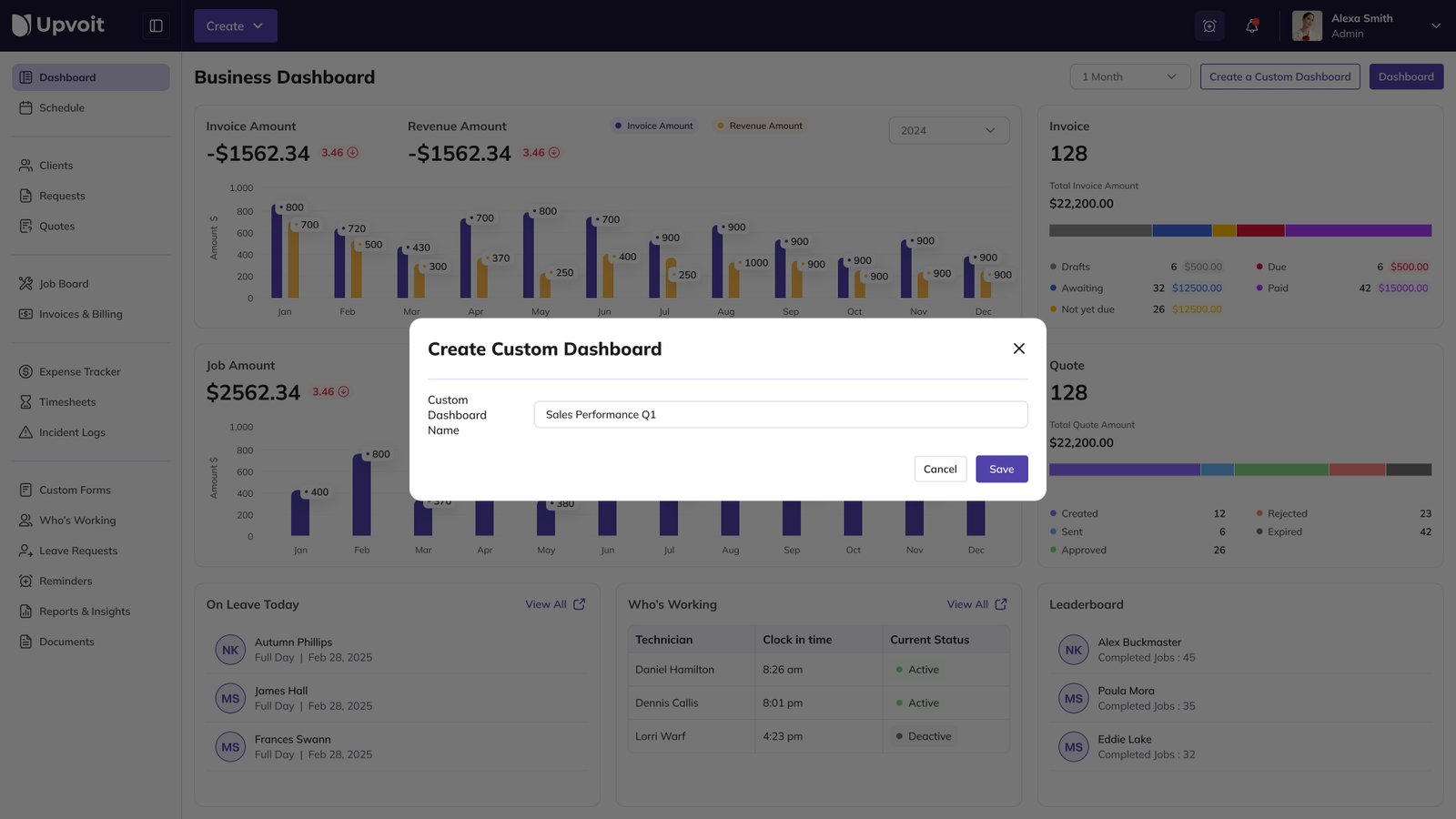
Create a custom dashboard when you need a focused layout for a role, process, or business objective.
Steps
-
Click Create a Custom Dashboard.
-
Enter the Custom Dashboard Name.
-
Click Save.
Custom Dashboard Builder
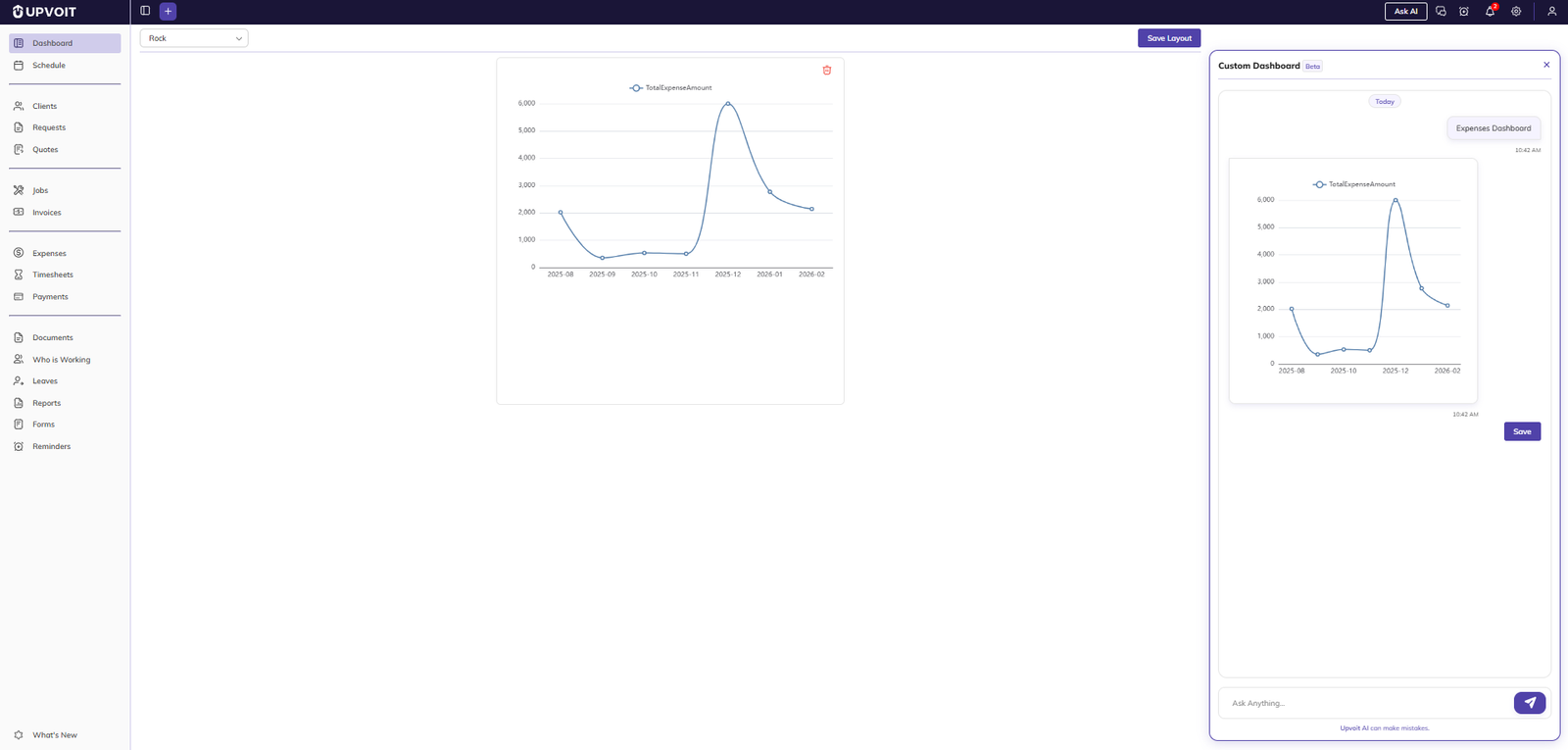
After creating a dashboard, use the builder workspace to design, preview, and save layout changes.
-
Select your custom dashboard from the top-left dropdown.
-
Add and arrange widgets on the main canvas.
-
Use the right-side preview panel to validate the final card appearance.
-
Use Save Layout to persist your widget arrangement.
-
Use the Ask AI panel to generate or refine dashboard content and then save.
Best Practices
-
Use the standard Dashboard for daily operations and queue follow-up.
-
Use Business Dashboard for financial and trend analysis.
-
Keep custom dashboards role-specific to reduce visual clutter.
-
Review status widgets regularly to identify overdue items quickly.
Troubleshooting
-
Dashboard not visible: Confirm your user role has dashboard access.
-
Data not updating: Verify the selected time filter and refresh the page.
-
Custom layout not saved: Use Save Layout before leaving the page.
-
Missing widget values: Check module permissions and source records (jobs, quotes, invoices).
Did this answer your question?


