
Dashboard Overview
The Dashboard is your central workspace for daily operations, revenue visibility, and team activity monitoring.
Use it to:
Track requests, quotes, jobs, and invoices
Review financial trends across months
Monitor team availability and live status
Build and save custom dashboard layouts
Accessing the Dashboard
Open Dashboard from the left navigation.
Use the top-right controls to switch between Dashboard and Business Dashboard.
Use the time filter (for example, 1 Month) to change the reporting window.
Standard Dashboard
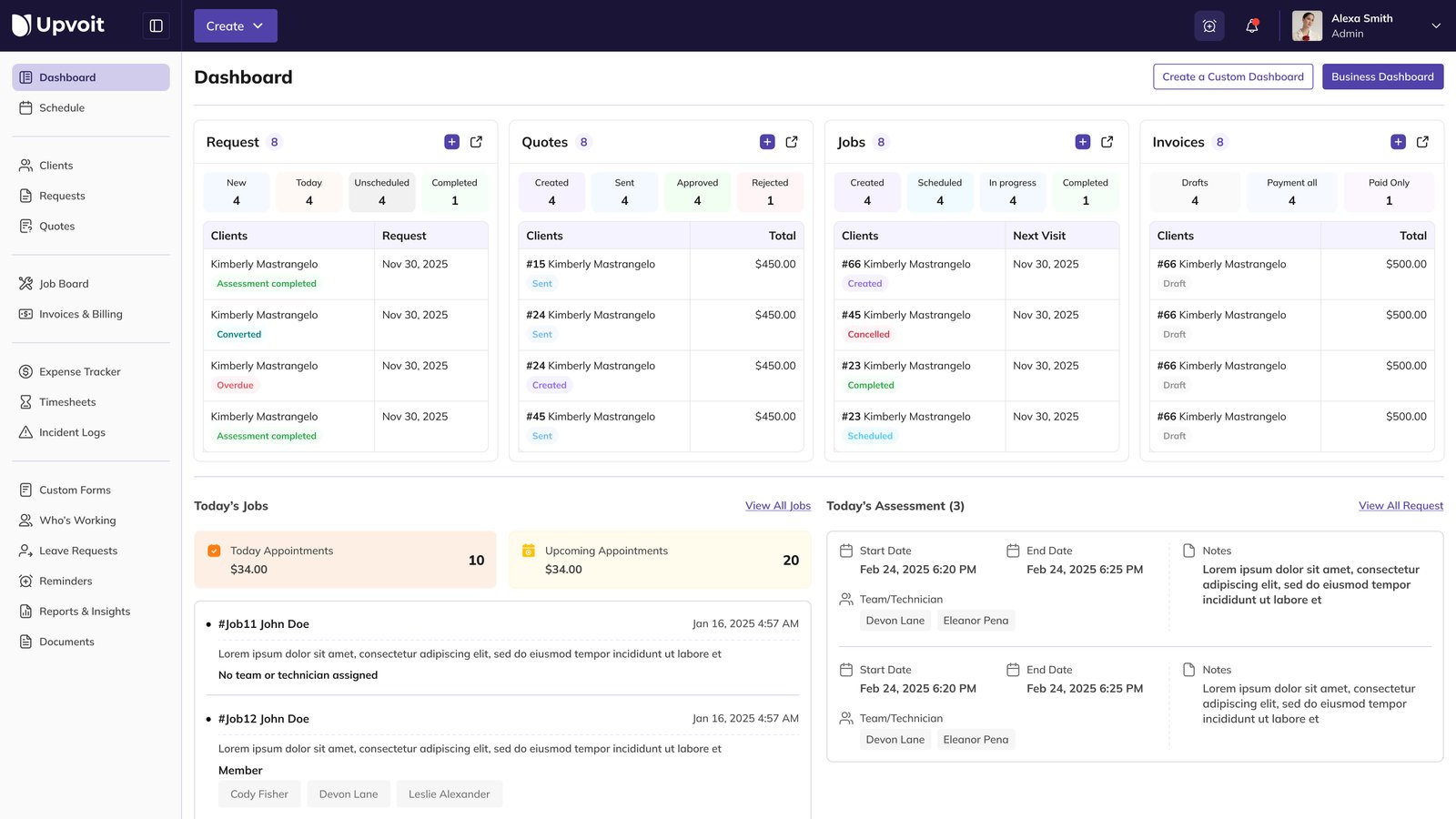
The standard Dashboard focuses on operational queues and daily execution.
Top KPI Blocks
Request: New, Today, Unscheduled, Completed
Quotes: Created, Sent, Approved, Rejected
Jobs: Created, Scheduled, In progress, Completed
Invoices: Drafts, Payment all, Paid only
Daily Activity Areas
Today’s Jobs: appointment totals and job list with assigned team members
Today’s Assessment: visit windows, notes, and assigned technicians
Business Dashboard
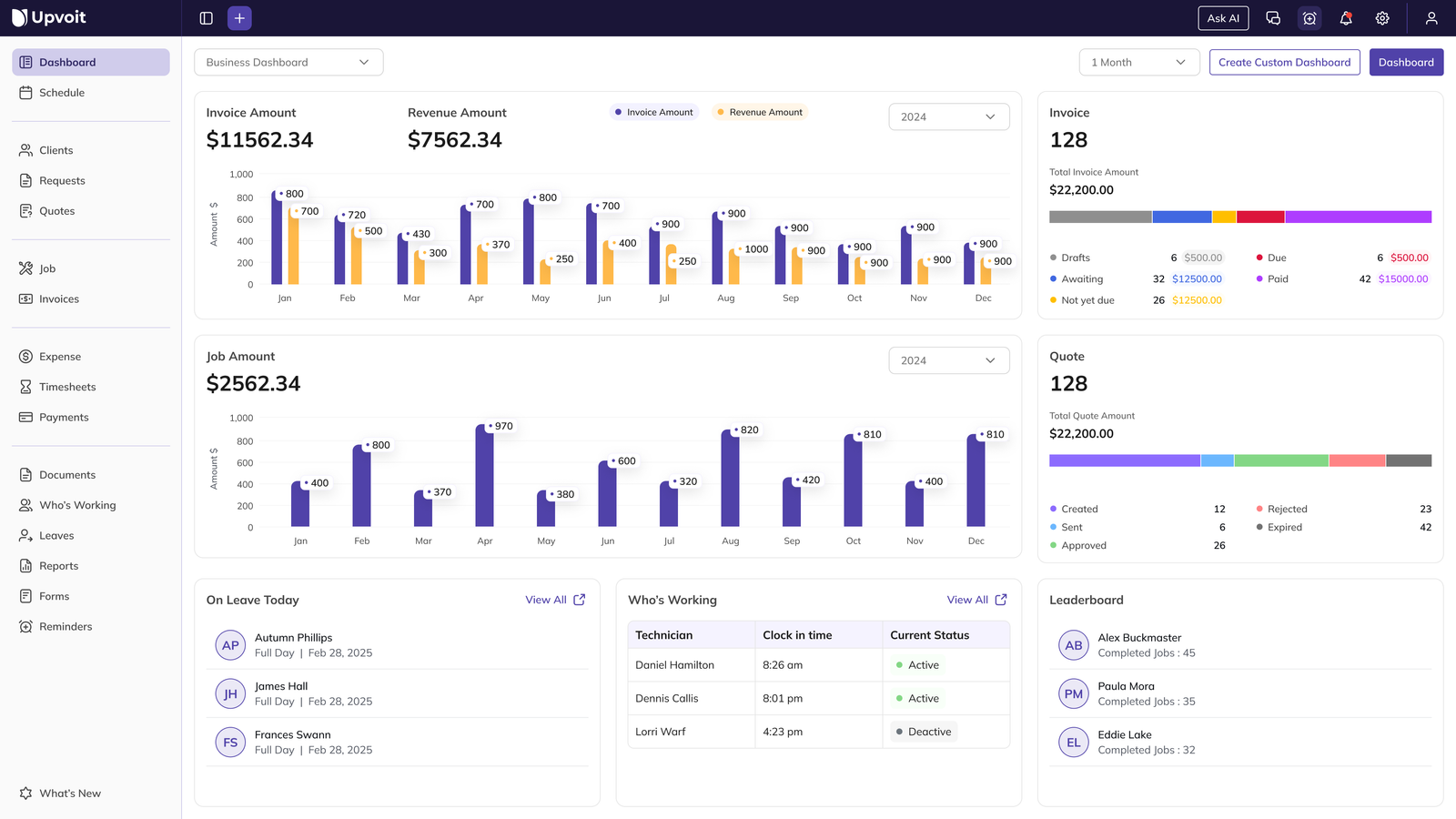
Business Dashboard highlights finance and performance using charts and summary widgets.
Revenue and Invoice Analytics
Invoice Amount and Revenue Amount cards
Monthly comparison chart with year selector
Job Amount chart for operational workload trends
Invoice and Quote Summary
Total counts and amounts for invoices and quotes
Status distribution (Drafts, Awaiting, Due, Paid, Created, Sent, Approved, etc.)
Team Snapshot Widgets
On Leave Today
Who’s Working (clock-in and status)
Leaderboard (completed jobs)
Switch Dashboard Views
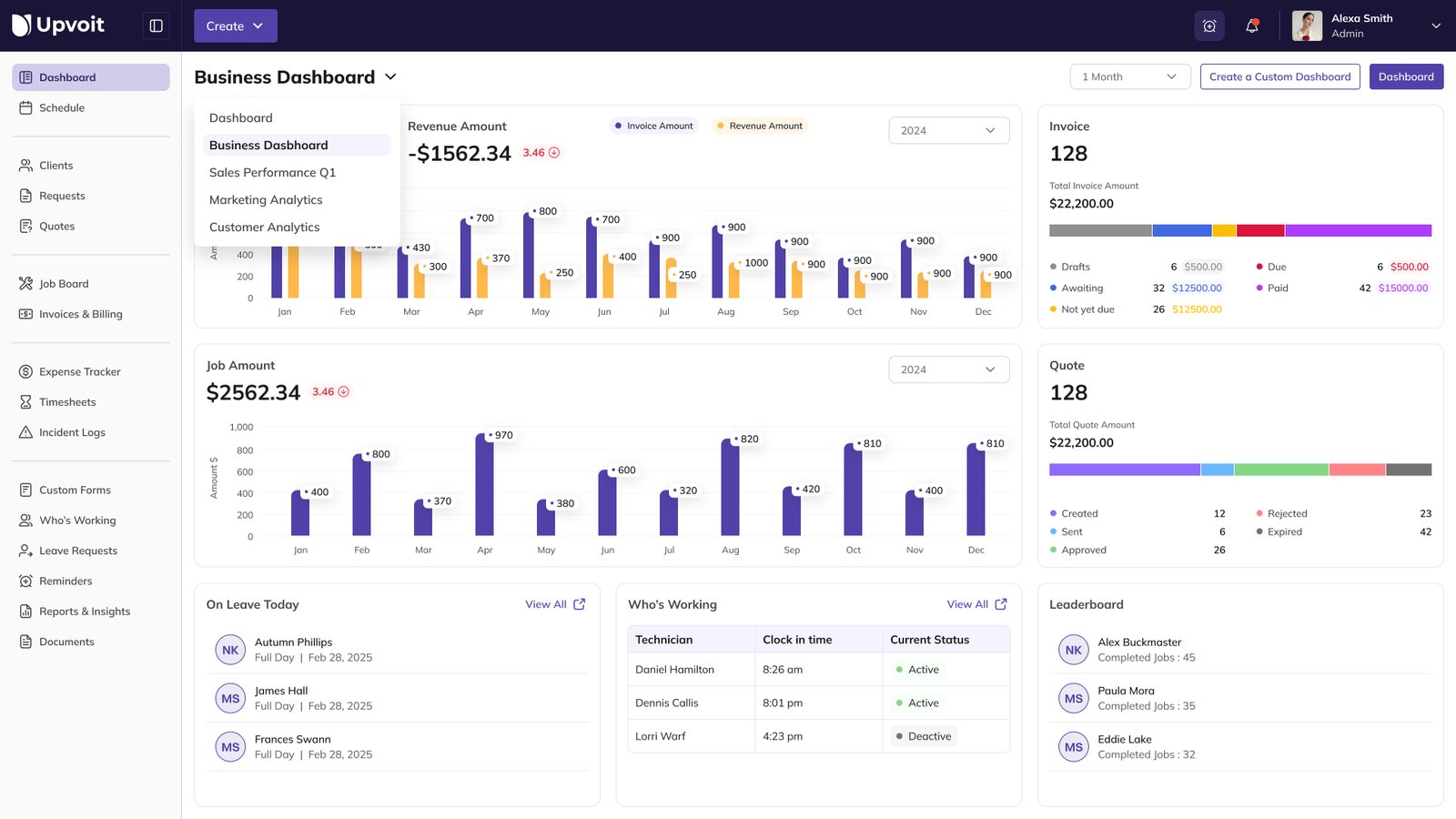
Use the dashboard dropdown near the page title to switch between dashboard templates.
Click the dashboard name (for example, Business Dashboard).
Select the dashboard view you want to open.
The layout and widgets refresh based on your selected dashboard.
Create Custom Dashboard
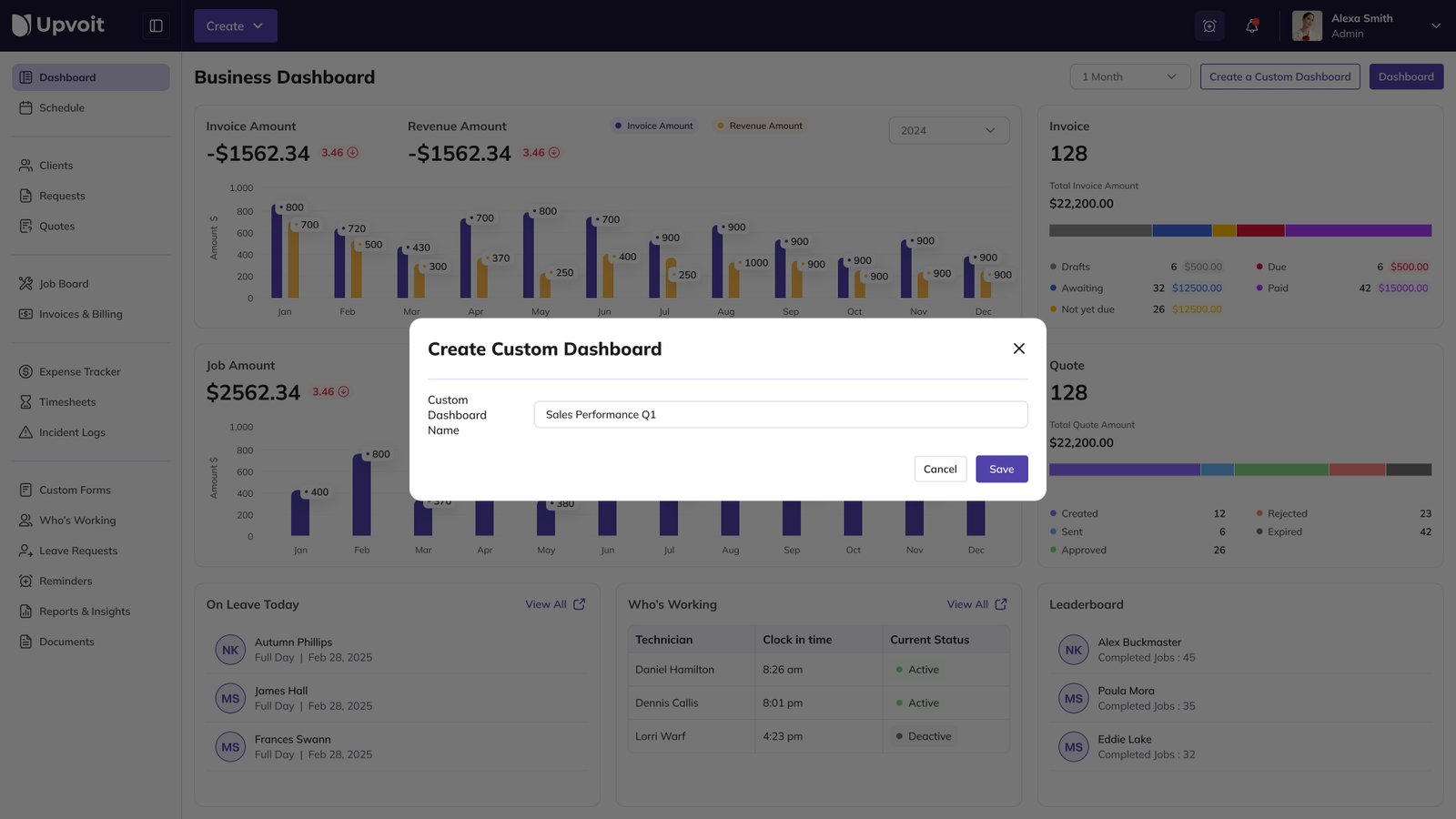
Create a custom dashboard when you need a focused layout for a role, process, or business objective.
Steps
Click Create a Custom Dashboard.
Enter the Custom Dashboard Name.
Click Save.
Custom Dashboard Builder
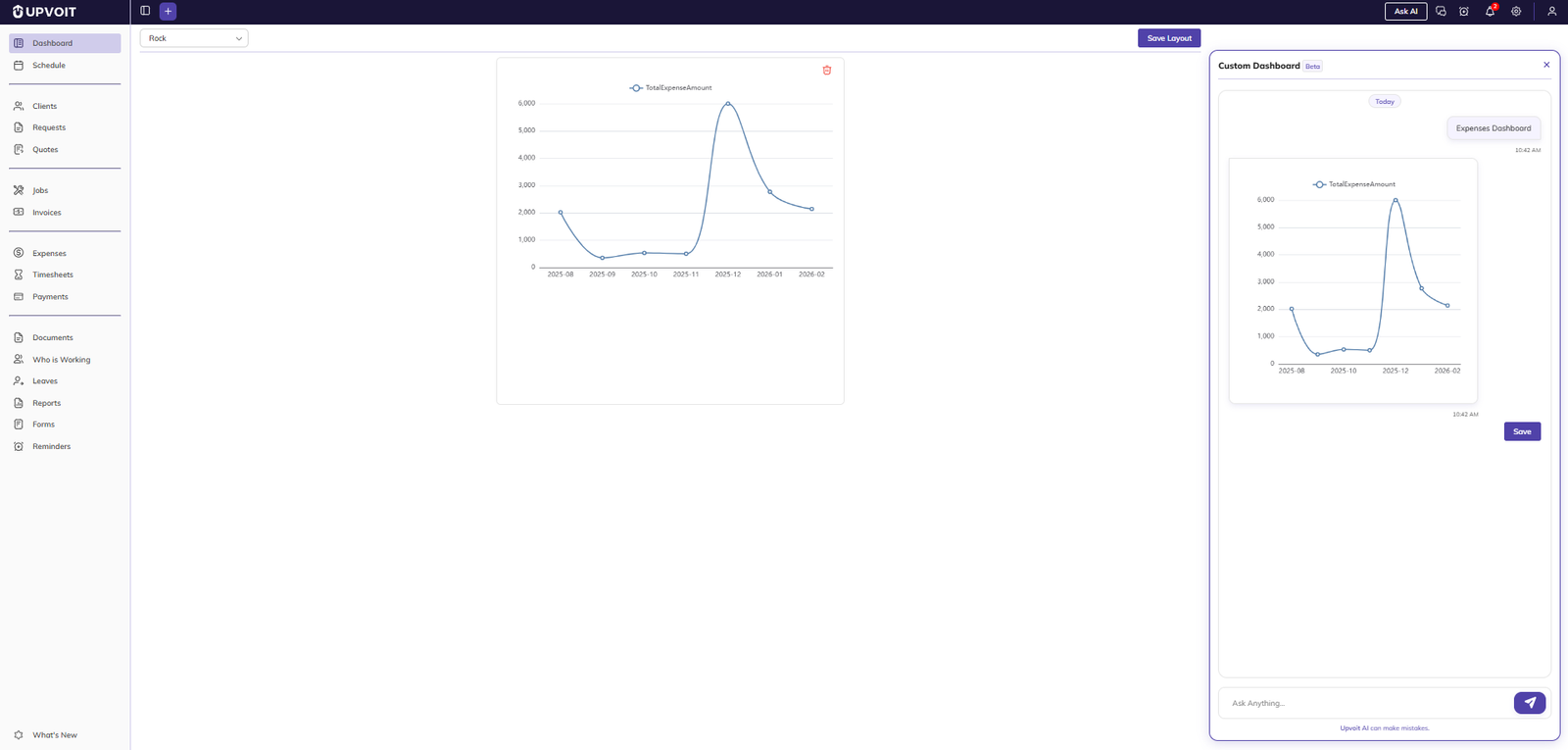
After creating a dashboard, use the builder workspace to design, preview, and save layout changes.
Select your custom dashboard from the top-left dropdown.
Add and arrange widgets on the main canvas.
Use the right-side preview panel to validate the final card appearance.
Use Save Layout to persist your widget arrangement.
Use the Ask AI panel to generate or refine dashboard content and then save.
Best Practices
Use the standard Dashboard for daily operations and queue follow-up.
Use Business Dashboard for financial and trend analysis.
Keep custom dashboards role-specific to reduce visual clutter.
Review status widgets regularly to identify overdue items quickly.
Troubleshooting
Dashboard not visible: Confirm your user role has dashboard access.
Data not updating: Verify the selected time filter and refresh the page.
Custom layout not saved: Use Save Layout before leaving the page.
Missing widget values: Check module permissions and source records (jobs, quotes, invoices).
Did this answer your question?


