
Chat Board
The Chat Board lets you communicate with technicians and other users directly inside Upvoit. Use it to share updates, ask questions, and exchange images such as photos or screenshots in one central place.
Accessing the Chat Board
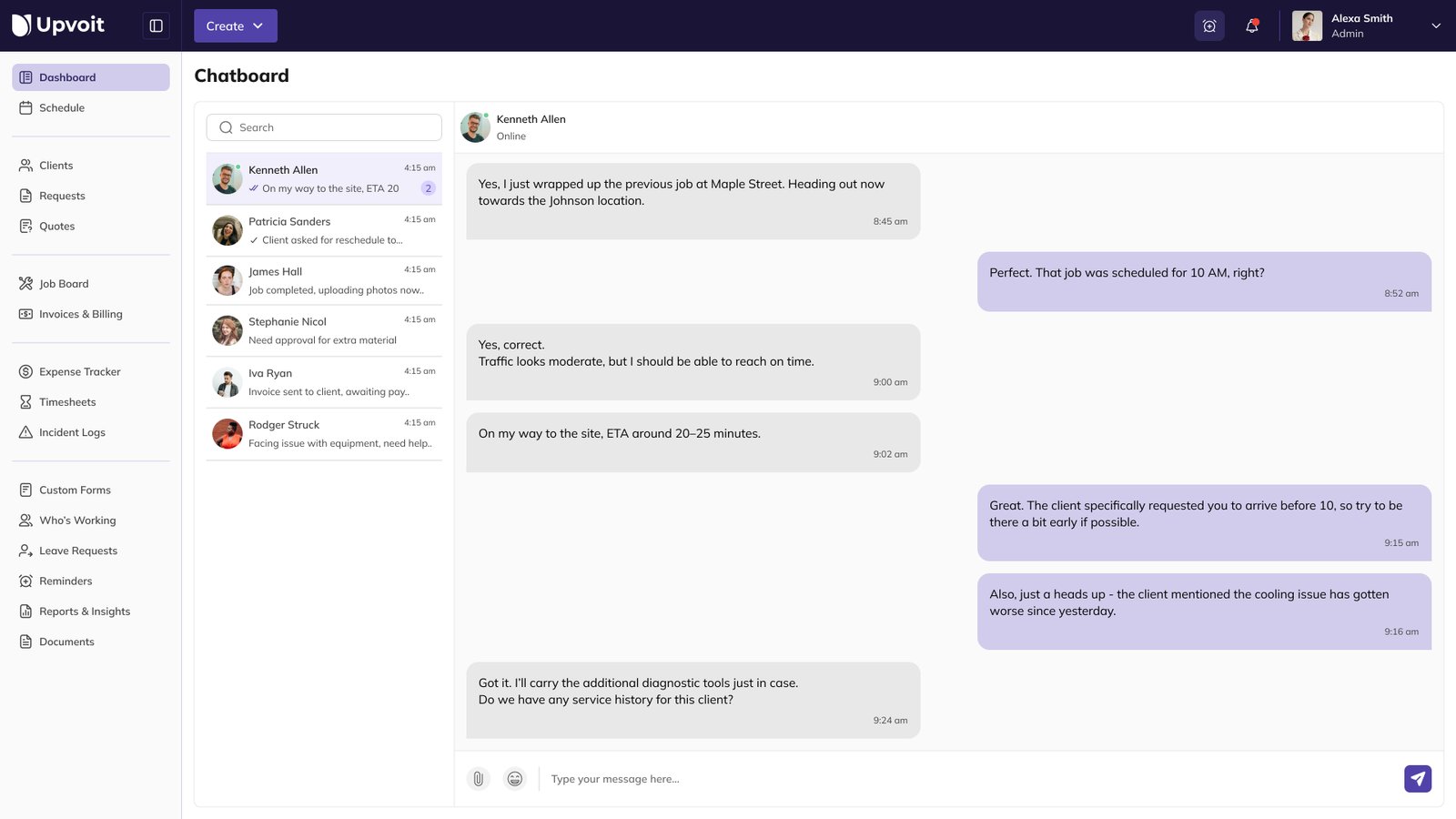
Open the Chat Board from the main navigation menu.
The screen is divided into two main sections: Conversation List on the left and Chat Area on the right.
If no conversation is selected, the Chat Area displays a message prompting you to choose one from the list.
Conversation List
The Conversation List shows all available chats you can open.
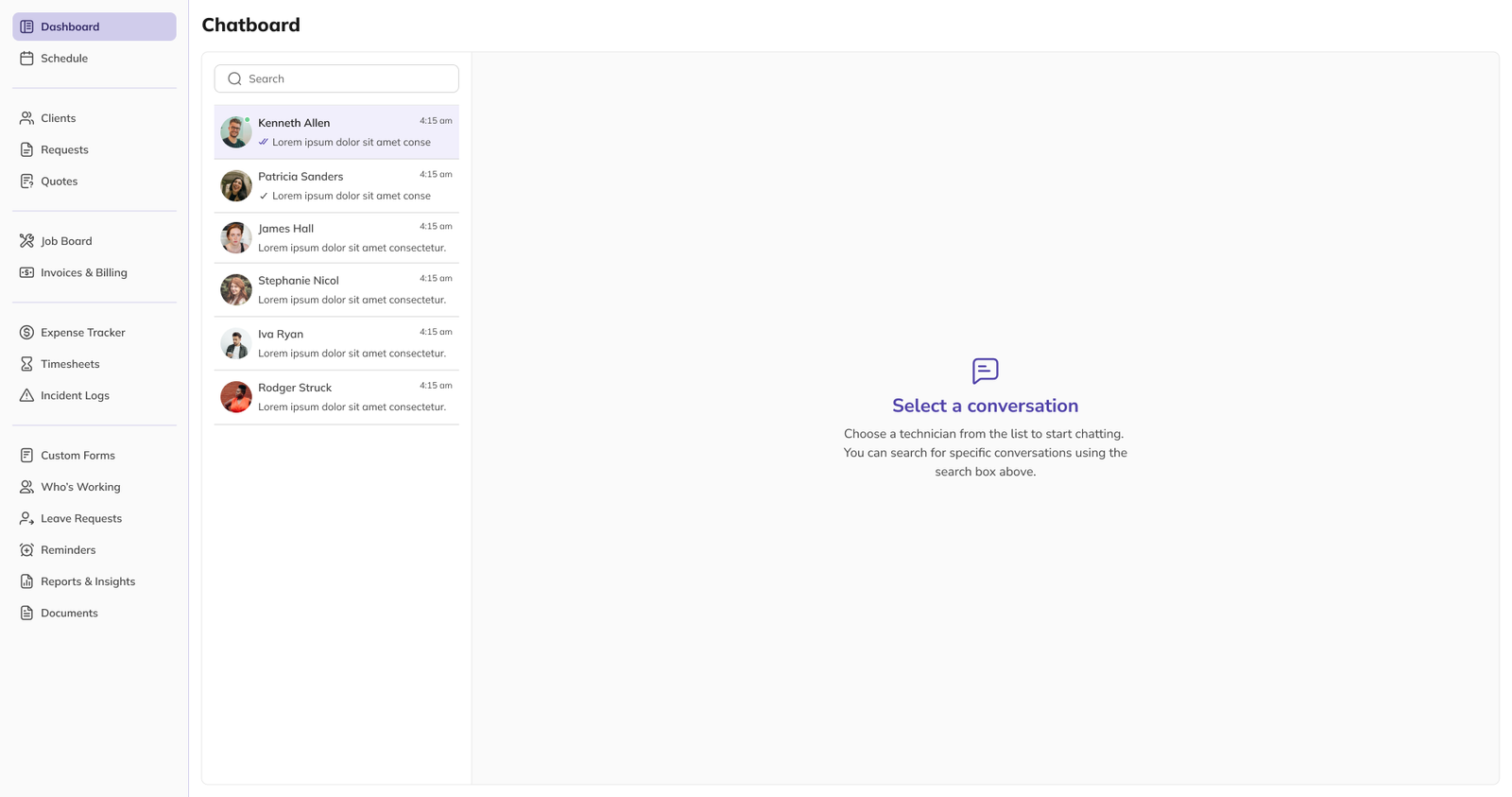
Each conversation row displays:
User name
Profile label or last message preview
Online/Offline status
Time of the last message
Unread message count (if any)
Status indicators:
Green dot – User is online
Gray dot – User is offline
Searching Conversations
Use the Search field at the top of the Conversation List.
As you type, the list updates automatically and shows only matching conversations.
If no matches are found, a message indicates that no conversations match your search.
Chat Area
The Chat Area is where you read and send messages once a conversation is selected.
Message Layout
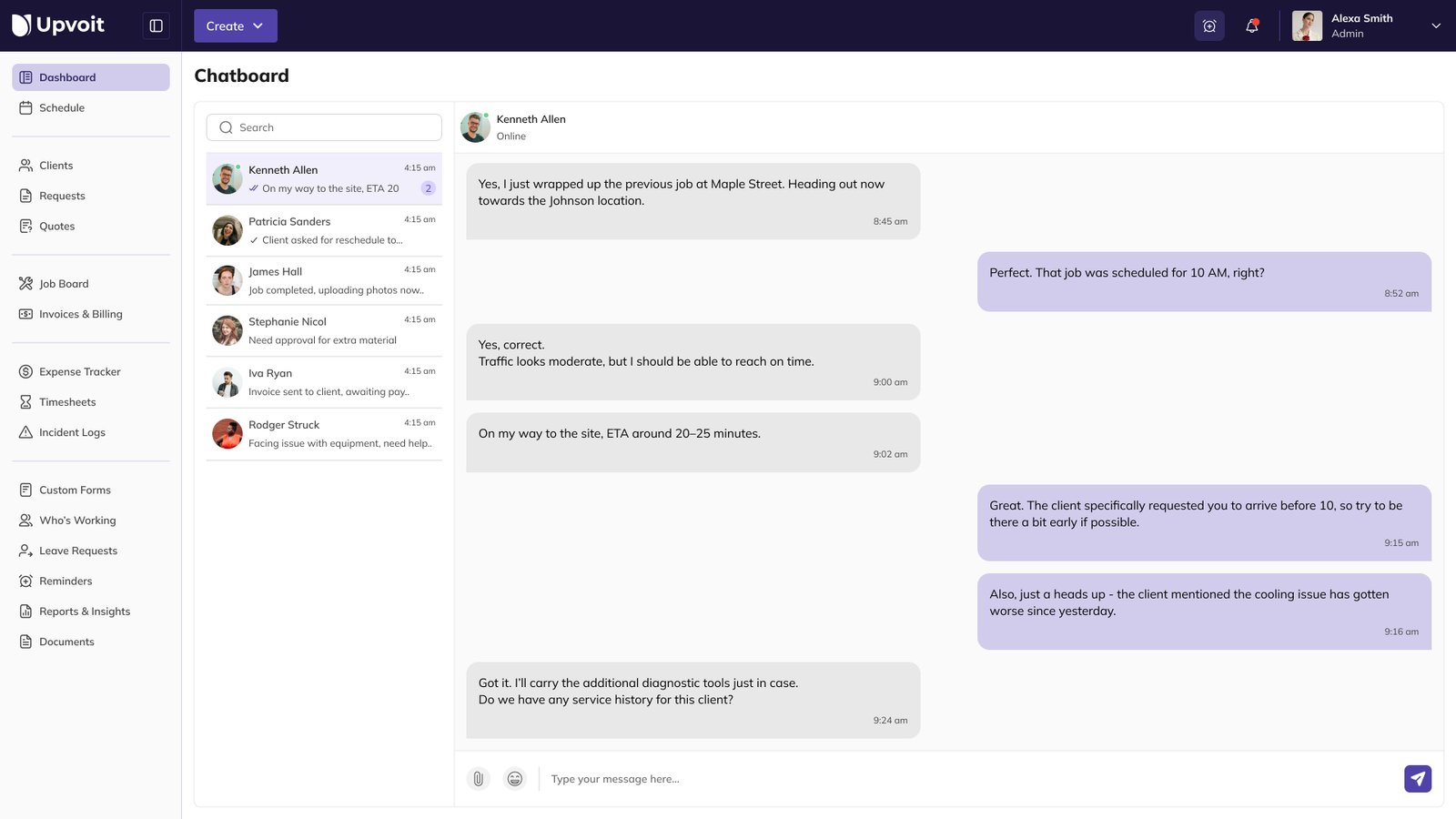
Messages are grouped by date to help you follow the conversation timeline.
Your messages appear on the right.
Received messages appear on the left.
Each message includes a timestamp.
If no messages exist in a conversation, you’ll see a message indicating that the conversation is empty.
Viewing Older Messages
Scroll upwards in the Chat Area to load and view earlier messages.
Older messages load automatically as you continue scrolling.
Sending Messages

To send a message:
Select a conversation from the Conversation List.
Type your message in the input field at the bottom of the Chat Area.
Press Enter or click the Send button (paper-plane icon).
Messages cannot be sent unless:
The message contains text, or
An image attachment has been added.
If you are unable to send a message:
Confirm that a conversation is selected.
Ensure the message contains text or at least one attachment.
Sending Image Attachments
You can share images such as photos or screenshots directly in the chat.
Adding Attachments
Click the attachment icon next to the message input.
Select one or more image files from your device.
Previews of the selected images appear above the message box.
You may send:
Images with text, or
Images without text.
Supported File Types
JPG / JPEG
PNG
GIF
WEBP
Unsupported file types may show an error message and will not be sent.
Using Emojis
You can add emojis to make your messages more expressive.
Click the emoji icon near the input field.
Select an emoji from the picker.
Continue typing or send the message as usual.
Emojis can be used alone or combined with text and images.
Troubleshooting
Cannot send message
Make sure a conversation is selected.
Confirm the message includes text or at least one attachment.
Image fails to upload
Check that the file type is one of the supported image formats (JPG, JPEG, PNG, GIF, WEBP).
Try a smaller file size if the image is large.
No conversations visible
Clear the Search field to remove filters.
Verify that chat users exist and are active in your account.
Online/offline status seems outdated
Online/Offline status depends on the other user’s connection.
Try refreshing the page to update status indicators.
The Chat Board provides a simple and efficient way to stay connected with your team and communicate in real time directly inside Upvoit.
Did this answer your question?


